
If you post on Shorts, Reels or TikTok, you already know the hard part is not filming. It is turning one idea into five or six short clips, captioned, reframed and ready to post, without spending your whole week in an editor. The right social media video tools do most of that work for you. The wrong ones charge you for it and still leave a watermark on your video.
We checked the official pricing page of each tool on 12 November 2026 and compared the 10 tools below by the job they actually do: clipping a long video, captioning a short one, editing a talking-head video, or generating a clip from nothing. Prices change often, so every price in this article carries its check date, and where a price could not be verified on the official page, we say so instead of guessing.
The verdict: the best tool for each job
If you only buy one of these social media video tools, buy OpusClip. It turns a long video into captioned clips, scores each clip for viral potential, and can post them for you. If your budget is tight, Vizard does the same core job for less, and its free plan gives you 60 credits a month.
Talking-head videos belong in Descript, because you edit the video by editing the words. Quick phone edits belong in CapCut, which is still the best free editor in this list. Captions that look good belong in Submagic if you pay, or in the Captions app if you film on your phone. For everything in the browser, Kapwing is the fastest all-rounder and VEED is the strongest for subtitles. Runway is the only tool here that creates new footage from text, and HeyGen is the only one that lets an avatar present for you.
The 10 tools at a glance (prices checked 12 November 2026)
The table below compares all 10 social media video tools on the four things that matter most for a creator: the job each one does best, what you get free, whether free exports carry a watermark, and what it costs.
| Tool | Best job | Free tier | Watermark | Price (checked 12 Nov 2026) |
|---|---|---|---|---|
| OpusClip | Long video to Shorts, Reels, TikTok | $0, 60 credits a month, clips expire after 3 days | Yes, on free exports | Starter $15 a month; Pro $29 a month or $14.50 a month billed yearly |
| Descript | Talking-head editing by transcript | $0, 1 media hour a month, 100 AI credits once, 720p | Yes, on free exports | Hobbyist $24 a month or $16 a month billed yearly |
| CapCut | Quick free edits on phone or desktop | $0, basic tools and free templates | Not listed on the pricing page | Pro $19.99 a month; 7-day free trial |
| Submagic | Animated captions on short video | No free plan listed | No, not on any paid plan | Starter from $12 a member a month, billed yearly |
| Captions | Caption-led vertical video on your phone | Free plan, limited features, no AI credits | Not stated on the pricing page | Max $24.99 a month; Frontier $69.99 a month (iOS prices) |
| Vizard | Budget clipping from long video | $0, 60 credits a month, 720p, files kept 3 days | Yes, on free exports | Creator $29 a month or $14.50 a month billed yearly |
| Kapwing | Browser editing and repurposing | $0, 10 credits, exports up to 4 minutes, 720p | Yes, on free exports | Pro $16 a month; Business $50 a month |
| VEED | Browser editing with subtitles | $0, watermarked exports, 720p | Yes, on free exports | Lite from $12 a month billed yearly (monthly rate not shown on the page in our check) |
| Runway | Generating new clips from text or image | $0, 125 credits once | Not stated on the pricing page | Standard $12 a month billed yearly ($15 month to month) |
| HeyGen | Avatar presenter videos | $0, 3 videos a month, 1 minute each | Yes, on free videos | Creator $29 a month or $24 a month billed yearly |
1. OpusClip: best for turning long videos into Shorts
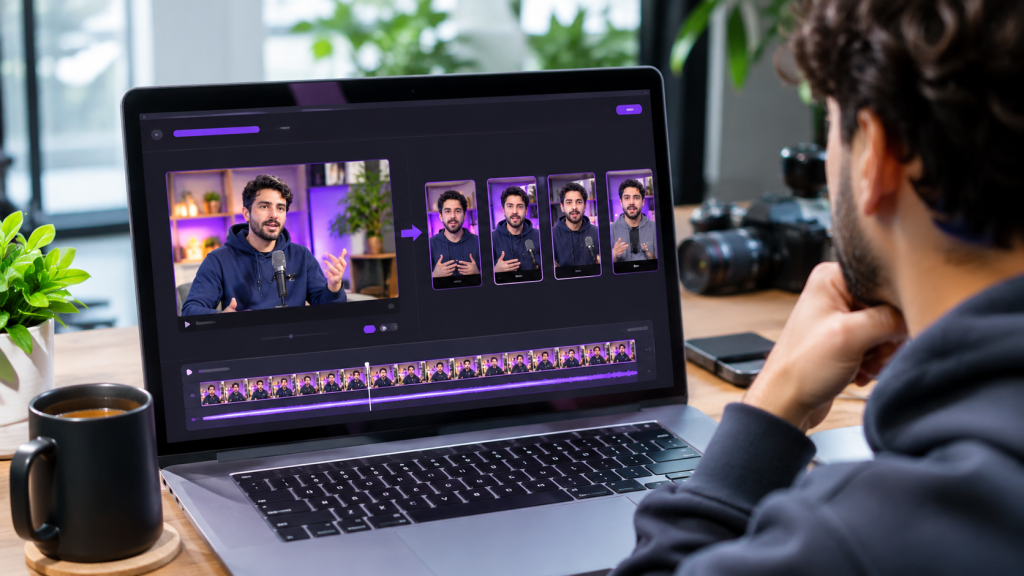
What it does best: OpusClip takes a long video and cuts it into vertical clips with animated captions, then ranks each clip with a virality score so you know which ones to post first. It adds hooks, reframes the speaker to the center of a 9:16 frame, and on the Pro plan it can schedule posts and publish to your social accounts. It is the closest thing in this list to a full Shorts machine. If you already make long videos, our guide on how to create AI Shorts and Reels in minutes shows the workflow it fits into.
The limit: the free plan is a trial in disguise. Your clips carry a watermark, they expire after 3 days, and you get 60 credits a month. Credits are the real budget here: Starter gives 150 a month and Pro gives 300. The virality score is also a guess, not a promise. A clip can score high and still flop, so watch every clip before it goes live.
Who should skip it: anyone who only films short videos on a phone. A clipper cannot help a 40-second video that is already short. Use CapCut instead and spend nothing.
Price: Free $0. Starter $15 a month. Pro $29 a month, or $14.50 a month billed yearly ($174 a year). Business is custom priced.
Official pricing: opus.pro/pricing
2. Descript: best for talking-head editing

What it does best: Descript lets you edit video by editing the transcript. Delete a sentence from the text and it disappears from the video. That one idea saves hours on talking-head videos, tutorials and podcasts. Studio Sound cleans up bad audio in one click, filler-word removal cuts the ums and ahs, and the Underlord AI assistant can find clip-worthy moments with its Create Clips feature. It is also the strongest editor in this list for voiceover work, which we cover in our AI voiceover for videos guide.
The limit: Descript runs on two meters, media hours and AI credits, and they run out separately. Hobbyist gives you 10 media hours and 400 AI credits a month, and you cannot buy top-ups on Hobbyist, so one busy month forces you up to Creator. The free plan exports at 720p with a watermark, which is fine for drafts and useless for a public channel.
Who should skip it: anyone who only needs captions or clipping. Descript is an editor, not a clipper. For captions alone, Submagic is faster and cheaper.
Price: Free $0. Hobbyist $24 a month, or $16 a month billed yearly ($192 a year). Creator $35 a month, or $24 a month billed yearly. Business $65 a month, or $50 a month billed yearly. All prices are per person.
Official pricing: descript.com/pricing
3. CapCut: best free editor for quick social edits

What it does best: CapCut is still the best free editor for social video. It runs on your phone and your desktop, it has auto captions, templates, and enough effects to make a simple video look finished. The Pro plan adds 1,200 AI credits a month, 1 TB of storage, 4K export at 60 frames per second, and all premium templates. New users get a 7-day free trial of Pro with no credit card required.
The limit: the free plan is basic. Premium templates, effects and AI features sit behind Pro, and the pricing page now pushes video generation credits hard, so check what your credits actually buy before you pay. CapCut is a timeline editor, not a clipper, so it will not turn your podcast into Shorts for you.
Who should skip it: creators who need transcript-based editing or long-video clipping. For those jobs, Descript and OpusClip are built for the task.
Price: Free $0. Pro $19.99 a month. Ultra $79 a month. Teams $12.49 a month per seat.
Official pricing: capcut.com/pricing
4. Submagic: best animated captions for short video
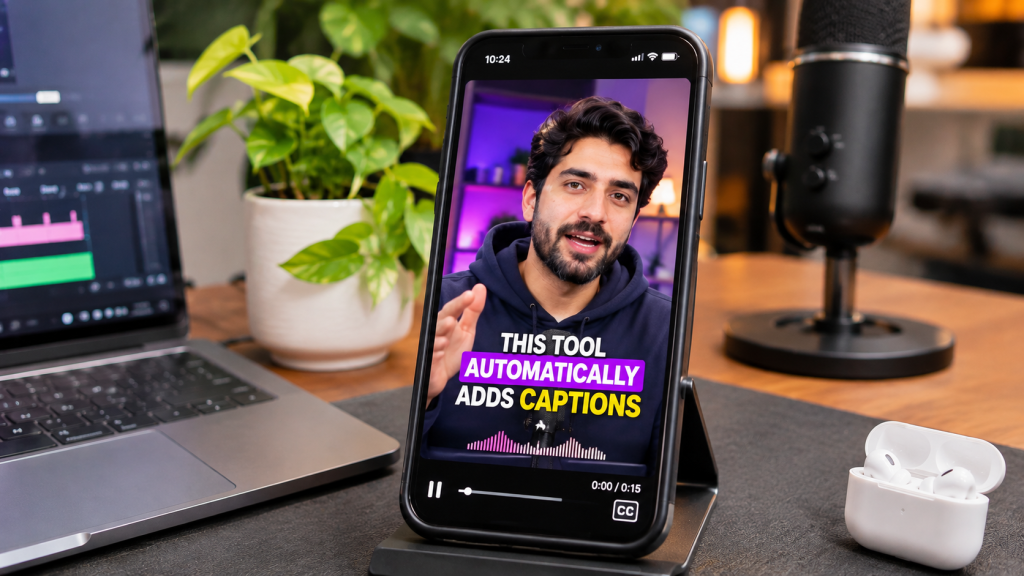
What it does best: Submagic makes captions that look like the ones big creators use: animated words, emoji highlights, keyword colours, B-roll, zooms and sound effects. It captions in 118 languages, removes silences, and can publish straight to your social accounts. If your videos live or die by their captions, this is the tool that does that one job best.
The limit: there is no free plan on the pricing page. The cheapest plan covers 15 videos a month and videos up to 2 minutes long, so a daily poster outgrows Starter fast. It is a caption tool, not a full editor, so you still need somewhere to cut the video itself.
Who should skip it: anyone who posts a few times a week or less, and anyone who needs full timeline editing. CapCut’s free auto captions cover the basics for free.
Price: Starter $12 per member a month billed yearly ($19 month to month). Pro $23 per member a month billed yearly. Business $41 per member a month billed yearly. No watermark on any paid plan.
Official pricing: submagic.co/pricing
5. Captions: best caption-led video on your phone

What it does best: The Captions app is built for filming on your phone. It has a teleprompter, captions in more than 100 languages, AI Edit styles that cut a video for you, an AI Creator that builds a video from a prompt, and AI Twin digital twins that present a script as you. Its Clips feature turns a long video into a batch of post-ready vertical clips, and a chat-based editor lets you change a video by typing what you want.
The limit: the free plan has no AI credits and one caption template, so the interesting features need the Max plan. The prices on the page reflect iOS plans only, so Android and web pricing may differ. It is a phone app first, not a desktop editor, so long editing sessions belong elsewhere.
Who should skip it: anyone who edits on a desktop or needs a full timeline. Use Descript or Kapwing instead.
Price: Free plan with limited features. Max $24.99 a month, with 500 credits a month. Frontier $69.99 a month, with 1,400 credits a month. Unused credits roll over, up to three times your monthly allowance.
Official pricing: captions.ai/pricing
6. Vizard: best budget clipper
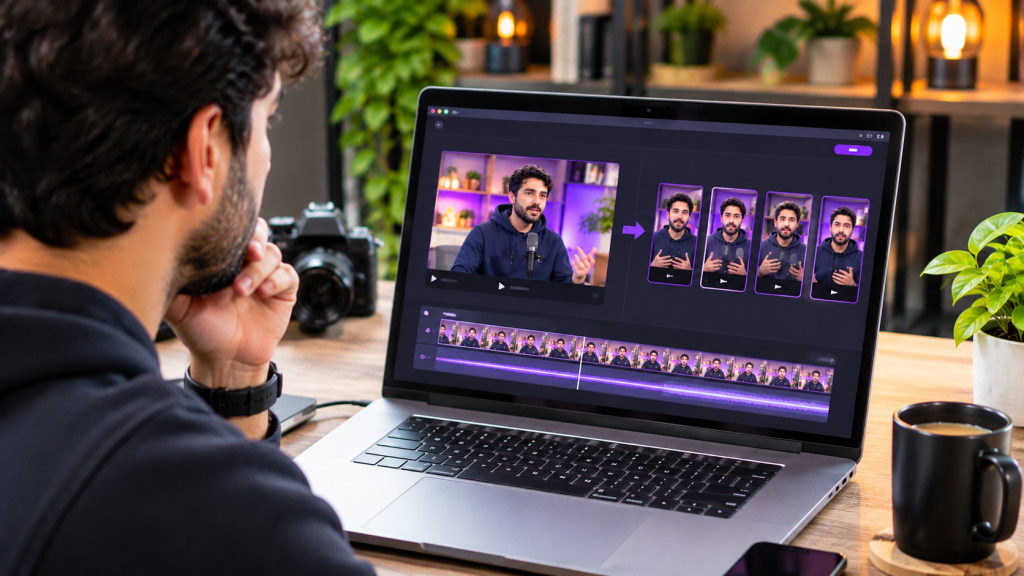
What it does best: Vizard does the core clipping job for less money than OpusClip. One credit is one minute of uploaded video, the free plan gives you 60 credits a month, and paid plans start at 600 credits a month with 4K export, no watermark, and direct publishing and scheduling to 6 social accounts on Creator. If you want clips and nothing else, this is the cheapest honest way to get them. See also our free vs paid AI tools comparison before you choose a paid plan.
The limit: free exports are 720p, watermarked, and your files are deleted after 3 days, so the free plan is for testing, not publishing. Vizard’s pricing page renders its prices in the browser and showed $0 for paid plans in our check, so the dollar figures above come from the page as recorded in several reads in October 2026, all of which agreed. Confirm them on the page before you pay.
Who should skip it: anyone who wants a virality score or an AI co-editor. Vizard clips well, but OpusClip judges clips better.
Price: Free $0. Creator $29 a month, or $14.50 a month billed yearly ($174 a year). Business $39 a month, or $19.50 a month billed yearly ($234 a year). Extra team seats cost extra.
Official pricing: vizard.ai/pricing
7. Kapwing: best browser editor for repurposing
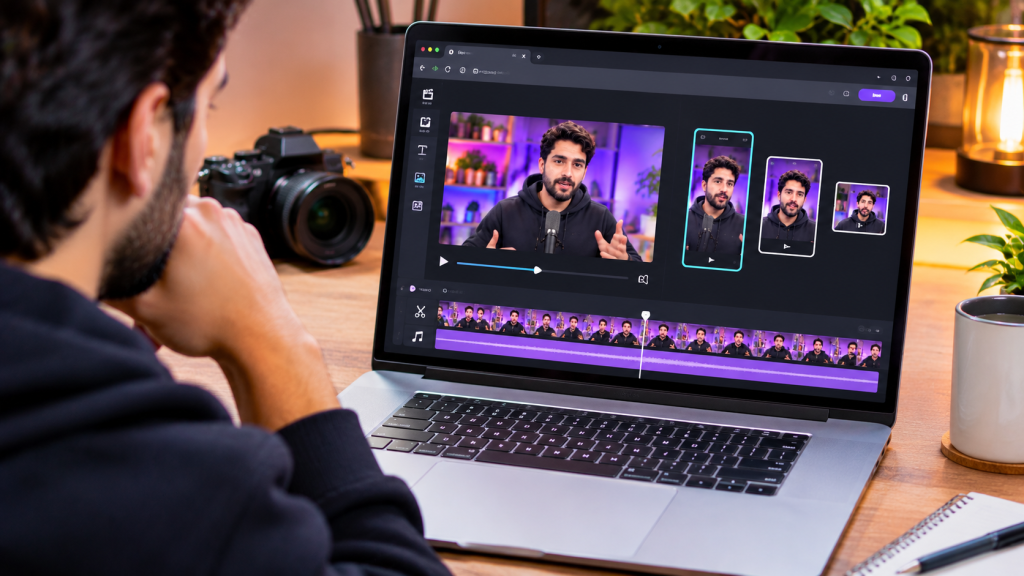
What it does best: Kapwing runs entirely in the browser, so there is nothing to download. Record your screen and camera, edit on a timeline, add auto subtitles, resize a video for any platform, dub it, clean the audio, and remove silences, all in one tab. On Pro, auto-subtitling covers up to 1,000 minutes a month, which is enough for a daily poster. It is the fastest way to turn one video into versions for every platform.
The limit: the free plan is strict. Exports carry the Kapwing watermark, videos are capped at 4 minutes, quality is 720p, exports are limited to 30 minutes a month, and files are stored for only 3 days. There is no free trial for paid plans, so the free plan is your only way to test it.
Who should skip it: anyone who needs offline editing or heavy effects. Kapwing is a browser tool and it shows on long, complex projects.
Price: Free $0, with 10 credits. Pro $16 a month, with 1,000 credits a month. Business $50 a month, with 4,000 credits a month. Enterprise is custom priced.
Official pricing: kapwing.com/pricing
8. VEED: best browser editor for subtitles
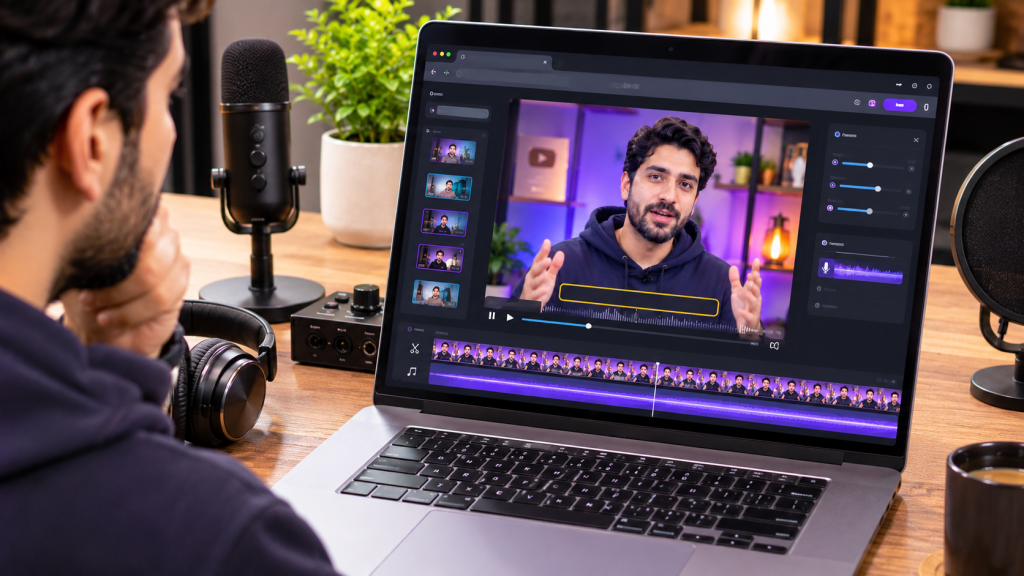
What it does best: VEED is a browser editor with the strongest subtitle workflow in this list. Paid plans include unlimited subtitle generation, with a fair-use limit of 50 hours a month, plus translations in many languages, Clean Audio, Eye Contact AI, avatars, and a stock library. If your audience watches with the sound off, which most of them do, VEED’s subtitles are the reason to pick it.
The limit: VEED’s pricing page did not display its plan table at all in our 12 November 2026 check, and recent reads of that page disagree on the monthly-billed figures. The annual-billed figures below are the ones that agree across sources. Paid plans are also charged per seat, and AI credits do not carry over to the next cycle.
Who should skip it: anyone who needs a free plan they can actually publish from. Free exports carry a VEED watermark and are 720p, so the free plan is for testing only.
Price: Free $0. Lite from $12 a month billed yearly (the monthly-billed figure is reported as $19 or $24 in recent reads of the page, and we could not confirm it). Pro from $24 a month billed yearly (monthly reported as $49). Enterprise is custom priced. Confirm the current prices at veed.io/pricing before you pay.
Official pricing: veed.io/pricing
9. Runway: best for generating new footage

What it does best: Runway is the only tool in this list that creates new footage from text or an image. Its Gen-4.5 model makes short clips, images, voice and sound effects, and paid plans add 4K upscaling and no watermarks. If your video needs a shot you cannot film, a product scene, a background, a quick visual idea, Runway makes it in minutes. Our best AI video generator tools guide compares it with the other generators.
The limit: credits burn fast. Gen-4.5 uses 12 credits a second, so the Standard plan’s 625 credits buy about 52 seconds of Gen-4.5 video a month. The free plan’s 125 credits are a one-time trial, not a monthly allowance. Runway is a generation tool, not an editor or a clipper, so it will not cut your podcast into Shorts.
Who should skip it: anyone who only needs to edit or clip real footage. Generation is a different job, and this tool charges by the second for it.
Price: Free $0, with 125 credits once. Standard $12 a month billed yearly ($15 month to month), with 625 credits a month. Pro $28 a month billed yearly ($35 month to month), with 2,250 credits a month. Max $76 a month billed yearly ($95 month to month), with 9,500 credits a month and one month of rollover.
Official pricing: runway.com/pricing
10. HeyGen: best avatar presenter videos
What it does best: HeyGen lets an avatar present your script, so you can post a talking video without filming yourself. It offers more than 500 stock avatars on the free plan and more than 700 on paid plans, plus custom avatars, voice cloning, photo avatars, and translation in 175 languages on paid plans. For explainers, product updates and faceless channels, it is the fastest way to publish a presenter video. See our best AI avatar video tools guide for the full comparison.
The limit: the free plan allows 3 videos a month, each up to 1 minute long, with a watermark. Avatar videos still look like avatar videos, so they work for explainers and updates, not for personal vlogs. Credits are one currency across all features, so a long video costs more than you expect.
Who should skip it: anyone whose audience follows them for their face and voice. An avatar cannot replace you on camera.
Price: Free $0, with 3 videos a month. Creator $29 a month, or $24 a month billed yearly. Pro from $49 a month. Business $149 a month plus $20 per seat a month. Unused credits roll over for one more month on monthly billing, and accumulate until renewal on yearly billing.
Official pricing: heygen.com/pricing
Your one-week workflow with these social media video tools
One long video a week, turned into 5 to 7 clips, beats ten random uploads. Here is the week, step by step.
Monday: record one long video. Pick one topic and one promise, and record 15 to 30 minutes. Edit the talking-head parts in Descript: cut the filler words, fix the audio with Studio Sound, and export the clean long video.
Tuesday: clip it. Upload the long video to OpusClip, or to Vizard if you are on a budget. Let the tool find the moments, then pick 5 to 7 clips that each make one clear point. Delete any clip with a factual mistake or a misspelled caption.
Wednesday: caption and polish. Open the picks in Submagic or the Captions app. Fix every caption by hand, put a hook in the first two seconds, and check the framing on a phone screen, not on your desktop.
Thursday: post clips 1 and 2. One goes to Shorts, one goes to TikTok. Write a different caption for each platform, and reply to every comment in the first hour.
Friday: post clips 3 and 4. One goes to Reels, one goes to Shorts. Reuse the hook that performed best on Thursday.
Saturday: post clip 5, plus one extra. The extra can be a behind-the-scenes clip or a short avatar update from HeyGen. Check which clip kept viewers past the first 3 seconds.
Sunday: plan next week. Look at the numbers and plan the next long video around the clip that performed best. Keep a simple tracker for each clip: platform, views after 24 hours, and watch time. After four weeks you will know which topics and which hooks work for your audience.
7 mistakes that waste time or money
Most of these mistakes come from picking social media video tools for the wrong job, or from trusting the free plan further than it goes.
1. Posting a clip you never watched through. AI clipping picks the loudest moment, not the truest one. Watch each clip once, captions included, before it goes live.
2. Paying for two tools that do the same job. OpusClip and Vizard both clip long videos. Pick one, and spend the other subscription on captions or editing.
3. Publishing watermarked free exports. A watermark tells viewers you did not pay for the tool. If the video matters, remove the watermark or use a tool whose free plan has none.
4. Ignoring the export caps. Kapwing free stops at 4-minute videos and 30 export minutes a month. Vizard deletes free files after 3 days. OpusClip free clips expire after 3 days. Plan your week around the caps, and check our AI video quality tips before you export.
5. Buying a yearly plan before the trial ends. CapCut gives you 7 days of Pro free, with no credit card required. Use all 7 days before you commit to a year.
6. Burning credits on the wrong meter. Descript charges media hours and AI credits separately. Runway charges 12 credits a second for Gen-4.5. Check the meter before you generate, not after.
7. Posting the same file everywhere. A 9:16 clip with captions works on Shorts, Reels and TikTok, but the hook, the caption text and the hashtags should fit each platform. Same video, different packaging.
Frequently asked questions
What is the best AI video tool for social media?
There is no single best tool, because the job decides. OpusClip is the best all-round clipper for long videos. Descript is the best editor for talking-head video. CapCut is the best free editor. If you buy one tool and you post long videos, buy OpusClip. If you film short videos on your phone, start with CapCut and add Submagic when captions become your bottleneck.
Which social media video tools are free?
CapCut, Kapwing, Descript, OpusClip, Vizard, Runway and HeyGen all have free plans. The useful ones are CapCut for editing, Vizard for clipping with 60 credits a month, and Descript for one hour of media a month. Free plans carry watermarks on OpusClip, Descript, Kapwing, Vizard, VEED and HeyGen, so check the watermark column in the table above before you publish.
Does CapCut leave a watermark on free videos?
CapCut’s pricing page does not list a watermark on free exports, and basic free exports do not carry one. Premium templates and some AI features may add branding, so check the export before you post. If a clean export matters, Pro costs $19.99 a month and includes a 7-day free trial.
OpusClip vs Vizard: which is better for clipping?
OpusClip is the stronger clipper. It scores clips for viral potential, writes hooks and titles, and schedules posts. Vizard is the cheaper clipper, with the simplest clipping workflow and direct publishing to 6 accounts. On yearly billing both cost $14.50 a month at their comparable tiers, so the choice comes down to features, not price. Pick OpusClip for the virality score and scheduler, and Vizard if you want the simplest workflow.
Can I use Descript to make YouTube Shorts?
Yes. Edit the long video in Descript, cut the filler words, add dynamic captions, then export a vertical 9:16 clip. Descript’s Create Clips feature can find the moments for you, or you can send the finished video to OpusClip for clipping. Descript’s free plan exports at 720p with a watermark, so Hobbyist at $16 a month billed yearly is the first plan that exports clean 1080p.
How much does it cost to start making AI videos for Instagram and TikTok?
Nothing, to start. CapCut is free, Vizard’s free plan clips 60 minutes of video a month, and your phone films the video. When you are ready to pay, the cheapest useful stack is Vizard Creator at $14.50 a month on yearly billing for clipping, plus CapCut free for edits. That covers a full week of Shorts, Reels and TikTok posts. Our free vs paid AI tools guide compares the free and paid routes in detail.
How we checked the prices
Every price in this article was read from the tool’s official pricing page on 12 November 2026. Three pages needed extra care. Descript’s page shows its prices on a monthly and yearly toggle, so the dollar figures above match the page as recorded in checks from late October 2026, while the feature limits (media hours, credits, watermark, resolution) were read directly from the page on 12 November 2026.
Vizard’s page renders its prices in the browser and showed $0 for paid plans in our check, so its dollar figures come from several reads of vizard.ai/pricing in October 2026, all of which agreed. VEED’s page did not display its plan table at all in our check, and recent reads of that page disagree on the monthly-billed figures, so we quote only the annual-billed figures that agree across sources and flag the rest. Prices change, so check the official page before you pay.
Start with one tool and one workflow. Film one long video a week, clip it into 5 to 7 Shorts, caption them properly, and post them where your audience already is. The social media video tools above will save you hours, but no tool posts for you. Pick the one that fits your job, learn it properly, and let the views tell you what to make next.