A carpenter sells a result the customer can touch. A kitchen fitted so the doors close with a soft click, a staircase that feels solid underfoot, a wardrobe built into an awkward alcove that looks like it was always part of the house, a worktop joint so tight you cannot see the seam. No flyer and no paragraph of text proves that result the way a short video does. A customer who watches a scratched, tired kitchen become a clean fitted kitchen in 30 seconds already believes the work before they ask the price. That is the job these tools do. They turn the carpentry work you already do every day into short videos that bring in the next booking.
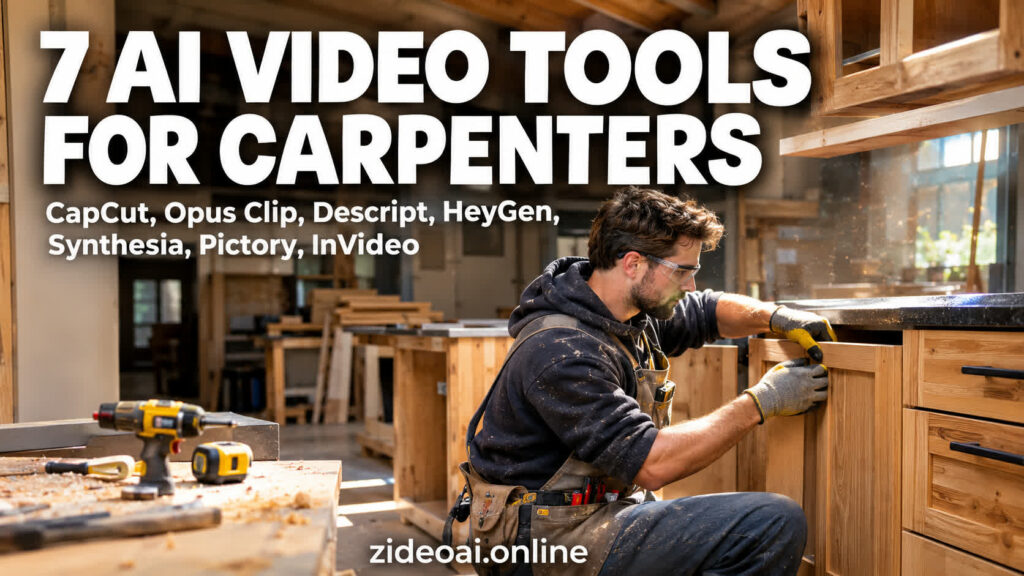
The best AI video tools for carpenters in 2026 are CapCut, Opus Clip, Descript, HeyGen, Synthesia, Pictory and InVideo. Each one solves a different part of the job. CapCut is the best all-round editor for filming real carpentry work on your phone. Opus Clip is the best at cutting one long kitchen fitting into short clips for Reels, Shorts and TikTok. Descript is the best for turning your spoken explanations about timber, joints and finishes into clean, captioned videos. HeyGen and Synthesia are the best when you do not want to be on camera and need an avatar to present instead. Pictory is the best for turning a written timber care tip into a finished video without filming anything. InVideo is the best for fast promotional videos that sell your fitted kitchen and wardrobe packages.
All prices in this guide were checked on the official pricing page of each tool on 25 November 2026. Where a Black Friday offer is live, the sale price is shown first and the list price is shown beside it, so you can see what the price becomes when the offer ends.
What a carpenter actually needs from video
A carpenter is not a content studio. You have a kitchen to fit, a staircase to build, and a phone in your pocket. The tools that work are the ones that fit that reality. Before choosing, it helps to name the four videos a carpenter makes again and again.
First, before and after transformations. A 30 second clip that shows a tired kitchen with peeling doors, then the same kitchen with new shaker doors, a solid oak worktop and soft close hinges, or a bare alcove before and the fitted wardrobe after. These are the videos that stop thumbs, because the change is visible in one glance and no explanation is needed. Film them on your phone between stages of the job, and they take almost no extra time.
Second, process demos. A 60 second video that shows a worktop being scribed to a wonky wall, a dovetail joint being cut by hand, a staircase stringer being fitted, or a spray finish going on a set of doors. These videos build trust, because a customer who is about to hand over their home wants to see the care and the method they are paying for. They also answer the questions customers ask most, such as how long a kitchen fitting takes, what the difference is between MDF and solid timber, and whether a fitted wardrobe is worth the price. The routine for turning one recording into a week of posts is covered in our guide on how to create AI shorts and reels in minutes.
Third, timber and joinery explainers. A short video that explains the difference between oak and walnut, why a dovetail joint holds better than a butt joint, how to look after a solid timber worktop, or what to check before you order a fitted wardrobe. These videos have a clear job, which is to turn a simple repair booking into a proper fitted job, and they save phone calls, because the customer arrives at the quote already knowing the options.
Fourth, local promos and package offers. A short video for your free kitchen design visits, your fitted wardrobe service in a named area, a winter offer on staircases, a gift card for a homeowner, or a discount on a second room fitted on the same visit. These videos have a clear job, which is to fill a specific week or a specific day, and they need to be made fast, because the customer who is comparing carpenters will book the first one they trust.
The right tool depends on which of those four you make most. A solo carpenter who films on a phone needs a different tool from a joinery workshop with three fitters that wants an avatar to record the weekly availability update in two languages. The comparison below is built around those real jobs, not around feature lists.
The 7 AI video tools for carpenters at a glance
| Tool | Best for | Free plan | Paid plan from | What you get for the money |
|---|---|---|---|---|
| CapCut | Editing real carpentry work on your phone | Yes | $19.99 a month, or $179.99 a year | Full editor, auto captions, 1,200 AI credits a month, 4K export, 1 TB storage |
| Opus Clip | Cutting one long kitchen fitting into many short clips | Yes | $15 a month | AI clipping, virality score, auto captions, watermark-free export |
| Descript | Editing video by editing the transcript | Yes | $24 a month, or $16 a month billed annually | Text-based editing, Studio Sound, filler removal, 4K export on Creator |
| HeyGen | An avatar that presents when you cannot be on camera | Yes, 3 videos a month | $29 a month, or $24 a month billed annually | Digital twin presenter, 140 plus languages, voice cloning |
| Synthesia | Avatar-led training for new carpenters at scale | Yes | $19 a month, or $14 a month billed annually | 125 plus avatars, surveys, interactive video, 140 plus languages |
| Pictory | Turning a written timber tip into a video without filming | 14-day free trial | $14.50 a month on the Black Friday offer, list price $29 a month | Script to video, stock footage, AI voices, brand kits |
| InVideo | Fast promotional videos for your kitchen packages | Yes | $20 a month, or $10 a seat a month billed annually | Prompt to video, timeline editor, stock media, 400 credits a month on Starter |
1. CapCut: best all-round editor for a carpenter
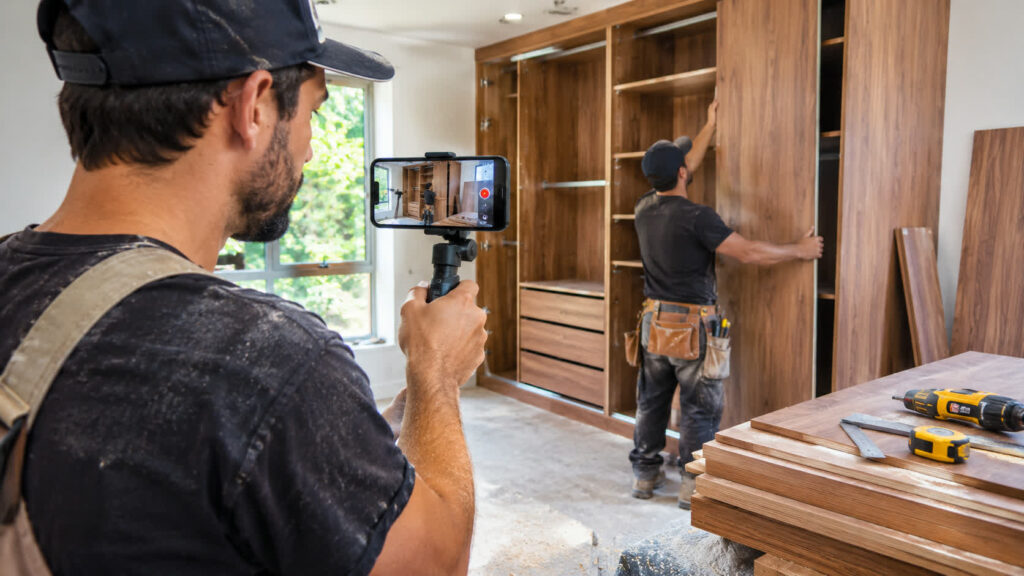
CapCut is the tool most carpenters should start with, because it does the ordinary work brilliantly. You film a worktop being scribed to a wall, or a dovetail joint being cut on the bench, drop the clip into CapCut, and within ten minutes you have a captioned, trimmed, vertical video ready for Reels, Shorts and TikTok. It is the editor behind most of the trade videos you already see on social media, and there is a reason for that. It is fast, it works on the phone you already carry, and the free plan is genuinely usable.
The free plan includes the core editor, basic effects, auto captions and 1080p export, which is enough for most carpentry videos. The paid plan, CapCut Pro, costs $19.99 a month or $179.99 a year, and adds 4K export, the full AI toolkit, premium templates, 1,200 AI credits a month and 1 TB of cloud storage. There is also an Ultra plan at $79 a month for heavy AI generation, but a carpenter will not need it. A 7-day free trial of Pro is available, with no card required to start it.
What CapCut does best for a carpenter is speed. The auto caption feature puts accurate subtitles on a kitchen fitting video in seconds, and captions matter, because most customers watch with the sound off on the bus or at work. The auto cut and silence removal tools take a rambling five minute explanation and tighten it into a 60 second video without you scrubbing through a timeline by hand. The templates are built for vertical video, so a clip made for TikTok also fits Instagram Reels and YouTube Shorts with one tap.
Where CapCut is weaker is long-form teaching. If you want to record a ten minute training video for a new carpenter with chapters, slides and a presenter, CapCut is not the tool. It is an editor for short clips, not a course builder. It also has no avatar presenter, so if you do not want to appear on camera, you will need HeyGen or Synthesia as well.
A carpenter scenario: you are fitting a kitchen and you film 40 seconds of a worktop being scribed to a wall that is nowhere near straight, then the same worktop sitting tight against the wall with no gap at all. In CapCut you trim the clip to the 30 seconds that matter, add auto captions, add a text overlay that says “No gap. Scribed by hand”, and post it before the customer comes home. The customers who see it remember you when their own kitchen looks tired, and the ones who were comparing carpenters now have a reason to choose you.
CapCut is the best choice if you film real carpentry work and want the fastest route from phone to posted video. It is also the cheapest serious option, because the free plan covers the basics and the paid plan is the best value of the seven tools here for a small carpentry business.
2. Opus Clip: best for turning one long kitchen fitting into many clips
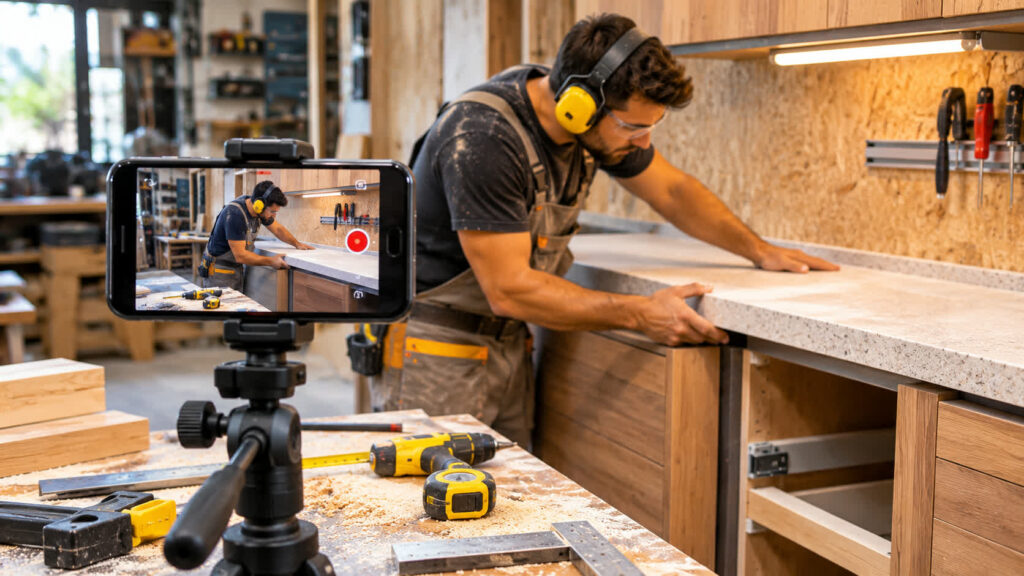
Opus Clip solves a different problem. A carpenter records a 40 minute kitchen fitting, a full staircase build, or a long explanation of timber options, and then has nothing to post, because nobody watches a 40 minute video on TikTok. Opus Clip watches the long recording, finds the moments worth sharing, and cuts them into short vertical clips with captions, a hook, and a virality score for each one. One fitting becomes eight or ten posts.
The free plan lets you try the clipping with limited exports. The Starter plan costs $15 a month and is the plan most small carpenters need. It includes AI clipping, auto captions, the virality score, watermark-free export and posting to social media. The Pro plan costs $29 a month, or $14.50 a month billed annually, and adds faster processing, more clip length options, 100 GB of storage, bulk export and team seats. The Business plan is custom priced for joinery companies with several branches.
What Opus Clip does best is finding the clip inside the recording. Its AI looks for clear explanations, strong moments and natural breaks, and it scores each clip for how likely it is to hold attention. For a carpenter, that means a long recording of a full kitchen fitting can become a clip about scribing the worktop, a clip about hanging the doors, a clip about fitting the soft close hinges, and a clip about the finished kitchen with the lights on. Each clip gets captions and a hook automatically, so you are editing by approving and trimming, not by building from scratch.
The limit is that Opus Clip works from footage you already have. It does not generate video, it does not give you an avatar, and it will not help if you have nothing recorded. It is also a clip tool, not a full editor. If a clip needs a careful re-cut or a custom graphic, you will finish it in CapCut or Descript.
A carpenter scenario: you set a phone on a tripod and record a full morning of fitting a kitchen, from the first carcass to the last door. Opus Clip finds the six moments that matter, such as the worktop being scribed, the doors being hung and adjusted, the hinges being fitted, the plinth being cut to the floor, and the finished kitchen with the handles on, and turns them into six captioned Reels. You post one a day for a week, and each one shows a skill a customer is paying for when they book.
Opus Clip is the best choice if you already record fittings and builds and want a week of social media posts from a single recording. At $15 a month, it is the cheapest paid tool in this guide, and paired with free CapCut it is the starter stack recommended below.
3. Descript: best for editing your spoken timber advice
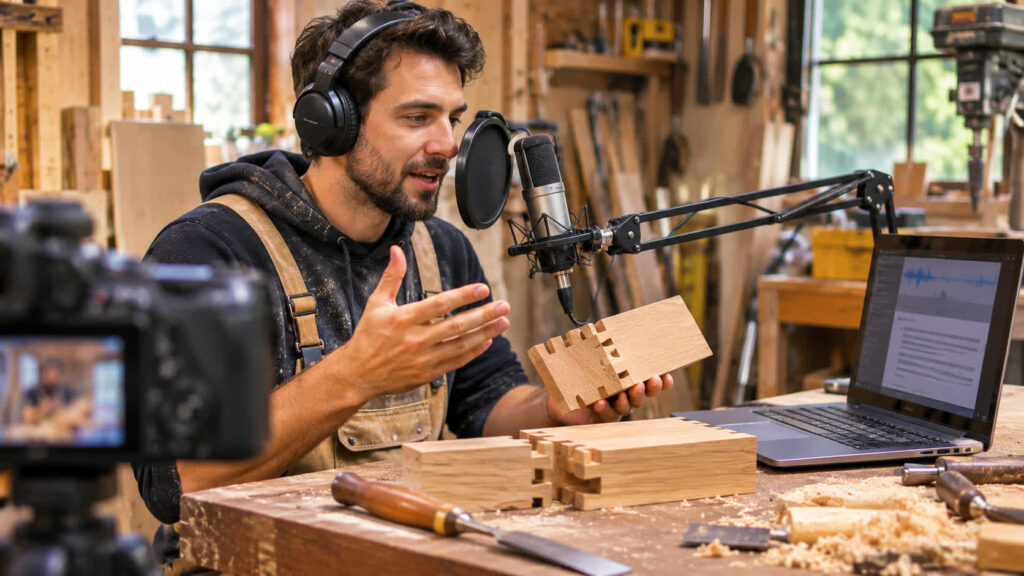
Descript is built for carpenters who talk. You record a walkthrough of a staircase build, an explanation of why oak moves with the seasons, or a voiceover for a kitchen fitting video, and Descript turns the recording into a written transcript. You edit the video by editing the words. Delete a sentence from the transcript and it disappears from the video. Remove every “um” and pause with one click. That is a very different way of editing, and for a carpenter who explains things out loud, it is much faster than dragging clips on a timeline.
The free plan costs nothing and includes one media hour a month, 100 one-time AI credits and 720p export with a watermark. The Hobbyist plan costs $24 a month, or $16 a month billed annually, and adds 10 media hours a month, 400 AI credits, watermark-free 1080p export and the Underlord AI co-editor. The Creator plan costs $35 a month, or $24 a month billed annually, and is the plan most carpenters should look at. It adds 30 media hours, 800 AI credits, 4K export, full Underlord access, AI video generation and unlimited stock media. The Business plan costs $65 a month, or $50 a month billed annually, and adds 40 media hours, 1,500 AI credits, Brand Studio, translation and dubbing in more than 30 languages, and custom avatars.
What Descript does best for a carpenter is clean up spoken explanations. Studio Sound removes the saw noise, the sander hum and the echo of an empty workshop from a recording made on a real job, so a timber explanation filmed during a busy day still sounds professional. The filler word removal takes out the ums and pauses that make a five minute explanation feel like ten. The transcript makes it easy to find the exact moment you explained why a dovetail joint holds better than a butt joint, and to pull that moment out as a standalone clip. Underlord, the AI co-editor, takes plain instructions such as “cut this to 60 seconds and keep the three tips” and does the edit for you.
The limit is that Descript is not a visual editor. If you want flashy transitions, animated text or a polished advert, CapCut or InVideo will do it better. Descript is also priced per person, so a joinery workshop with three carpenters pays per seat, and the costs add up. The free plan’s one media hour a month is small, so you will need a paid plan quickly if you record every week.
A carpenter scenario: you record a five minute voiceover explaining how to look after a solid oak worktop without damaging it, with a clip of the worktop being oiled playing underneath. In Descript you delete the two sentences where you repeated yourself, remove the filler words, and export a clean three minute video with captions. The same recording becomes a guide for your YouTube channel and a clip you send to every customer after a kitchen fitting.
Descript is the best choice if most of your teaching is spoken, and you want to edit by words instead of by timeline. It is the strongest tool here for timber and joinery explanations, and it pairs well with CapCut for the visual finish.
4. HeyGen: best avatar presenter when you do not want to be on camera

HeyGen is the tool for the carpenter who has good advice but no wish to appear on camera every day. You type a script, choose an avatar, and HeyGen produces a video of a realistic presenter delivering your message. You can also create a digital twin of yourself, a short recording that HeyGen turns into an avatar that looks and sounds like you, so the video still feels personal even when you never stood in front of a camera.
The free plan includes up to 3 videos a month, which is enough to test whether avatar videos suit your customers. The Creator plan costs $29 a month, or $24 a month billed annually, and is the right plan for a small carpentry business. The Pro plan starts at $49 a month and scales with credits, and the Business plan costs $149 a month plus $20 per seat a month for joinery companies that need several staff on one account. Unused credits roll over for one month on monthly plans, and until renewal on annual plans.
What HeyGen does best is presence without filming. A weekly availability announcement, a welcome video for new customers, or a seasonal offer can be recorded by typing a script at your desk at 9 pm, after the last fitting of the day is done. The avatar speaks clearly, the lip sync is convincing, and the video is available in more than 140 languages, which matters if you serve customers in more than one language. A digital twin of yourself makes the videos feel like yours, and regulars recognise the carpenter they will actually meet.
The limit is honesty. An avatar video is not a real fitting, and it should never be presented as one. It works for announcements, for timber explainers and for offers. It does not work for showing a real kitchen fitting, because a customer needs to see the actual cabinets and the actual joints. HeyGen is also a credit system, so a long video costs more credits than a short one, and you need to watch your monthly allowance.
A carpenter scenario: you write a 90 second script announcing your free kitchen design visits for the new year, with the price range, what the visit includes, and the booking number. HeyGen turns it into a video with your digital twin presenting it. You post it to your Facebook page and pin it to the top of your Instagram profile. The customers who watch it book before the spring rush, and you spend the week on kitchens instead of answering the same question on the phone.
HeyGen is the best choice if you want a presenter on screen without filming yourself, or if you serve customers in more than one language. It is the most personal of the avatar tools, because the digital twin is you.
5. Synthesia: best for avatar-led training for new carpenters
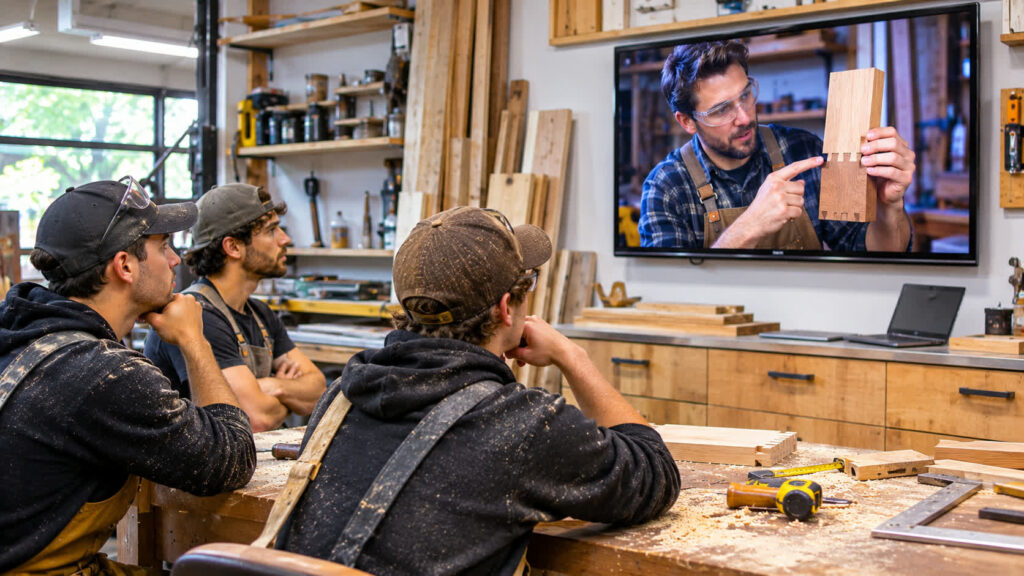
Synthesia is the other avatar tool in this guide, and it is the better choice when you want to build a small library of training videos for your new carpenters rather than one-off videos. Where HeyGen is built around a presenter, Synthesia is built around a course. It has more than 125 avatars, interactive video with quizzes, surveys, and a structured studio for lessons that need to be updated over time.
The Basic plan costs nothing and includes 500 credits a month, 10 minutes of studio video creation and one Syren video. The Starter plan costs $19 a month, or $14 a month billed annually, with the first month at $9. It includes 1,250 credits a month, 125 plus avatars, no watermark and no 3 minute cap on Syren videos. The Pro plan costs $89 a month, or $44 a month billed annually on the Black Friday offer, with the first month at $19. It includes 72,000 credits a year, 180 plus avatars, 5 personal avatars, branded video pages and interactive video. A Black Friday and Cyber Week offer is live from 16:00 GMT on 23 November to 07:59 GMT on 7 December 2026, for new customers and free plan users upgrading to a paid plan only.
What Synthesia does best for a carpenter is consistency. New carpenters need the same training, how to measure a room properly, how to scribe a worktop to a wonky wall, how to cut a dovetail joint, how to hang a door so it closes cleanly, how to spray a finish without runs, and how to talk to a customer about a wall that is not straight. Synthesia gives you that in a structured course, and when a procedure changes, you edit the text and regenerate the video instead of re-filming. The interactive features let you add a quiz at the end of a lesson, so a new starter answers three questions about measuring before their first fitting. The surveys let you ask the team which part of the job they find hardest, and build the next lesson around the answer.
The limit is cost and tone. The Pro plan is the most expensive in this guide, and the Starter plan’s 1,250 credits a month only stretches to about two short videos a month on top of the free allowance. Avatar lessons can also feel formal. A new carpenter learning to scribe a worktop may prefer a real carpenter in a real workshop to a polished avatar in a studio, so Synthesia works best for structured training, not for the daily fitting videos that win bookings.
A carpenter scenario: you build a six lesson training course covering measuring a room, scribing a worktop, cutting dovetails, hanging doors, spraying a finish, and the end of day workshop checklist. Each lesson is a three minute avatar video with a short quiz. New starters watch the course before their first fitting, and by the time they arrive on site they already know the terms and the standards you will be checking.
Synthesia is the best choice if you want to build proper training for new carpenters with quizzes and a consistent presenter, and you are willing to pay for the structure. For a single carpenter who only needs a few avatar videos, HeyGen is cheaper.
6. Pictory: best for turning a written timber tip into a video without filming

Pictory is the tool for the carpenter who writes well but never films. You paste a script, a timber care tip or even a few bullet points, and Pictory builds a video from stock footage, AI voices and automatic captions. You do not need a camera, a workshop or a quiet room. You need a tip worth sharing.
A 14-day free trial is available, with 300 credits and three videos. The Starter plan lists at $29 a month, or $25 a month billed annually, and the Professional plan lists at $59 a month, or $35 a month billed annually. The Teams plan lists at $199 a month, or $119 a month billed annually. A Black Friday offer is live at the time of writing, and it halves those prices. On the offer, Starter is $14.50 a month, or $12.50 a month billed annually. Professional is $29.50 a month, or $17.50 a month billed annually. Teams is $99.50 a month, or $59.50 a month billed annually. Check the live price before you buy, because the offer will end and the list price will return.
What Pictory does best is speed from words to video. A carpenter who writes a 200 word note about the five mistakes that ruin a timber worktop, or the three things to check before ordering a fitted wardrobe, can have a finished video in fifteen minutes, with stock footage of kitchens and workshops, a natural AI voiceover in more than one language, and captions throughout. The stock library includes millions of clips from Getty Images and Storyblocks, so the footage looks professional even though you never filmed it. The AI scene editor lets you swap a clip or change a line without starting again.
The limit is that stock footage is not your workshop, your saw or your fitting. A video about your own joinery standard will always be better filmed than stocked. Pictory videos can also look generic if you accept the first draft, so the carpenters who get the best results are the ones who edit the script carefully and choose their clips rather than accepting the automatic choices.
A carpenter scenario: you write a short script about the five mistakes that ruin a solid timber worktop, with the standing water, the hot pan straight from the hob, the harsh cleaner, the knife straight on the surface, and the missed re-oiling. Pictory turns it into a 60 second video with a voiceover and footage of kitchens being used. You send it to your customer list the week before Christmas and post it on your Google Business Profile, and the customers call you back for a repair instead of making the same mistakes again.
Pictory is the best choice if you prefer writing to filming, and you want a finished video from a script in minutes. It is the most useful tool here for carpenters who have good tips and no time to film them.
7. InVideo: best for fast promotional videos that sell your kitchen packages
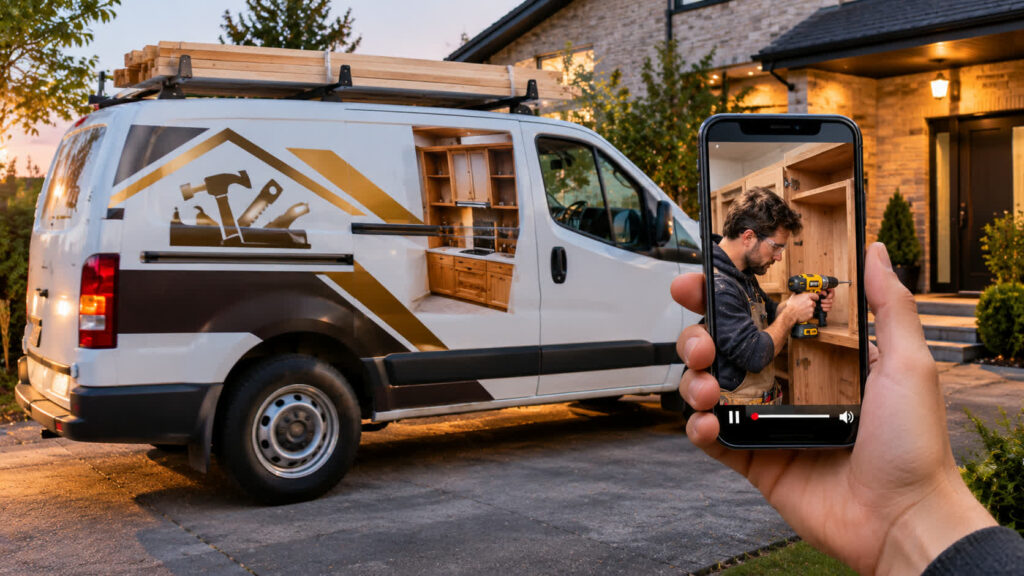
InVideo is the tool for the business side of a carpentry workshop. It turns a prompt into a promotional video, with a timeline editor for finishing touches, stock media, and AI agents that build the video from a short description. It is the tool you reach for when you need a fitted kitchen offer video, a wardrobe promo, or a 15 second advert for Facebook and Instagram.
The Starter plan costs $20 a month, or $10 a seat a month billed annually, and includes 400 credits a month, the timeline editor and 200 GB of storage. The Plus plan costs $60 a month, or $24 a seat a month billed annually on the current limited offer, and includes 2,000 credits a month, 600 GB of storage and access to the Seedance 2.5 video model. The Max plan costs $220 a month on the current Black Friday offer, renewing at $250 a month, or $62.50 a seat a month over two years on a pay for 12 months, get 24 months offer, and includes 8,000 credits a month, 2,000 GB of storage and the lowest cost per credit. Unused credits do not roll over to the next month, so you should only pay for the credits you will use.
What InVideo does best is promotional speed. Type “a 15 second video for a carpenter, fitted kitchen package, show a tired kitchen becoming a new shaker kitchen” and InVideo builds a draft with footage, music, voiceover and captions. You then adjust the text, swap a clip, and export. For a small carpentry business that runs local offers, that is a video a week without a filming day.
The limit is that InVideo is built for promotion, not for teaching. A generated video will not show your own workshop, your saw or your joinery standard. The credit system also punishes waste. If you generate ten drafts and use one, you have spent ten drafts worth of credits, so it pays to write a clear prompt first time. The monthly price of Plus at $60 is the highest single plan price in this guide after Synthesia Pro, so it only makes sense if you run regular offers.
A carpenter scenario: it is the first week of December and you want to fill your January kitchen fitting slots before the Christmas rush ends. InVideo makes a 15 second promo showing a tired kitchen becoming a new fitted kitchen, with your phone number and your price range on screen. You post it to Facebook and Instagram, and the bookings that come in pay for the month’s subscription several times over.
InVideo is the best choice if you run regular promotions and want a finished advert without filming. It is a marketing tool first and a teaching tool second, and it earns its place in the full stack for that reason.
AI video tools for carpenters: which tool for which job
If you only buy one tool, buy for the job you do most. A solo carpenter who films real fittings should start with CapCut, because the free plan covers most of the work and Pro is $19.99 a month. A carpenter who records long fittings and wants a week of social media posts from each one should start with Opus Clip Starter at $15 a month. A carpenter who explains timber and joints by talking should start with Descript Creator at $35 a month, or $24 a month billed annually. A carpenter who will not appear on camera should start with HeyGen Creator at $29 a month, or $24 a month billed annually. A carpenter who wants training for new staff should start with Synthesia Starter at $19 a month, or $14 a month billed annually. A carpenter who writes timber tips and wants videos without filming should start with Pictory Professional on the Black Friday offer at $29.50 a month, or $17.50 a month billed annually. A joinery workshop that runs regular local offers should start with InVideo Starter at $20 a month, or $10 a seat a month billed annually.
The tools also combine well. CapCut and Opus Clip are the natural pair, because Opus Clip finds the clips and CapCut finishes them. Descript and HeyGen are the natural pair for teaching, because Descript cleans up your spoken explanations and HeyGen covers the announcements you do not want to record yourself. Pictory and InVideo are the natural pair for written content, because Pictory turns timber tips into teaching videos and InVideo turns offers into adverts. The same choose-by-job method works for other local trades too. Electricians that film consumer unit upgrades, plumbers that film boiler installs, locksmiths that film key cutting and lock fitting, car detailers that film paint corrections, and moving companies who film careful packing all pick tools the same way, by matching the tool to the job they do most.
Starter stack and full stack: what it costs
The starter stack is for a solo carpenter who wants to start posting this week without a big bill. Opus Clip Starter at $15 a month, plus CapCut Free at $0, gives you clipping, captions and a full editor for $15 a month. Over a year that is $180, and it covers the four videos that matter most: before and after transformations, process demos, timber explainers and local promos. If you film one job a week and post three clips from it, the starter stack costs about $1.15 per video over a year of weekly posting.
The full stack is for a joinery workshop or small chain that wants every job covered. On monthly billing, with the Black Friday prices that are live on 25 November 2026, it costs $221.49 a month. That is CapCut Pro $19.99, Opus Clip Pro $29, Descript Creator $35, HeyGen Creator $29, Synthesia Starter $19, Pictory Professional $29.50 on the Black Friday offer, and InVideo Plus $60. On annual billing the same stack costs $133.00 a month. That is CapCut $15.00 a month on the $179.99 a year plan, Opus Clip $14.50, Descript $24, HeyGen $24, Synthesia $14, Pictory $17.50 on the Black Friday offer, and InVideo $24 on the current limited offer. Without any sale prices, the list prices are $250.99 a month on monthly billing and $156.50 a month on annual billing.
Most carpenters do not need the full stack. Start with the starter stack, add Descript when your spoken explanations need cleaning up, and add HeyGen or Pictory when you want videos without filming. Only add Synthesia Pro or InVideo Max when the work clearly pays for them, such as a training course for growing staff, or a January promotion that fills a month of fittings.
A week of videos from one kitchen fitting
The fastest way to use these tools is to build one recording into a week of posts. Here is a realistic week for a carpenter with a kitchen fitting on a Tuesday.
On Monday, set a phone on a tripod and record a 30 minute fitting of a family kitchen, with the customer’s permission and a clean, tidy site. Upload the recording to Opus Clip. It finds six or seven clips, including the carcasses going in, the worktop being scribed to the wall, the doors being hung and adjusted, and the finished kitchen with the handles on. Approve the three best.
On Tuesday, open the best clip in CapCut. Trim it to 60 seconds, add auto captions, and add a text overlay with the three steps of the fitting. Post it as a Reel and a Short.
On Wednesday, take the question a customer asked, such as whether a fitted wardrobe is worth the price, and paste a 150 word answer into Pictory. It builds a 60 second video with stock footage and a voiceover. Post it to your Facebook page.
On Thursday, record a 90 second voiceover in Descript explaining the same answer in your own words, and let Descript remove the pauses and saw noise. Post it to YouTube with a title that matches the question a customer would search for.
On Friday, use HeyGen to make a 30 second video announcing the weekend design visits, with your digital twin explaining the packages you offer and the response time. Pin it to the top of your social profiles.
On Saturday, use InVideo to make a 15 second promo for next month’s kitchen fitting slots, with the booking number and the phone number on screen. Post it to Facebook and Instagram, and boost it locally if you have the budget.
That is six videos from one recorded session, one written answer, one voiceover and one prompt. The tools do the editing, the captions and the formatting. Your job is the joinery, which is the part no tool can do.
Filming as a carpenter: trust, safety and honesty
A quick word on doing this properly. Always get a customer’s permission before filming their home, and a parent’s permission too if a child is in the frame. A simple question at the handover is enough, and it should say what the video is for and where it will be posted. Never film a customer’s face without asking, and never post a video that shows a house number, a home address, a phone number, a key, a parking permit, or personal belongings left in a room in a way that identifies a customer.
Keep the phone and the tripod clear of the carpenter’s path, and never film in a way that slows down the job or distracts someone working with a saw, a router or a nail gun. Safety comes before content, every time. Wear gloves, eye protection and a dust mask when the job needs them, even if the camera is running, because a customer trusts a carpenter who works safely more than one who poses for a video.
Finally, never present a generated video as a real fitting. An avatar announcing availability is a message, and it should be clear it is one. A stock footage video about timber care is a promo, not a recording of your own work. And never show a technique that is unsafe, or claim a product does something it does not. Customers trust a carpenter that is honest about what they are watching, and that trust is worth more than any video.
Frequently asked questions
What are the best AI video tools for carpenters?
The best AI video tools for carpenters are CapCut for filming real work on your phone, Opus Clip for cutting long recordings into short clips, Descript for editing spoken explanations, HeyGen and Synthesia for avatar videos when you do not want to be on camera, Pictory for turning written timber tips into videos, and InVideo for fast promotional videos. Start with CapCut Free and Opus Clip Starter at $15 a month, then add the tool that fits the job you do most.
Do I need to appear on camera to make carpentry videos?
No. HeyGen and Synthesia can present your announcements and training with an avatar, and Pictory can build a video from your written timber tip with stock footage and an AI voiceover. Many carpenters still appear on camera for fittings and joinery videos, because customers want to see the real carpenter who will work in their home, but announcements and offers work well with an avatar.
What is the cheapest way to start making videos as a carpenter?
Start with CapCut Free and Opus Clip Starter at $15 a month. That combination covers filming, editing, captions and clipping, and it is enough for three or four videos a week. Add a paid tool only when a specific job, such as cleaning up spoken explanations or making avatar videos, is clearly worth paying for.
Can AI video tools help a carpenter get more bookings?
They can help customers find you and trust you, which is not the same as a booking. A short video that shows a tired kitchen becoming a clean fitted kitchen before a customer calls means the customer arrives already convinced about the standard of work. Kitchen promos help with timing, and timber tips help with the searches that bring new customers to your page. The booking itself still needs to be good, because a customer who books once on the strength of a video will only recommend you if the job goes well.
Which tool is best for kitchen fitting and joinery tutorials?
Descript is the best for tutorials you record yourself, because it edits your spoken explanation by the transcript and cleans up the saw and sander noise. Opus Clip is the best for turning a long fitting session into short clips, because it finds the moments that matter. CapCut is the best for finishing a clip on your phone. Use all three together, and one fitting becomes a week of posts.
How much should a carpenter spend on AI video tools?
A solo carpenter should start at $15 a month on the starter stack, and only add tools when the work pays for them. A joinery workshop with several fitters can justify the full stack at $133 a month on annual billing, because it covers filming, clipping, explanations, avatars and promotions for the whole business. Never buy a tool for a job you have not tried doing on the free plan first.
Are the Black Friday prices in this guide permanent?
No. Pictory’s Black Friday offer and Synthesia’s Black Friday and Cyber Week offer are limited time offers, and InVideo’s Plus annual price of $24 a seat a month is a limited offer. Check the live price on the official pricing page before you buy, and do not build a yearly budget on a sale price. The list prices are shown in this guide so you can see what each tool costs when the offer ends.
The verdict
The best AI video tools for carpenters in 2026 are the ones that fit between jobs, not the ones with the longest feature list. Start with CapCut Free and Opus Clip Starter at $15 a month, and post three short videos a week. Add Descript when your spoken explanations need cleaning up. Add HeyGen when you want a presenter without filming yourself, and Pictory when you have timber tips worth sharing but no time to film. Add Synthesia when you are ready to build proper training for new staff, and InVideo when you run local offers that need a fast advert.
A carpenter does not need to become a video studio. You need one good clip a day, made from the carpentry work you already do, posted where your next customer is already scrolling. These seven tools do the editing, the captions and the formatting. Your joinery does the rest.