A driving instructor’s best marketing is a learner who passes first time and tells three friends. The second best is a short video that shows a nervous beginner exactly what a parallel park looks like, step by step, before they ever sit in your car. That is the job these tools do. They turn one lesson, one tip, or one answer to a common question into a video a learner can watch on their phone the night before their test.
The best AI video tools for driving instructors in 2026 are CapCut, Opus Clip, Descript, HeyGen, Synthesia, Pictory and InVideo. Each one solves a different part of the job. CapCut is the best all-round editor for filming real lessons on your phone. Opus Clip is the best at cutting one long lesson recording into short clips for Reels, Shorts and TikTok. Descript is the best for turning your spoken explanations into clean, captioned videos. HeyGen and Synthesia are the best when you do not want to be on camera and need an avatar to teach instead. Pictory is the best for turning a written tip into a finished video without filming anything. InVideo is the best for fast promotional videos that bring in bookings.
All prices in this guide were checked on the official pricing page of each tool on 24 November 2026. Where a Black Friday offer is live, the sale price is shown first and the list price is shown beside it, so you can see what the price becomes when the offer ends.
What a driving instructor actually needs from video
A driving school is not a content studio. You have gaps between lessons, a phone, and a car. The tools that work are the ones that fit that reality. Before choosing, it helps to name the four videos a driving instructor makes again and again.
First, manoeuvre explainers. A 60 second video that shows a bay park, a parallel park, a turn in the road, or an emergency stop, filmed once and reused for every learner who struggles with that manoeuvre. These videos save you repeating the same explanation in the car, and learners arrive at the next lesson already knowing the steps.
Second, theory and hazard perception tips. Short videos that explain one rule at a time, such as who has priority at a mini roundabout, or how to spot a developing hazard. These are the videos learners search for, and they are the ones that bring new pupils to your page.
Third, lesson clips for social media. A 30 second clip of a real lesson moment, a learner’s first successful reverse park, or a quick answer to a question a pupil asked that day. These clips build trust, because a parent or a new learner can see how you teach before they book. The routine for turning one recording into a week of posts is covered in our guide on how to create AI shorts and reels in minutes.
Fourth, booking promos and pass celebrations. A short promo for a January intensive course, an Easter holiday block booking offer, or a congratulations video when a learner passes. With the learner’s permission, a pass photo and a 15 second video do more for bookings than any paid advert.
The right tool depends on which of those four you make most. A solo instructor who films on a phone needs a different tool from a small school that wants an avatar to record theory lessons in two languages. The comparison below is built around those real jobs, not around feature lists.
The 7 tools at a glance
| Tool | Best for | Free plan | Paid plan from | What you get for the money |
|---|---|---|---|---|
| CapCut | Editing real lesson footage on your phone | Yes | $19.99 a month, or $179.99 a year | Full editor, auto captions, 1,200 AI credits a month, 4K export, 1 TB storage |
| Opus Clip | Cutting one lesson into many short clips | Yes | $15 a month | AI clipping, virality score, auto captions, watermark-free export |
| Descript | Editing video by editing the transcript | Yes | $24 a month, or $16 a month billed annually | Text-based editing, Studio Sound, filler removal, 4K export on Creator |
| HeyGen | An avatar that teaches when you cannot be on camera | Yes, 3 videos a month | $29 a month, or $24 a month billed annually | Digital twin presenter, 140 plus languages, voice cloning |
| Synthesia | Avatar-led theory lessons at scale | Yes | $19 a month, or $14 a month billed annually | 125 plus avatars, surveys, interactive video, 140 plus languages |
| Pictory | Turning a written tip into a video without filming | 14-day free trial | $14.50 a month on the Black Friday offer, list price $29 a month | Script to video, stock footage, AI voices, brand kits |
| InVideo | Fast promotional videos for bookings and offers | Yes | $20 a month, or $10 a seat a month billed annually | Prompt to video, timeline editor, stock media, 400 credits a month on Starter |
1. CapCut: best all-round editor for a driving instructor

CapCut is the tool most driving instructors should start with, because it does the ordinary work brilliantly. You film a manoeuvre on your phone, drop the clip into CapCut, and within ten minutes you have a captioned, trimmed, vertical video ready for Reels, Shorts and TikTok. It is the editor behind most of the driving lesson clips you already see on social media, and there is a reason for that. It is fast, it works on the phone you already carry, and the free plan is genuinely usable.
The free plan includes the core editor, basic effects, auto captions and 1080p export, which is enough for most lesson clips. The paid plan, CapCut Pro, costs $19.99 a month or $179.99 a year, and adds 4K export, the full AI toolkit, premium templates, 1,200 AI credits a month and 1 TB of cloud storage. There is also an Ultra plan at $79 a month for heavy AI generation, but a driving instructor will not need it. A 7-day free trial of Pro is available, with no card required to start it.
What CapCut does best for a driving instructor is speed. The auto caption feature puts accurate subtitles on a lesson clip in seconds, and captions matter, because most learners watch with the sound off on the bus or at work. The auto cut and silence removal tools take a rambling five minute explanation and tighten it into a 60 second video without you scrubbing through a timeline by hand. The templates are built for vertical video, so a clip made for TikTok also fits Instagram Reels and YouTube Shorts with one tap.
Where CapCut is weaker is long-form teaching. If you want to record a ten minute theory lesson with chapters, slides and a presenter, CapCut is not the tool. It is an editor for short clips, not a course builder. It also has no avatar presenter, so if you do not want to appear on camera, you will need HeyGen or Synthesia as well.
A driving instructor scenario: you film a learner’s first successful parallel park on your phone. In CapCut you trim the clip to the 45 seconds that matter, add auto captions, add a text overlay that says “Step 1: line up your mirror with their bumper”, and post it the same evening. The next learner who struggles with parallel parking watches it before their lesson, and the lesson itself goes further because the explanation is already done.
CapCut is the best choice if you film real lessons and want the fastest route from phone to posted video. It is also the cheapest serious option, because the free plan covers the basics and the paid plan is the best value of the seven tools here for a solo instructor.
2. Opus Clip: best for turning one lesson into many clips
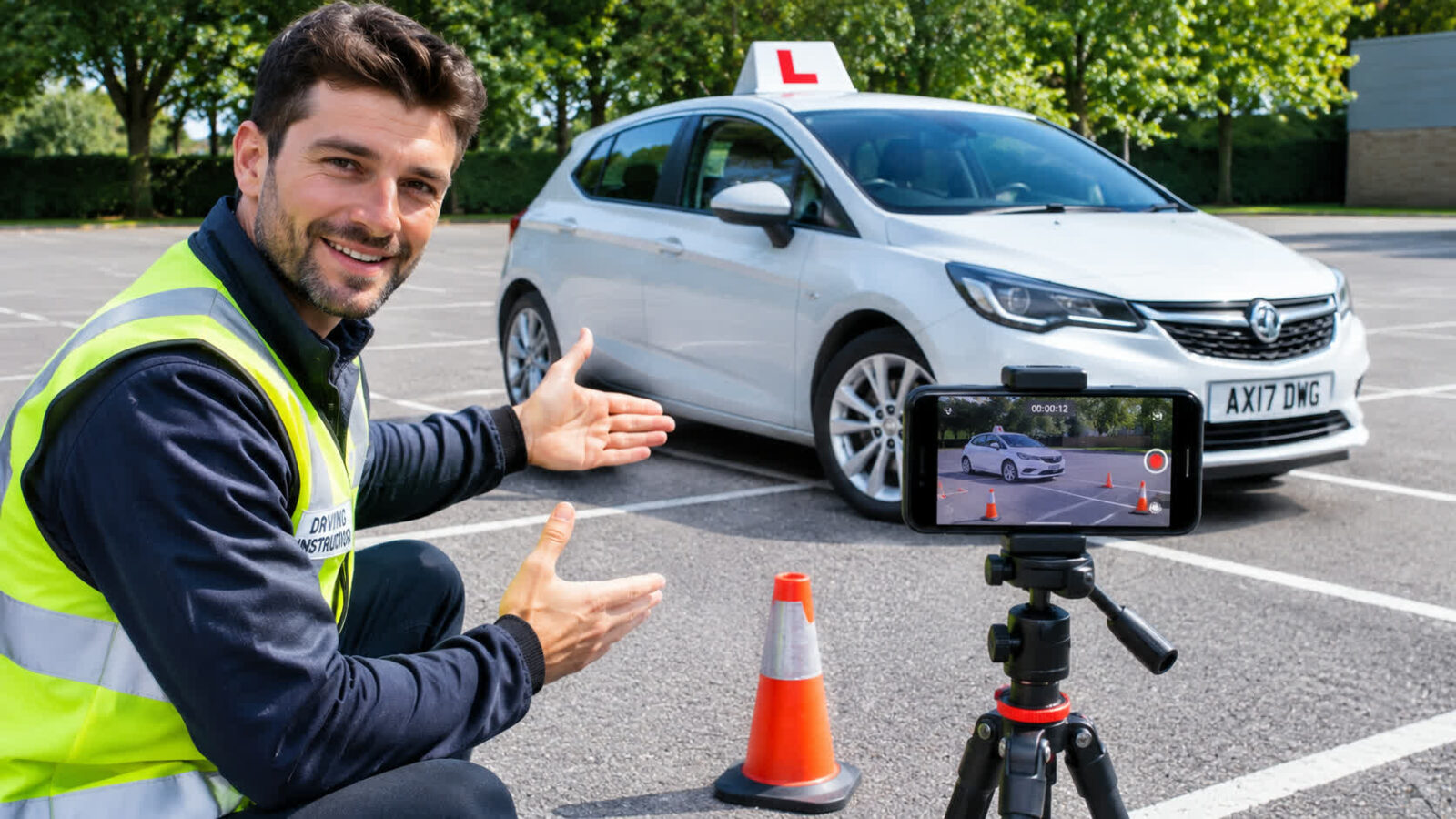
Opus Clip solves a different problem. A driving instructor records a 40 minute lesson, a theory Q and A, or a full walkthrough of a test route, and then has nothing to post, because nobody watches a 40 minute video on TikTok. Opus Clip watches the long recording, finds the moments worth sharing, and cuts them into short vertical clips with captions, a hook, and a virality score for each one. One lesson becomes eight or ten posts.
The free plan lets you try the clipping with limited exports. The Starter plan costs $15 a month and is the plan most solo instructors need. It includes AI clipping, auto captions, the virality score, watermark-free export and posting to social media. The Pro plan costs $29 a month, or $14.50 a month billed annually, and adds faster processing, more clip length options, 100 GB of storage, bulk export and team seats. The Business plan is custom priced for schools with several instructors.
What Opus Clip does best is finding the clip inside the lesson. Its AI looks for clear explanations, strong moments and natural breaks, and it scores each clip for how likely it is to hold attention. For a driving instructor, that means a long recording of a mock test can become a clip about the one roundabout every learner gets wrong, a clip about mirror checks before signalling, and a clip about the three things examiners watch at junctions. Each clip gets captions and a hook automatically, so you are editing by approving and trimming, not by building from scratch.
The limit is that Opus Clip works from footage you already have. It does not generate video, it does not give you an avatar, and it will not help if you have nothing recorded. It is also a clip tool, not a full editor. If a clip needs a careful re-cut or a custom graphic, you will finish it in CapCut or Descript.
A driving instructor scenario: you record a 30 minute mock test with a dashcam and a phone on the dashboard. Opus Clip finds the six moments that matter, such as the hesitation at a busy roundabout and the clean bay park at the end, and turns them into six captioned Reels. You post one a day for a week, and each one answers a question a real learner asked in a real lesson.
Opus Clip is the best choice if you already record lessons or theory sessions and want a week of social media posts from a single recording. At $15 a month, it is the cheapest paid tool in this guide, and paired with free CapCut it is the starter stack recommended below.
3. Descript: best for editing your spoken explanations
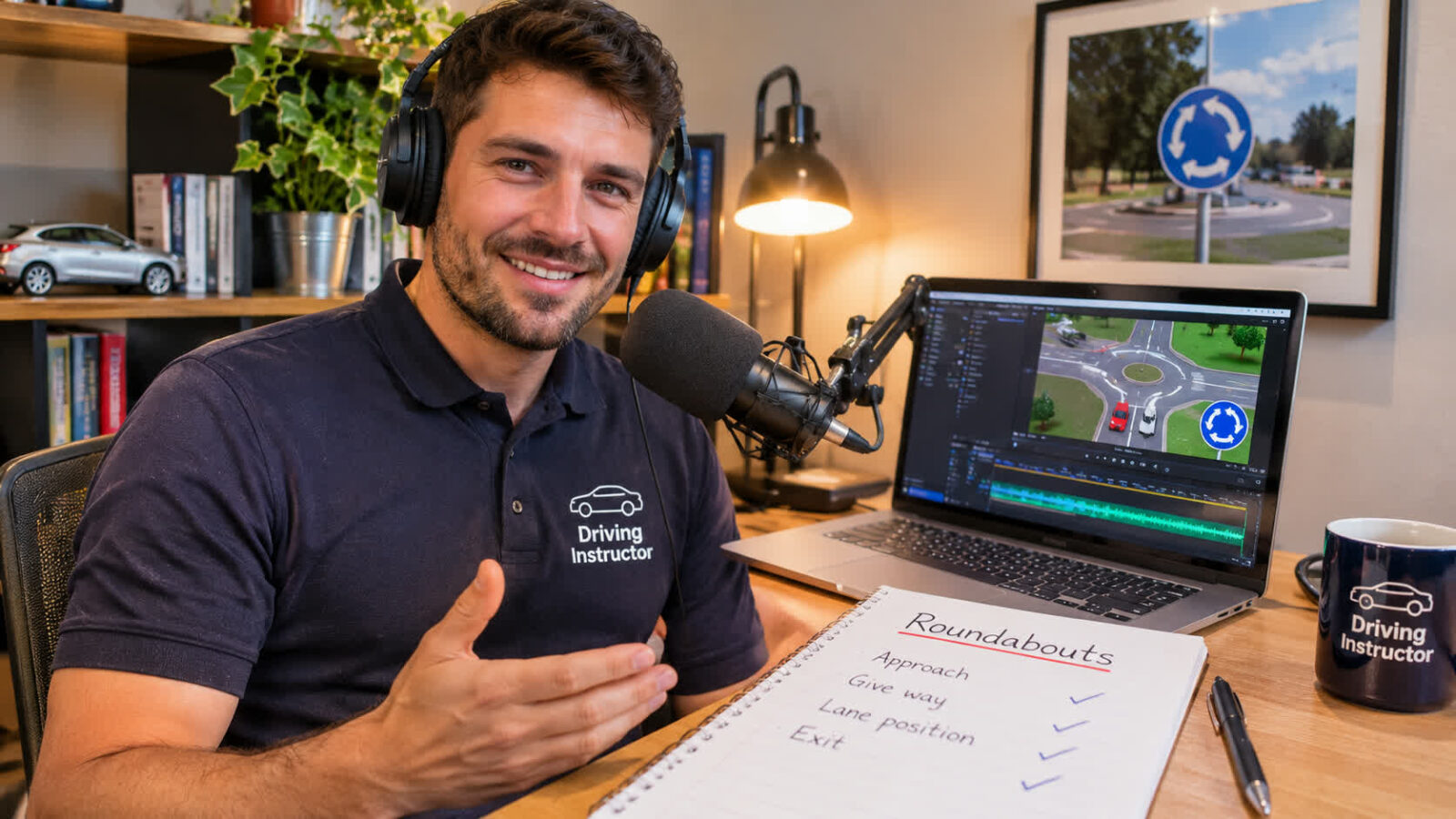
Descript is built for instructors who talk. You record a theory explanation, a lesson debrief or a voiceover for a manoeuvre video, and Descript turns the recording into a written transcript. You edit the video by editing the words. Delete a sentence from the transcript and it disappears from the video. Remove every “um” and pause with one click. That is a very different way of editing, and for a driving instructor who explains things out loud, it is much faster than dragging clips on a timeline.
The free plan costs nothing and includes one media hour a month, 100 one-time AI credits and 720p export with a watermark. The Hobbyist plan costs $24 a month, or $16 a month billed annually, and adds 10 media hours a month, 400 AI credits, watermark-free 1080p export and the Underlord AI co-editor. The Creator plan costs $35 a month, or $24 a month billed annually, and is the plan most instructors should look at. It adds 30 media hours, 800 AI credits, 4K export, full Underlord access, AI video generation and unlimited stock media. The Business plan costs $65 a month, or $50 a month billed annually, and adds 40 media hours, 1,500 AI credits, Brand Studio, translation and dubbing in more than 30 languages, and custom avatars.
What Descript does best for a driving instructor is clean up spoken teaching. Studio Sound removes the road noise and wind from a recording made in a car, so a lesson filmed with the windows down still sounds professional. The filler word removal takes out the ums and pauses that make a five minute explanation feel like ten. The transcript makes it easy to find the exact moment you explained the two second rule, and to pull that moment out as a standalone clip. Underlord, the AI co-editor, takes plain instructions such as “cut this to 60 seconds and keep the three steps” and does the edit for you.
The limit is that Descript is not a visual editor. If you want flashy transitions, animated text or a polished advert, CapCut or InVideo will do it better. Descript is also priced per person, so a school with three instructors pays per seat, and the costs add up. The free plan’s one media hour a month is small, so you will need a paid plan quickly if you record every week.
A driving instructor scenario: you record a five minute voiceover explaining how to approach a roundabout, with a dashcam clip playing underneath. In Descript you delete the two sentences where you repeated yourself, remove the filler words, and export a clean three minute video with captions. The same recording becomes a theory video for your YouTube channel and a clip for your pupils’ group chat.
Descript is the best choice if most of your teaching is spoken, and you want to edit by words instead of by timeline. It is the strongest tool here for theory content, and it pairs well with CapCut for the visual finish.
4. HeyGen: best avatar presenter when you do not want to be on camera

HeyGen is the tool for the instructor who has good teaching but no wish to appear on camera every day. You type a script, choose an avatar, and HeyGen produces a video of a realistic presenter delivering your lesson. You can also create a digital twin of yourself, a short recording that HeyGen turns into an avatar that looks and sounds like you, so the video still feels personal even when you never stood in front of a camera.
The free plan includes up to 3 videos a month, which is enough to test whether avatar lessons suit your pupils. The Creator plan costs $29 a month, or $24 a month billed annually, and is the right plan for a solo instructor. The Pro plan starts at $49 a month and scales with credits, and the Business plan costs $149 a month plus $20 per seat a month for schools that need several instructors on one account. Unused credits roll over for one month on monthly plans, and until renewal on annual plans.
What HeyGen does best is presence without filming. A theory lesson about stopping distances, a welcome video for new pupils, or a holiday offer can be recorded by typing a script at your kitchen table at 9 pm, after the last lesson of the day. The avatar speaks clearly, the lip sync is convincing, and the video is available in more than 140 languages, which matters if you teach learners whose first language is not English. A digital twin of yourself makes the videos feel like yours, and parents recognise the instructor their child will actually meet.
The limit is honesty. An avatar video is not a real lesson, and it should never be presented as one. It works for theory, for welcome messages and for offers. It does not work for showing a real manoeuvre, because a learner needs to see a real car in a real space. HeyGen is also a credit system, so a long video costs more credits than a short one, and you need to watch your monthly allowance.
A driving instructor scenario: you write a 90 second script explaining the three things examiners check at a pedestrian crossing. HeyGen turns it into a video with your digital twin presenting it. You send the link to every learner the week before their test. The learners who watch it arrive knowing the rule, and you spend the lesson practising it instead of explaining it.
HeyGen is the best choice if you want a presenter on screen without filming yourself, or if you teach in more than one language. It is the most personal of the avatar tools, because the digital twin is you.
5. Synthesia: best for avatar-led theory lessons at scale
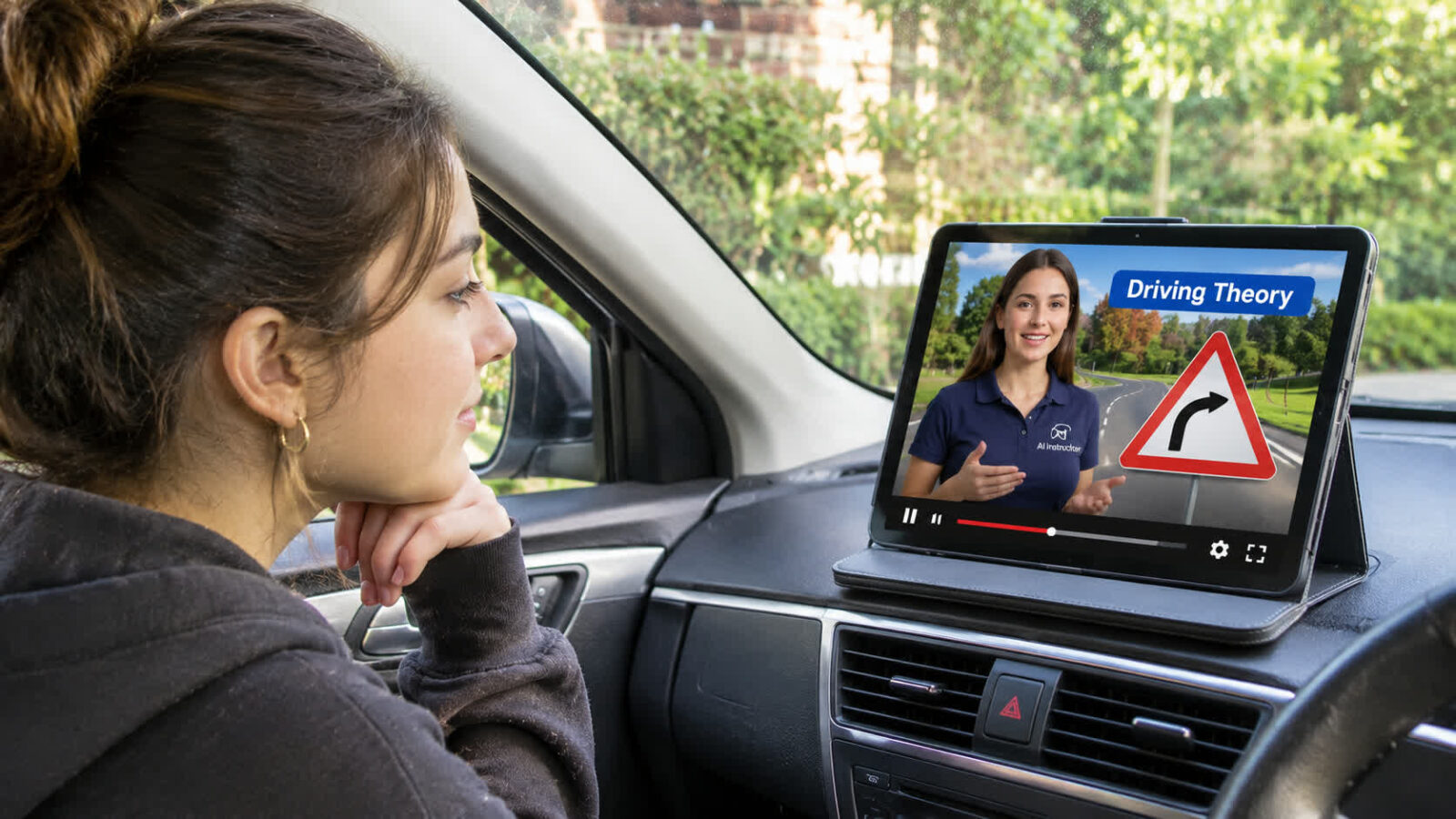
Synthesia is the other avatar tool in this guide, and it is the better choice when you want to build a small library of theory lessons rather than one-off videos. Where HeyGen is built around a presenter, Synthesia is built around a course. It has more than 125 avatars, interactive video with quizzes, surveys, and a structured studio for lessons that need to be updated over time.
The Basic plan costs nothing and includes 500 credits a month, 10 minutes of studio video creation and one Syren video. The Starter plan costs $19 a month, or $14 a month billed annually, with the first month at $9. It includes 1,250 credits a month, 125 plus avatars, no watermark and no 3 minute cap on Syren videos. The Pro plan costs $89 a month, or $59 a month billed annually, with the first month at $49. It includes 72,000 credits a year, 180 plus avatars, 5 personal avatars, branded video pages and interactive video. A Black Friday and Cyber Week offer is live from 16:00 GMT on 23 November to 07:59 GMT on 7 December 2026, for new customers and free plan users upgrading to a paid plan only.
What Synthesia does best for a driving instructor is consistency. A theory course on the Highway Code needs the same presenter, the same style and the same structure across twenty lessons. Synthesia gives you that, and when a rule changes, you edit the text and regenerate the video instead of re-filming. The interactive features let you add a quiz at the end of a lesson, so a learner answers three questions about roundabouts before moving on. The surveys let you ask pupils which topic they find hardest, and build the next lesson around the answer.
The limit is cost and tone. The Pro plan is the most expensive in this guide, and the Starter plan’s 1,250 credits a month only stretches to about two short videos a month on top of the free allowance. Avatar lessons can also feel formal. A 17 year old learner may prefer a real instructor in a real car to a polished avatar in a studio, so Synthesia works best for theory, not for the practical side of learning to drive.
A driving instructor scenario: you build a six lesson theory course covering junctions, roundabouts, motorways, night driving, bad weather and the driving test itself. Each lesson is a three minute avatar video with a short quiz. New pupils get the course when they book, and by the time they sit in the car they already know the rules you will be practising.
Synthesia is the best choice if you want to build a proper theory course with quizzes and a consistent presenter, and you are willing to pay for the structure. For a single instructor who only needs a few avatar videos, HeyGen is cheaper.
6. Pictory: best for turning a written tip into a video without filming
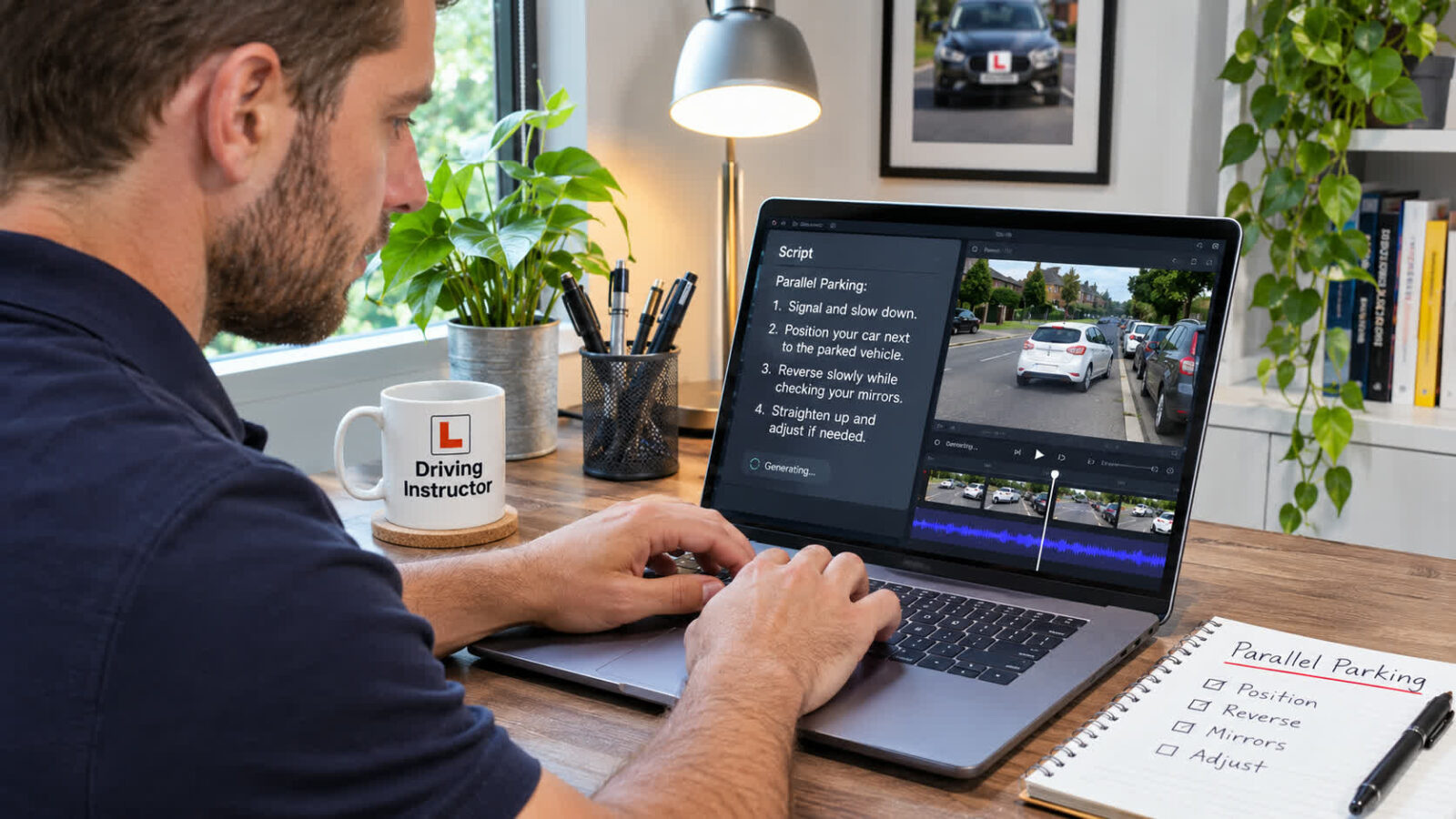
Pictory is the tool for the instructor who writes well but never films. You paste a script, a blog post or even a few bullet points, and Pictory builds a video from stock footage, AI voices and automatic captions. You do not need a camera, a car or a quiet room. You need a tip worth sharing.
A 14-day free trial is available, with 300 credits and three videos. The Starter plan lists at $29 a month, or $25 a month billed annually, and the Professional plan lists at $59 a month, or $35 a month billed annually. The Teams plan lists at $199 a month, or $119 a month billed annually. A Black Friday offer is live at the time of writing, and it halves those prices. On the offer, Starter is $14.50 a month, or $12.50 a month billed annually. Professional is $29.50 a month, or $17.50 a month billed annually. Teams is $99.50 a month, or $59.50 a month billed annually. Check the live price before you buy, because the offer will end and the list price will return.
What Pictory does best is speed from words to video. A driving instructor who writes a 200 word tip about checking blind spots can have a finished video in fifteen minutes, with stock footage of a car changing lanes, a natural AI voiceover in more than one language, and captions throughout. The stock library includes millions of clips from Getty Images and Storyblocks, so the footage looks professional even though you never filmed it. The AI scene editor lets you swap a clip or change a line without starting again.
The limit is that stock footage is not your car, your town or your learner. A video about a specific roundabout near your test centre will always be better filmed than stocked. Pictory videos can also look generic if you accept the first draft, so the instructors who get the best results are the ones who edit the script carefully and choose their clips rather than accepting the automatic choices.
A driving instructor scenario: you write a short script about the five checks before moving off, covering mirrors, blind spot, signal, gear and handbrake. Pictory turns it into a 60 second video with a voiceover and road footage. You send it to every new pupil before their first lesson, and the first lesson starts with a pupil who already knows the routine.
Pictory is the best choice if you prefer writing to filming, and you want a finished video from a script in minutes. It is the most useful tool here for instructors who have good tips and no time to film them.
7. InVideo: best for fast promotional videos that bring in bookings
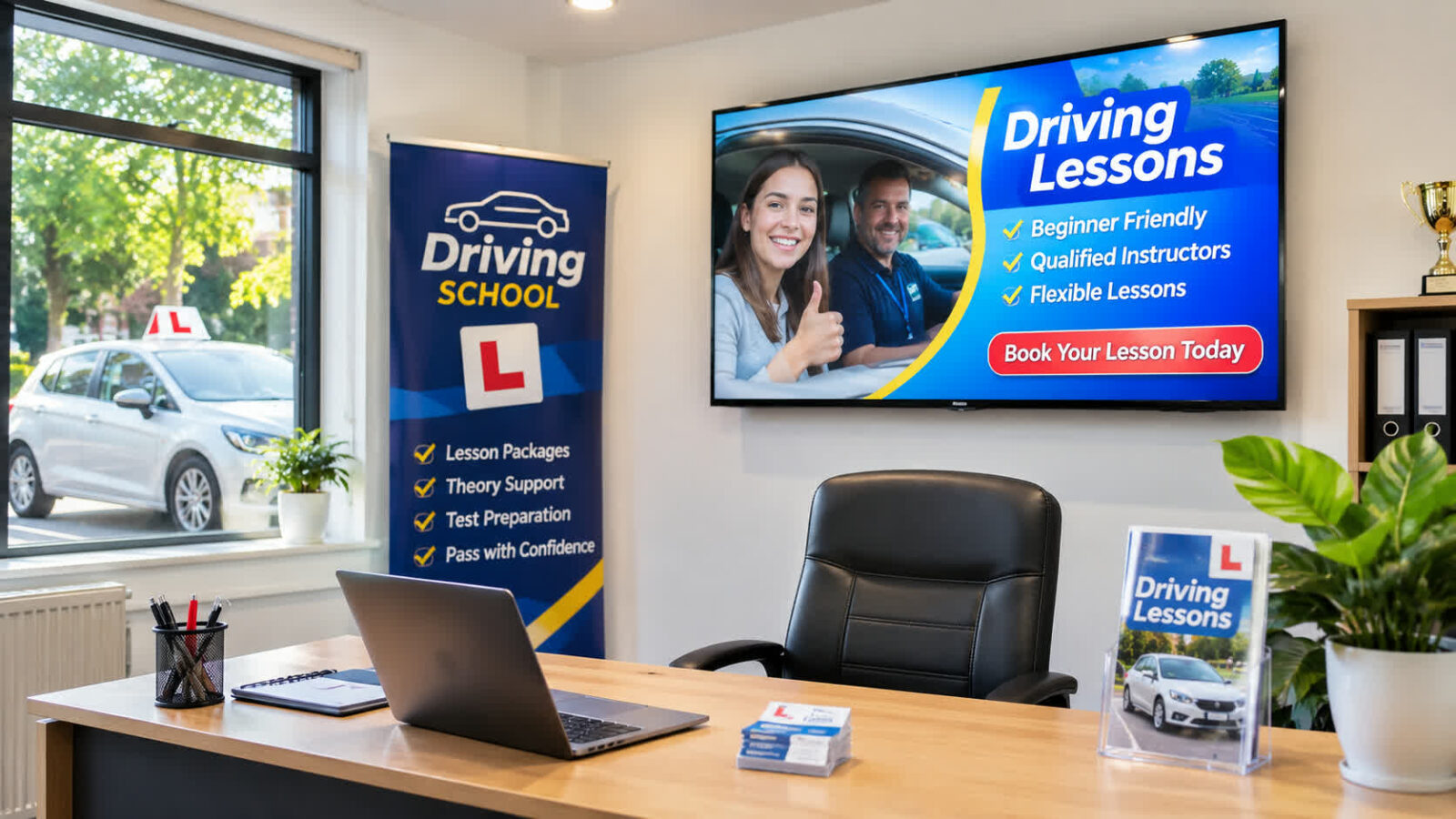
InVideo is the tool for the business side of a driving school. It turns a prompt into a promotional video, with a timeline editor for finishing touches, stock media, and AI agents that build the video from a short description. It is the tool you reach for when you need a January offer video, a Christmas gift voucher promo, or a 15 second advert for Facebook and Instagram.
The Starter plan costs $20 a month, or $10 a seat a month billed annually, and includes 400 credits a month, the timeline editor and 200 GB of storage. The Plus plan costs $60 a month, or $24 a seat a month billed annually on the current limited offer, and includes 2,000 credits a month, 600 GB of storage and access to the Seedance 2.5 video model. The Max plan costs $250 a month, or $62.50 a seat a month over two years on a pay for 12 months, get 24 months offer, and includes 8,000 credits a month, 2,000 GB of storage and the lowest cost per credit. Unused credits do not roll over to the next month, so you should only pay for the credits you will use.
What InVideo does best is promotional speed. Type “a 15 second video offering a 10 hour block booking discount for new learners in January, friendly tone, show a learner car on a sunny street” and InVideo builds a draft with footage, music, voiceover and captions. You then adjust the text, swap a clip, and export. For a small driving school that runs seasonal offers, that is a video a week without a filming day.
The limit is that InVideo is built for promotion, not for teaching. A generated video will not show your local test routes, your car or your teaching style. The credit system also punishes waste. If you generate ten drafts and use one, you have spent ten drafts worth of credits, so it pays to write a clear prompt first time. The monthly price of Plus at $60 is the highest single plan price in this guide after Synthesia Pro, so it only makes sense if you run regular offers.
A driving instructor scenario: it is the first week of January and you want to fill empty lesson slots. InVideo makes a 15 second promo offering a block booking discount, with a clear call to action and your phone number on screen. You post it to Facebook and Instagram, and the bookings that come in pay for the month’s subscription several times over.
InVideo is the best choice if you run regular promotions and want a finished advert without filming. It is a marketing tool first and a teaching tool second, and it earns its place in the full stack for that reason.
Which tool for which job
If you only buy one tool, buy for the job you do most. A solo instructor who films real lessons should start with CapCut, because the free plan covers most of the work and Pro is $19.99 a month. An instructor who records long lessons and wants a week of social media posts from each one should start with Opus Clip Starter at $15 a month. An instructor who teaches by talking should start with Descript Creator at $35 a month, or $24 a month billed annually. An instructor who will not appear on camera should start with HeyGen Creator at $29 a month, or $24 a month billed annually. An instructor who wants a theory course should start with Synthesia Starter at $19 a month, or $14 a month billed annually. An instructor who writes tips and wants videos without filming should start with Pictory Professional on the Black Friday offer at $29.50 a month, or $17.50 a month billed annually. A school that runs regular offers should start with InVideo Starter at $20 a month, or $10 a seat a month billed annually.
The tools also combine well. CapCut and Opus Clip are the natural pair, because Opus Clip finds the clips and CapCut finishes them. Descript and HeyGen are the natural pair for theory, because Descript cleans up your spoken lessons and HeyGen covers the lessons you do not want to record yourself. Pictory and InVideo are the natural pair for written content, because Pictory turns tips into teaching videos and InVideo turns offers into adverts. The same choose-by-job method works for other local businesses too. Fitness coaches who teach one to one, photographers who sell sessions, and event planners who film venues all pick tools the same way, by matching the tool to the job they do most.
Starter stack and full stack: what it costs
The starter stack is for a solo instructor who wants to start posting this week without a big bill. Opus Clip Starter at $15 a month, plus CapCut Free at $0, gives you clipping, captions and a full editor for $15 a month. Over a year that is $180, and it covers the four videos that matter most: manoeuvre explainers, theory tips, lesson clips and booking promos. If you record one lesson a week and post three clips from it, the starter stack costs about $1.25 per video over a year of weekly posting.
The full stack is for an instructor or small school that wants every job covered. On monthly billing, with the Black Friday prices that are live on 24 November 2026, it costs $220.49 a month. That is CapCut Pro $19.99, Opus Clip Pro $29, Descript Creator $35, HeyGen Creator $29, Synthesia Starter $19, Pictory Professional $29.50 on the Black Friday offer, and InVideo Plus $60. On annual billing the same stack costs $133.00 a month. That is CapCut $15.00 a month on the $179.99 a year plan, Opus Clip $14.50, Descript $24, HeyGen $24, Synthesia $14, Pictory $17.50 on the Black Friday offer, and InVideo $24 on the current limited offer. Without any sale prices, the list prices are $250.99 a month on monthly billing and $156.50 a month on annual billing.
Most instructors do not need the full stack. Start with the starter stack, add Descript when your theory videos need cleaning up, and add HeyGen or Pictory when you want videos without filming. Only add Synthesia Pro or InVideo Max when the work clearly pays for them, such as a theory course you sell, or a promotion that fills a month of lessons.
A week of videos from one lesson
The fastest way to use these tools is to build one recording into a week of posts. Here is a realistic week for a driving instructor with two or three pupils a day.
On Monday, record a 30 minute lesson with a dashcam and a phone on the dashboard, with the learner’s permission. Upload the recording to Opus Clip. It finds six or seven clips, including the roundabout that caused trouble and the clean reverse park at the end. Approve the three best.
On Tuesday, open the best clip in CapCut. Trim it to 60 seconds, add auto captions, and add a text overlay with the three steps of the manoeuvre. Post it as a Reel and a Short.
On Wednesday, take the theory question the learner asked, such as who has priority at a mini roundabout, and paste a 150 word answer into Pictory. It builds a 60 second video with stock footage and a voiceover. Post it to your Facebook page.
On Thursday, record a 90 second voiceover in Descript explaining the same rule in your own words, and let Descript remove the pauses and road noise. Post it to YouTube with a title that matches the question a learner would search for.
On Friday, use HeyGen to make a 30 second welcome video for new pupils, with your digital twin explaining what to bring to the first lesson. Pin it to the top of your social profiles.
On Saturday, use InVideo to make a 15 second promo for next month’s intensive course, with the price and the booking link on screen. Post it to Facebook and Instagram, and boost it locally if you have the budget.
That is six videos from one recorded lesson, one written tip, one voiceover and one prompt. The tools do the editing, the captions and the formatting. Your job is the teaching, which is the part no tool can do.
Filming lessons safely and legally
A quick word on doing this properly. Always get a learner’s permission before filming them, and get a parent’s permission too if the learner is under 18. A simple message in your booking confirmation is enough, and it should say what the video is for and where it will be posted. Never film a learner’s face without asking, and never post a video that shows a number plate, a home address or a test centre location in a way that identifies a pupil.
Keep the camera fixed and the phone out of your hands while the car is moving. A dashcam and a dashboard mount do the filming, so you can keep both hands on the wheel and your attention on the road. Do not try to film and instruct at the same time. Record the lesson, and record your explanation afterwards, when the car is parked.
Finally, never present a generated video as a real lesson. An avatar explaining a rule is a teaching aid, and it should be labelled as one. A stock footage video about blind spots is a tip, not a recording of your teaching. Learners trust an instructor who is honest about what they are watching, and that trust is worth more than any video.
Frequently asked questions
Do I need to appear on camera to make driving lesson videos?
No. HeyGen and Synthesia can present your lessons with an avatar, and Pictory can build a video from your written script with stock footage and an AI voiceover. Many instructors still appear on camera for lesson clips, because learners want to see the real instructor they will meet, but theory videos work well with an avatar.
What is the cheapest way to start making videos as a driving instructor?
Start with CapCut Free and Opus Clip Starter at $15 a month. That combination covers filming, editing, captions and clipping, and it is enough for three or four videos a week. Add a paid tool only when a specific job, such as cleaning up spoken lessons or making avatar videos, is clearly worth paying for.
Can AI video tools help learners pass their driving test?
They can help a learner prepare, which is not the same as passing. A short video that explains a manoeuvre before the lesson means the lesson time is spent practising, not listening to an explanation for the first time. Theory videos help with the rules, and hazard perception tips help with the theory test. The driving itself still needs real practice in a real car with a real instructor.
Which tool is best for theory lessons?
Descript is the best for theory you record yourself, because it edits your spoken explanation by the transcript and cleans up the audio. Synthesia is the best for a structured theory course with quizzes, because it keeps the same presenter and style across every lesson. HeyGen sits between the two, and is the best choice if you want your own digital twin to present.
How much should a driving instructor spend on AI video tools?
A solo instructor should start at $15 a month on the starter stack, and only add tools when the work pays for them. A small school with several instructors can justify the full stack at $133 a month on annual billing, because it covers filming, clipping, theory, avatars and promotions for the whole school. Never buy a tool for a job you have not tried doing on the free plan first.
Are the Black Friday prices in this guide permanent?
No. Pictory’s Black Friday offer and Synthesia’s Black Friday and Cyber Week offer are limited time offers, and InVideo’s Plus annual price of $24 a seat a month is a limited offer. Check the live price on the official pricing page before you buy, and do not build a yearly budget on a sale price. The list prices are shown in this guide so you can see what each tool costs when the offer ends.
The verdict
The best AI video tools for driving instructors in 2026 are the ones that fit between lessons, not the ones with the longest feature list. Start with CapCut Free and Opus Clip Starter at $15 a month, and post three short videos a week. Add Descript when your spoken theory needs cleaning up. Add HeyGen when you want a presenter without filming yourself, and Pictory when you have tips worth sharing but no time to film. Add Synthesia when you are ready to build a proper theory course, and InVideo when you run offers that need a fast advert.
A driving instructor does not need to become a video creator. You need one good clip a day, made from the teaching you already do, posted where your next learner is already scrolling. These seven tools do the editing, the captions and the formatting. Your teaching does the rest.