Verdict first: Most text to video prompts fail for the same reason: they describe a vibe, not a video. A working prompt answers five questions in one sentence, who or what is in the shot, what is it doing, where is it, how does the camera move, and what does the light look like. If any of those is missing, the model guesses, and the guess is usually wrong. This guide uses only the official prompt guidance from Kling, Google Veo, Runway and Pika, so you can copy the formulas for your own text to video prompts instead of guessing.
The universal formula that works on every tool
The universal formula for text to video prompts that works on every tool: Subject + subject description + subject movement + scene + camera + lighting + atmosphere. Start with subject and movement, then add scene, then camera and light only if they change the shot. A short, clear prompt beats a long, poetic one every time, all four official guides say the same thing in different words: simple, specific, and one idea per prompt.
Kling prompts
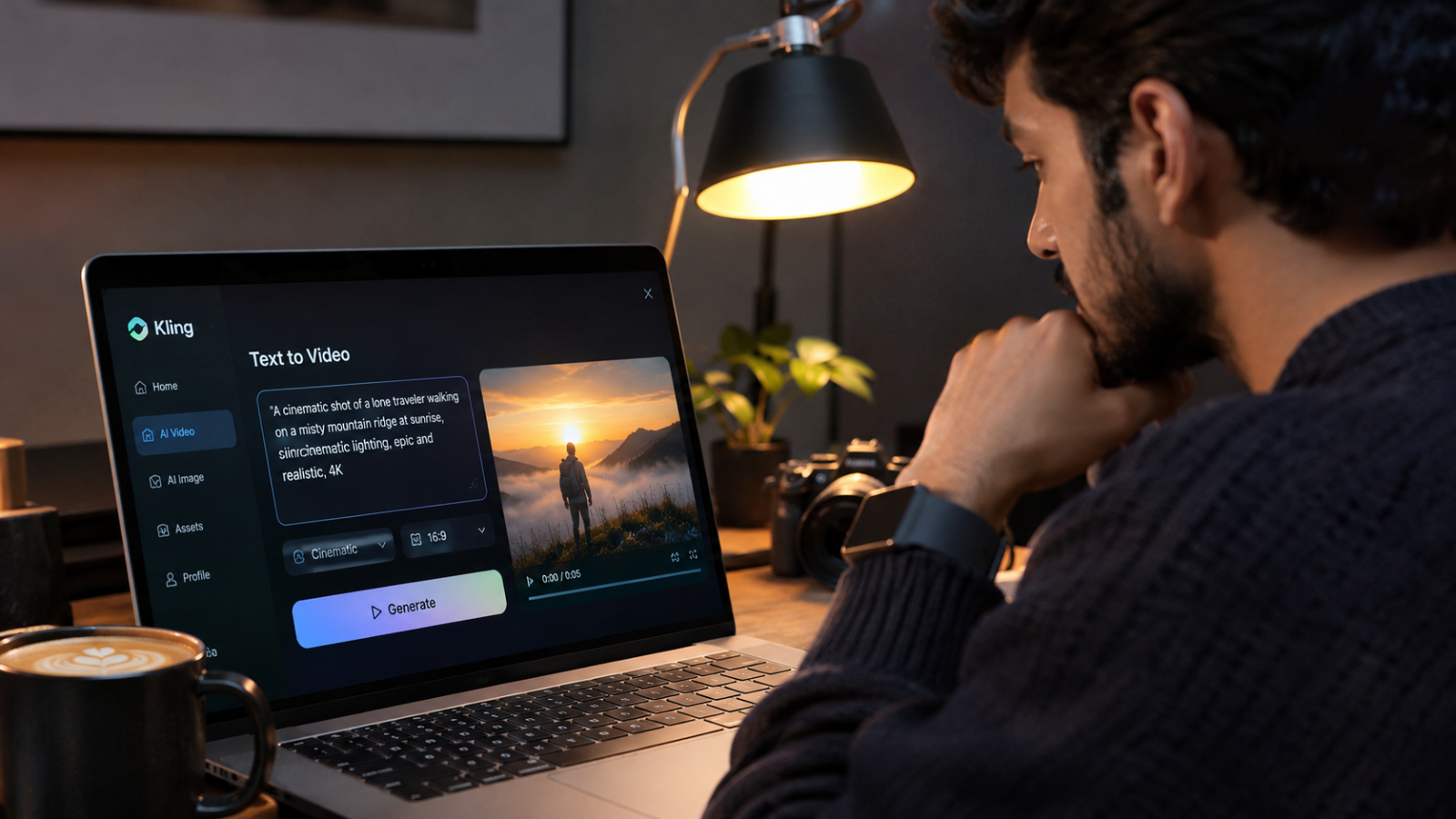
Official formula from the Kling prompt guide: Subject (with description) + Subject Movement + Scene (with description) + optional Camera Language + Lighting + Atmosphere. Every element you leave out is a decision you hand to the model. What works: simple words, one simple visual idea that can finish inside the clip’s time limit. What fails: complex physical movements, cramming overly complex language into one prompt, and exact numbers, Kling’s guide says large video models are not sensitive to numbers, so quantities are hard to keep consistent. Limits (official): Text-to-Video defaults to 5 seconds; Text-to-Image to Video supports 5 or 10 seconds; ratios 16:9, 9:16, 1:1; Standard and Professional modes.
Google Veo prompts (Flow)
Veo’s official DeepMind guide says the more detail you add, the more control you have, and recommends mixing shot framing and camera motion, style, lighting, character description, location, action, and dialogue. Dialogue is written as a character name followed by the spoken line, which is one of Veo’s biggest advantages over tools that only do silent clips.
What works: a medium shot with a named character, a specific location, warm or directional light, and one clear action. What fails: vague scene-setting with no character and no action, the model fills the gap with a generic establishing shot. Limits (official): Veo 3.1 creates clips up to eight seconds, usable inside Google Flow. Note: flow.google.com itself showed a sign-in/opt-in gate at research time, so Veo guidance here comes from DeepMind’s public prompt guide.

Runway prompts (Gen-4.5)
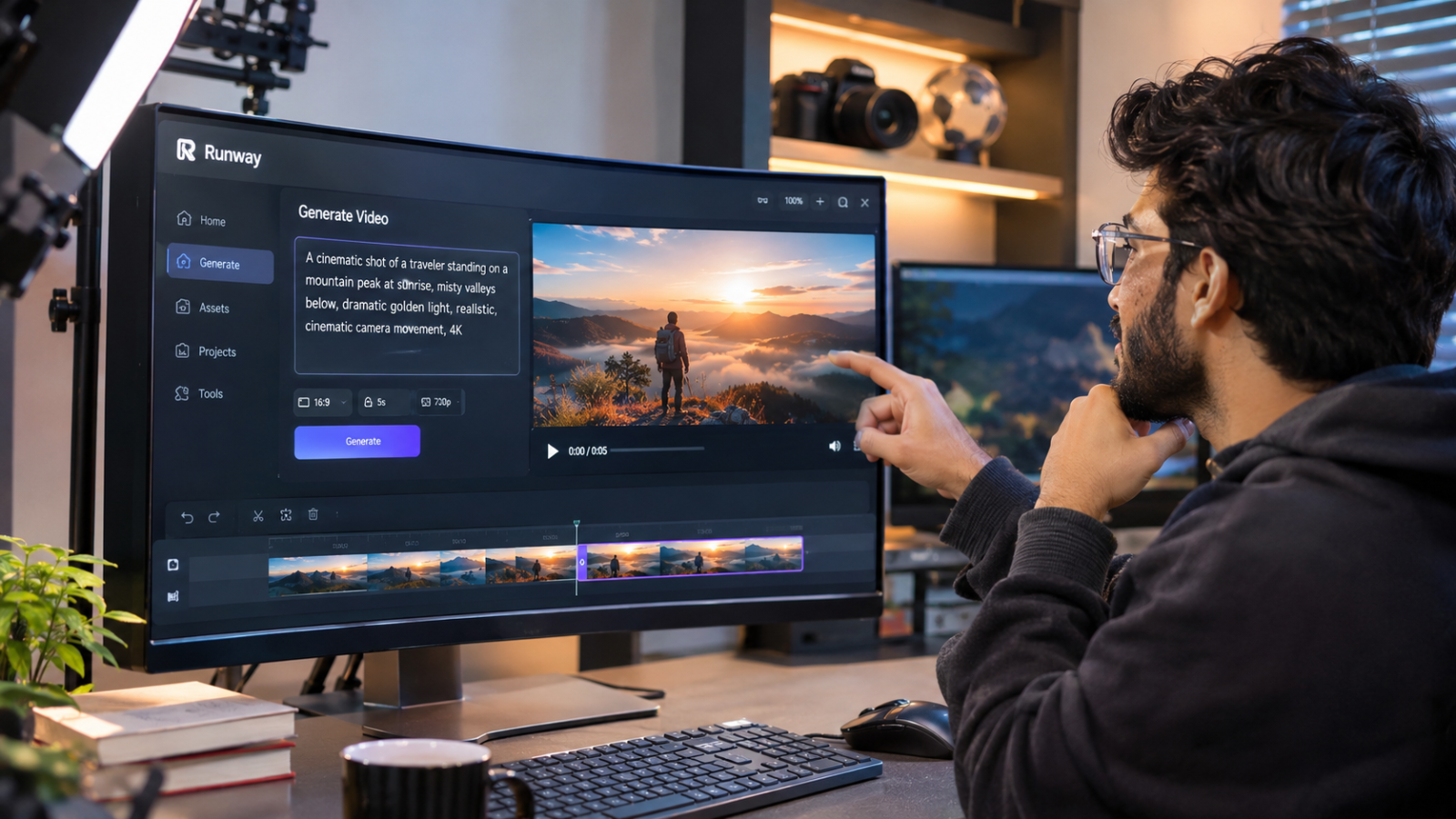
Runway’s official formula: [Camera] shot of [a subject/object] [action] in [environment], then supporting descriptions. Every prompt needs at least two things: visual descriptions (what we see, where, how it looks) and motion descriptions (how the scene moves and behaves, subject action, environmental motion, camera motion, motion style and timing, direction and speed).
Best practices (official): use positive phrasing instead of “no” and “don’t”, avoid ambiguous or conceptual language, avoid conflicting instructions, and start simple then add detail as you iterate. Failure points (official): if an input image already implies motion (motion blur, a mid-action pose, dust clouds) and your prompt asks for stillness, you get unwanted motion; unwanted cuts usually mean the shot needs a longer duration or an instruction like “Continuous, seamless shot”. Limits (official): Gen-4.5 durations 2-10 seconds, 12 credits per second, 720p at 24 or 25fps, ratios 16:9, 9:16, 1:1, 4:3, 3:4, 21:9.
Pika prompts
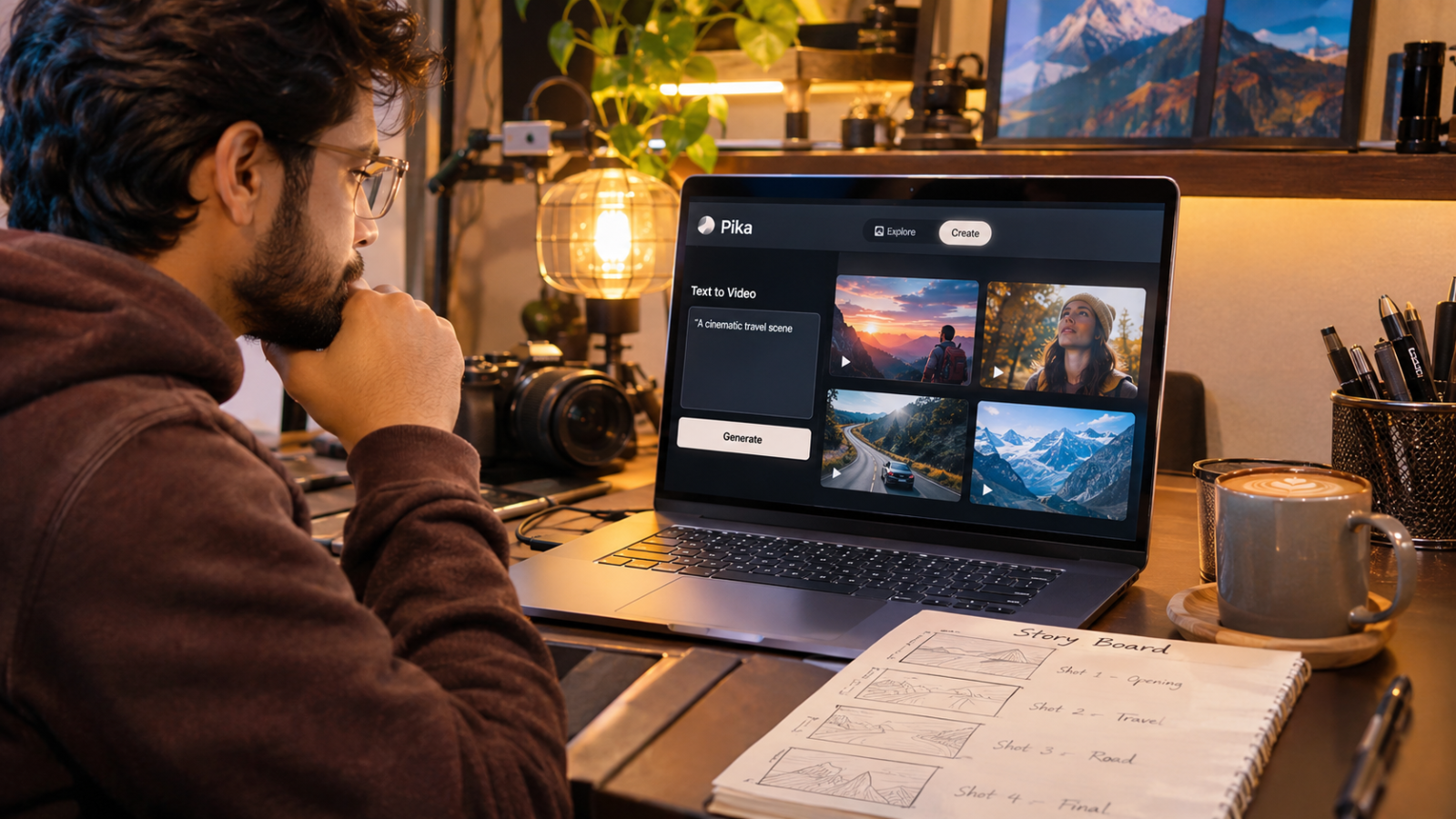
Pika’s official FAQ advice is the shortest and most practical: give Pika something specific, subject, what happens, setting, lighting, style, and for video, always include the camera move. A specific camera move plus a specific subject beats a vague word like “cinematic” every time. When refining, change one thing at a time so you know what actually improved the result. Limits (official): depends on app and model; Video Studio supports short clips and multi-shot videos up to 30 seconds with supported models, with length and resolution shown in-app before generating.
5 ready templates (copy, fill the brackets, generate)
- Product shot: “[Camera] shot of [product] [action] on [surface], [lighting], [background colour], minimal style, no text.”
- Character scene: “Medium shot of [character, age, clothing] [action] in [location], [lighting], [mood]. [Character]: ‘[one short line of dialogue].'”
- Travel clip: “Slow [camera move] across [location] at [time of day], [subject] [action], [weather/light], cinematic, continuous seamless shot.”
- Social vertical: “Vertical 9:16 shot, [subject] [action] in [setting], bold colours, [camera move], fast energy, 5 seconds.”
- Before/after idea: “Close-up of [subject] [action], then camera [move] to reveal [result], [lighting], clean modern style.”
Mistakes that ruin clips
Writing a mood (“epic, cinematic, amazing”) instead of a shot. Two actions in one 5-second clip. The model finishes neither. Negative prompts (“no watermark, no extra fingers”). Say what you want, not what you don’t. Exact counts (“exactly seven birds”), models are weak at numbers, as Kling’s guide warns. Changing five things at once when a result is bad, change one, regenerate, compare.
FAQ
How long should a text to video prompt be? Runway’s official answer is that there is no ideal length, focus on clarity rather than word count. One clear sentence usually beats a paragraph.
Do I need camera language in every prompt? No. Kling lists camera, lighting and atmosphere as optional, and Runway says omitting a component gives the model freedom. Add camera language when the move matters.
Why does my clip change halfway through? Usually the prompt asked for too much for the duration, or an input image implied motion that conflicted with the prompt. Shorten the action or add “Continuous, seamless shot”.
Which tool is best for dialogue? Veo, because its official guide supports written dialogue lines.
Verdict
Start with Kling’s formula, add Veo’s dialogue only when a character actually speaks, use Runway’s camera-first structure when the camera move is the point, and use Pika’s one-change-at-a-time rule for every refinement. That is the whole system for text to video prompts: one subject, one action, one scene, one camera move, written clearly, then iterated once at a time.