
A photographer already has the hardest part of a video: the image. The wedding portrait is shot, the newborn session is edited, the product shot is lit, the landscape is waiting in the library. What a photographer usually lacks is the time to turn those stills into the moving clips clients now expect: a slow reveal of the bride’s dress, a 30-second film from a family session, a behind-the-scenes Reel from a shoot, a teaser that books the next wedding before the last one is delivered. Until recently that meant learning a video editor, hiring an editor, or filming extra footage on the day and editing late at night. Now a photographer can take a finished photo, animate it into a short moving clip, build a client film from a folder of stills, cut a behind-the-scenes Reel on a phone between sessions, and rescue a shaky or low-light clip from a second shooter, all without a film crew. This guide compares 7 of the best AI video tools for photographers, with real prices checked on 21 November 2026, so a photographer can build a stack that fits one studio, one month of posting, and a real monthly budget.
The short verdict: start with Kling AI Standard at $8.80 a month for animating still photos into gentle moving clips, and CapCut Free for finishing the behind-the-scenes Reels on a phone between sessions. That starter stack costs $8.80 a month, or about $0.73 per video across a month of 12 videos. Add Canva Pro at $18 a month on monthly billing when the studio needs client films, slideshows and social templates from the same photos, and Runway Standard at $15 a month when a wedding portrait or a hero shot deserves a cinematic camera move. Buying the cheapest paid plan of all seven tools costs $130.79 a month, or about $10.90 per video across the same 12-video month. The free route costs $0, but watermarked exports, non-commercial licences and hard caps on free credits make it a testing route, not a business routine.
One honest warning before the list, and it matters for photographers because a client’s wedding, newborn session or family portrait happens once and cannot be reshot: never animate a client’s photo to fake a moment that did not happen, and never present an AI-animated photo as real footage of the event. A dress that never moved, a smile that was never there, a venue that was never booked, a result you did not deliver: all of these are misleading claims, and a client who books on them will complain on delivery day. Get written consent before putting any client’s photo into an AI tool or into a public Reel, because a client’s portrait is their image, not your marketing material. The rule for this guide is simple: use AI for the camera move, the edit and the enhancement, and use your own photographs, with the client’s written permission, for every real result, every testimonial and every wedding film. Check the commercial licence and watermark rules of each tool before using any clip for a paying client, and keep client data out of every tool below, because none of the seven publishes a photographer data agreement on the pages checked for this guide, and a video is general information, never personal advice for one event.
| Tool | Best for | Cheapest paid plan | Free option |
|---|---|---|---|
| Runway | Cinematic camera moves from a still photo | $15 a month | Yes, 125 one-time credits, watermarked |
| Kling AI | Natural movement inside a still photo | $8.80 a month | Yes, monthly free credits, watermarked |
| Luma Dream Machine | Fast testing of photo-to-video ideas | $30 a month | Trial credits only, no free tier on the web pricing page |
| CapCut | Behind-the-scenes Reels with captions | $19.99 a month | Yes |
| Canva | Client films, slideshows and social templates | $18 a month | Yes |
| Pika | Quick concepts on many video models | $10 a month | Yes, no watermark, credit packs only |
| Topaz Video AI | Rescuing shaky or low-light real footage | $29 a month | No free plan, paid only |
All prices are in US dollars, before tax, and were checked on 21 November 2026. Prices change often, so confirm at checkout. Prices with a caveat are noted under the tool below.
1. Runway: best for cinematic camera moves from a still photo
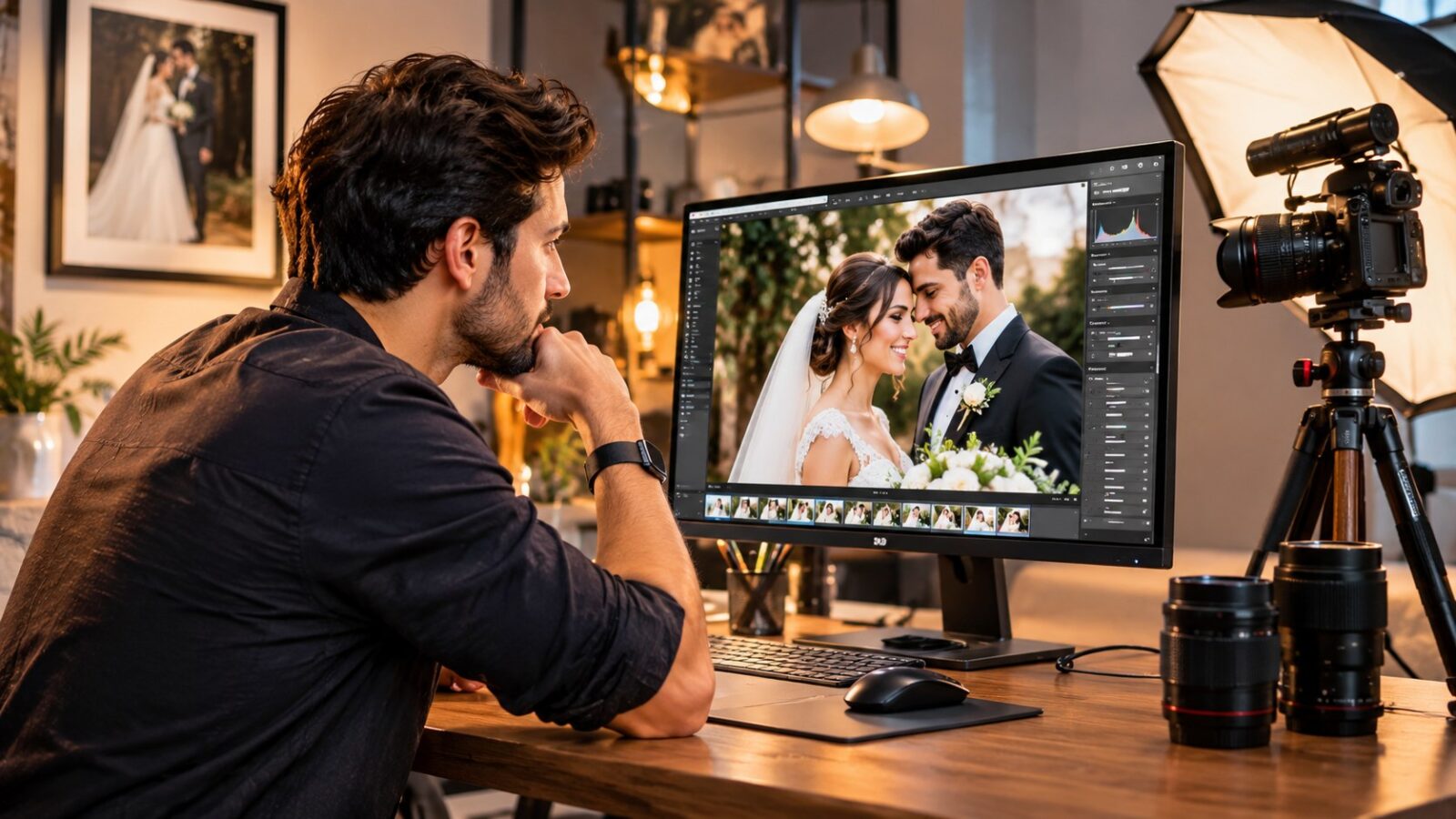
Runway is the job video specialist in this list. Its Gen-4.5 model turns a finished photograph into a short moving clip: a wedding portrait that slowly pushes in, a landscape that drifts across the frame, a product shot that rotates gently, a hero image from a portfolio that breathes for five seconds on a website. For a photographer, that is the exact job: the photo you already shot becomes the video, with no camera crew and no filming session. Runway also offers 4K upscaling, music, voice and sound effects generation, and a brand kit on the Pro plan, so the studio’s clips keep one look across the month. It exports vertical clips for Reels and TikTok, website loops and ad cuts from the same project.
Price: the Standard plan costs $15 a month on monthly billing, or $12 a month billed annually, with 625 credits a month. That buys about 52 seconds of Gen-4.5 video, 104 seconds of Gen-4 Turbo, or 78 Gen-4 images at 1080p each month. The Pro plan costs $35 a month on monthly billing, or $28 a month billed annually, with 2,250 credits a month, about 187 seconds of Gen-4.5 video. The Max plan costs $95 a month on monthly billing, or $76 a month billed annually, with 9,500 credits a month. The Free plan costs $0, with 125 one-time credits to explore the tools, a selection of generative models, 5 GB of storage, and a watermark on exports.
Caveat: the credit maths above are Runway’s own figures from the pricing page read on 21 November 2026, and credits are spent per second of video, so a month of daily photo animations needs the Pro plan. The free plan’s 125 credits are one-time, not monthly, so they run out after a few test clips. Runway’s page also notes Kling 4.0 generations are 25 percent off until 30 November 2026. A generated clip must never be presented as real footage of the event, so use your own photograph as the starting frame and never present a generated moment as work you delivered.
Best for: a photographer who already shoots strong stills and wants those stills turned into short moving clips, wedding portrait reveals, calm landscape drifts and product shots that breathe, for Reels, TikTok and the studio website, without filming. Limit: the credit pool on Standard buys under a minute of top-model video a month, so a studio posting daily animated stills needs Pro at $28 a month on annual billing, and a generated clip must never be presented as real footage of the event.
2. Kling AI: best for natural movement inside a still photo

Kling AI is the motion specialist in this list, and it is the cheapest paid plan here. Its image-to-video keeps the photograph and the subject in your frame intact and moves what should move: hair drifting gently in a portrait, fabric swaying in a wedding dress, water rippling in a landscape, sunlight shifting across a studio backdrop. That matters for a photographer because a portrait is mostly still, and the wrong kind of motion, a face that bends or a hand that shifts, breaks the trust at once. Kling also offers first and last frame control, so you can set the opening photo and the closing photo and let the model fill the move between them, which keeps the subject honest and makes it the best tool here for the reveal moment in a client film.
Price: the Standard plan costs $6.99 for the first month, then $8.80 a month, with 660 credits a month. Billed yearly it costs $79.20 a year, or $6.60 a month. The Pro plan costs $25.99 for the first month, then $32.56 a month, with 3,000 credits a month. The Premier plan runs from $80.96 to $376.99 a month depending on how many credits you pick, and the Ultra+ plan costs $544.99 a month with 57,000 credits. The free Basic plan costs $0, with monthly free credits claimed on login, a watermark, 720p export, and no commercial use.
Caveat: Kling’s official pricing page, read on 21 November 2026, renders its marketing page with no prices in the fetched text, so the figures above come from multiple independent checks of Kling’s official membership page in October and November 2026, most recently 12 to 15 November 2026, and all of them agree. Confirm the price at checkout before buying. Credits are spent per second of video and monthly credits expire 31 days after they are issued, so Standard’s 660 credits buy a few short animated stills a month, not a library. Watermark removal and commercial use are paid-plan only, so the free plan is a test, not a business workflow.
Best for: a photographer who wants believable movement inside their own real photograph, hair drifting in a portrait, fabric swaying in a wedding dress, water rippling in a landscape, with the subject itself unchanged, at the lowest paid price in this list. Limit: the credit pool is small, so a month of daily animated stills needs a higher plan, and the first-month discount hides the renewal price, so read the renewal figure before subscribing.
3. Luma: best for fast testing of photo-to-video ideas
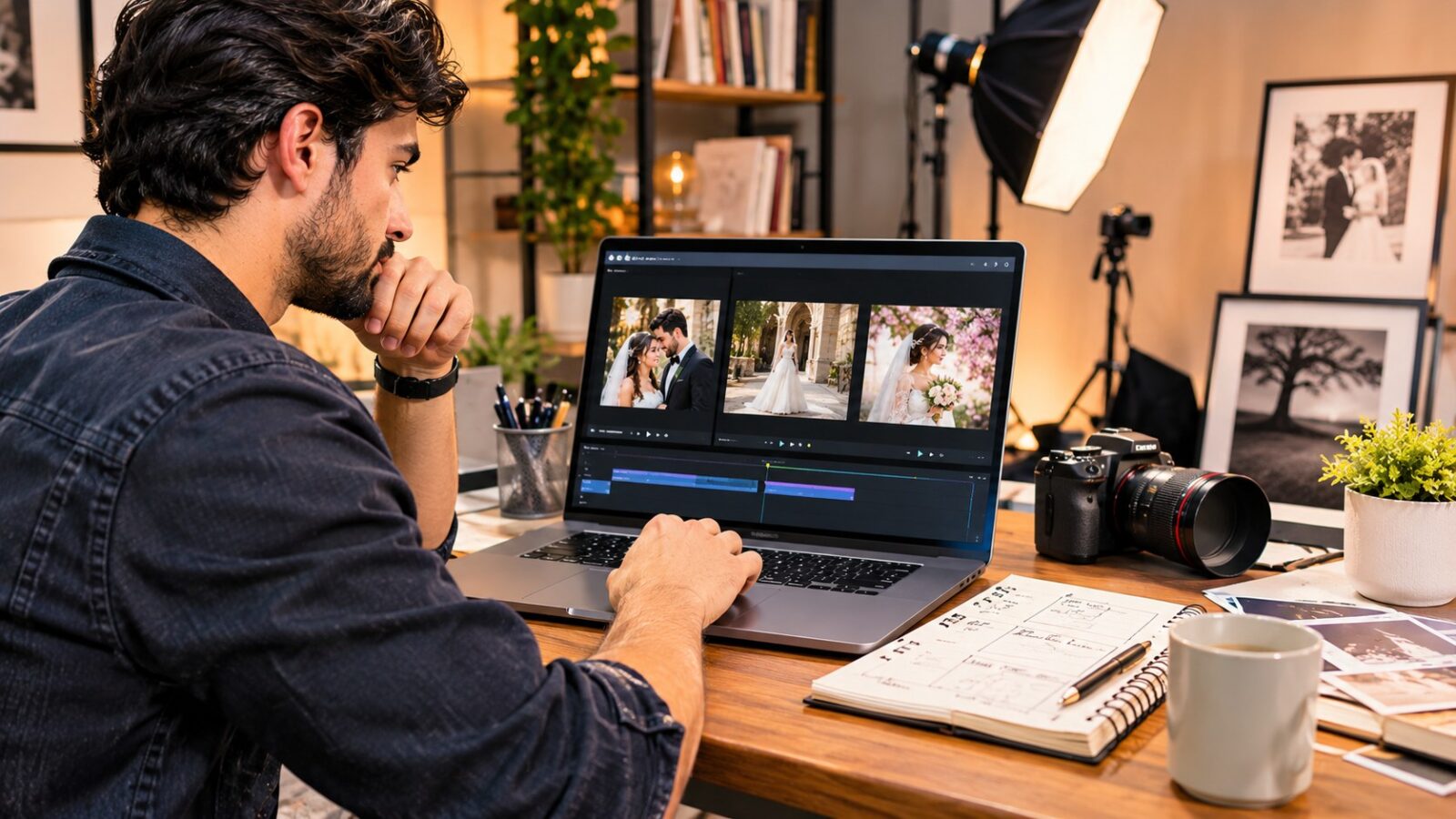
Luma Dream Machine is built around speed. You get a clip back fast, which makes it the right tool for the messy first stage where a photographer is testing three ideas and keeping one. Try the same wedding portrait as a slow push, a gentle orbit and a soft zoom, see which one reads best, and only then spend the good credits on the final version. Luma’s Ray3.2 model handles image-to-video, text-to-video and video-to-video, and the same account now runs third-party models too, including Veo 3.1, Kling 4.0 and Seedance 2.5, so a photographer can compare models on the same photo without opening five accounts. For a studio, that testing speed is the point: a client film idea is either right in the first five seconds or it is not, and Luma shows you fast.
Price: the Plus plan costs $30 a month on monthly billing, or $25 a month billed annually at $300 a year, with 10,000 credits a month, access to Luma and third-party image and video models, edit access for guest collaborators, and commercial use. The Pro plan costs $90 a month on monthly billing, or $75 a month billed annually at $900 a year, with 40,000 credits a month and 4 times the Agent usage of Plus. The Ultra plan costs $300 a month on monthly billing, or $250 a month billed annually at $3,000 a year, with 150,000 credits a month and 15 times the Agent usage. A 5-second Ray3.2 clip costs 100 credits at 720p and 400 credits at 1080p, so Plus buys about 100 five-second clips at 720p or 25 at 1080p in a month. Unused credits expire at the end of each billing cycle.
Caveat: the official pricing page, read on 21 November 2026, shows the credit tiers, 10,000, 40,000 and 150,000, and a saving of up to 20 percent on yearly billing, but no dollar figures in the fetched text, so the dollar figures above come from multiple independent reads of the official page in October and November 2026, and all of them agree. Confirm the price at checkout. The web pricing page lists no free tier, so there is no free plan to test on the web; a legacy Lite tier at $9.99 a month exists in the iPhone app only, with a watermark and no commercial use. The official page lists no photographer data agreement, so keep client data out and use Luma only for general portfolio and test clips, never for a named client’s private session without consent.
Best for: a photographer who tests ideas fast, trying three camera moves on the same portrait and keeping the best one, and who wants several video models in one account to compare on the same photo. Limit: it is the most expensive entry point in this list at $30 a month, the credits burn four times faster at 1080p than at 720p, and there is no free web tier to test with, so the first month is a paid test.
4. CapCut: best for behind-the-scenes Reels with captions
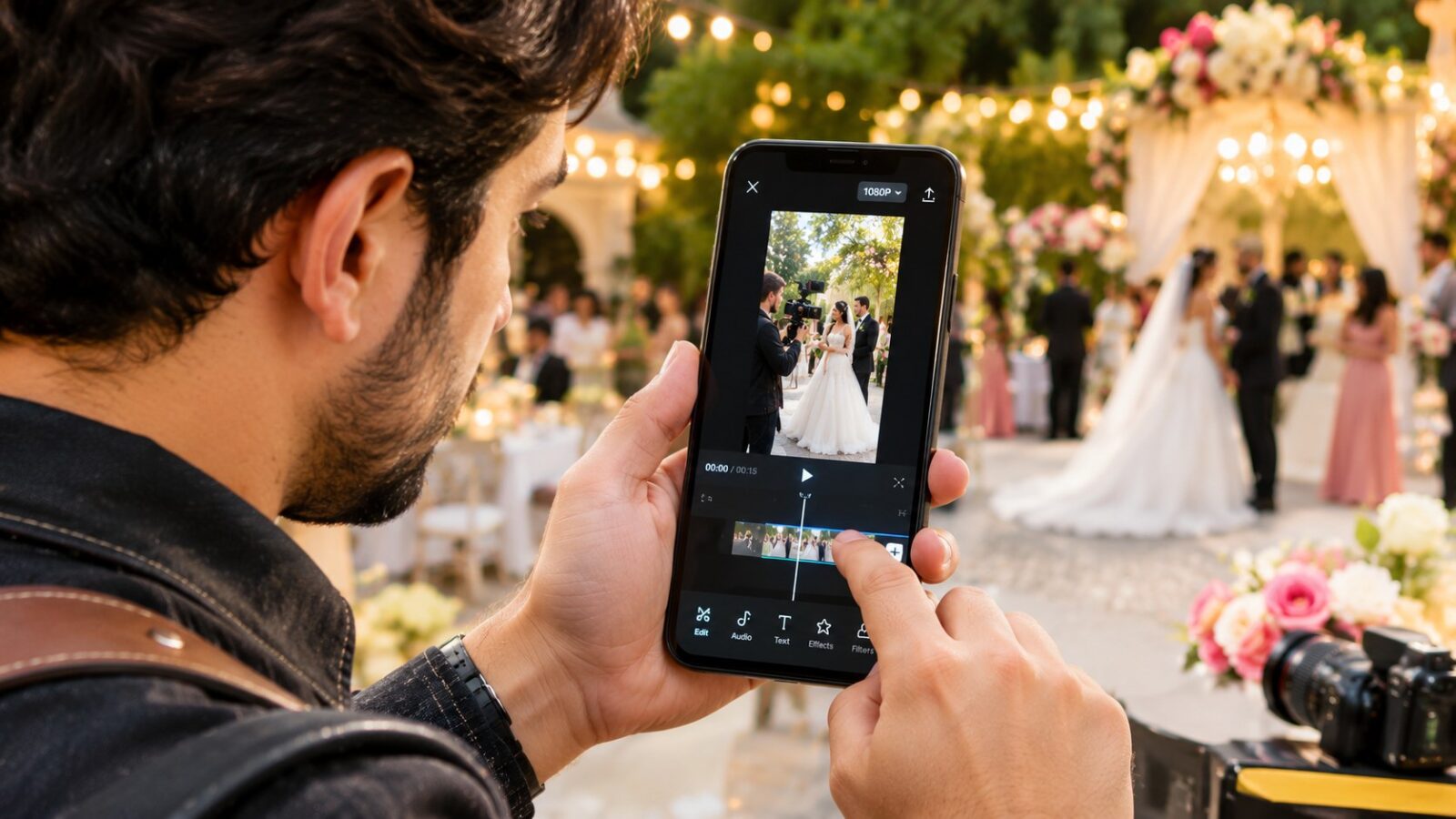
CapCut is the editor most photographers already have on a phone, and it is built for short vertical video: trending templates, auto captions, effects and sounds that match what is performing on Reels and TikTok right now. For a photographer, its two most useful features are auto captions in more than 20 languages, including bilingual captions and translation, because a Reel filmed in one country is often watched in another, and auto beat sync, which cuts clips to the music automatically. Film the setup, the lighting test, the client laughing between poses, the final gallery reveal, and CapCut turns it into a finished Reel before the photographer leaves the venue. The Pro plan adds 1,200 AI credits a month, all premium templates, 1 TB of storage and Seedance video generation, and one Pro account unlocks Pro on phone, desktop and web. A 7-day free trial of Pro needs no credit card, and the free plan exports with no watermark, so a behind-the-scenes Reel can be cut on site and posted before the shoot ends.
Price: the Pro plan costs $19.99 a month as shown on the official pricing page. Pro includes 1,200 monthly AI credits, 1 TB of cloud storage, all premium templates and Pro features, AI video generation, and 4K export at 60 frames per second. The annual price is $179.99 a year, about $15 a month. The Teams plan costs $12.49 a month per seat and adds a Brand Kit plus Pro features for every seat. The Ultra plan costs $79 a month with 8,645 AI credits for heavy AI generation work. The free plan costs $0 and covers basic editing tools and free templates, and a video cut from your own footage can export with no watermark on Free.
Caveat: CapCut’s own page warns that displayed prices are for reference only and the final price appears after sign-in, and prices can vary by region, device and current promotions. A cheaper $9.99 a month Standard tier exists in the mobile app only and is not sold on the website, so this guide does not quote it as a web price. The annual price of $179.99 a year comes from prior verified checks and was not shown on today’s fetch, so confirm it at checkout.
Best for: a photographer who films on site, edits the same day, and needs finished vertical behind-the-scenes Reels with captions and beat-synced cuts for Reels, TikTok and Shorts before leaving the venue. Limit: it is a single-account editor, not a video generator, so it cannot create the footage itself, only edit what you already filmed or generated elsewhere, and the AI credits are a monthly pool that runs out if you generate a lot of video.
5. Canva: best for client films, slideshows and social templates
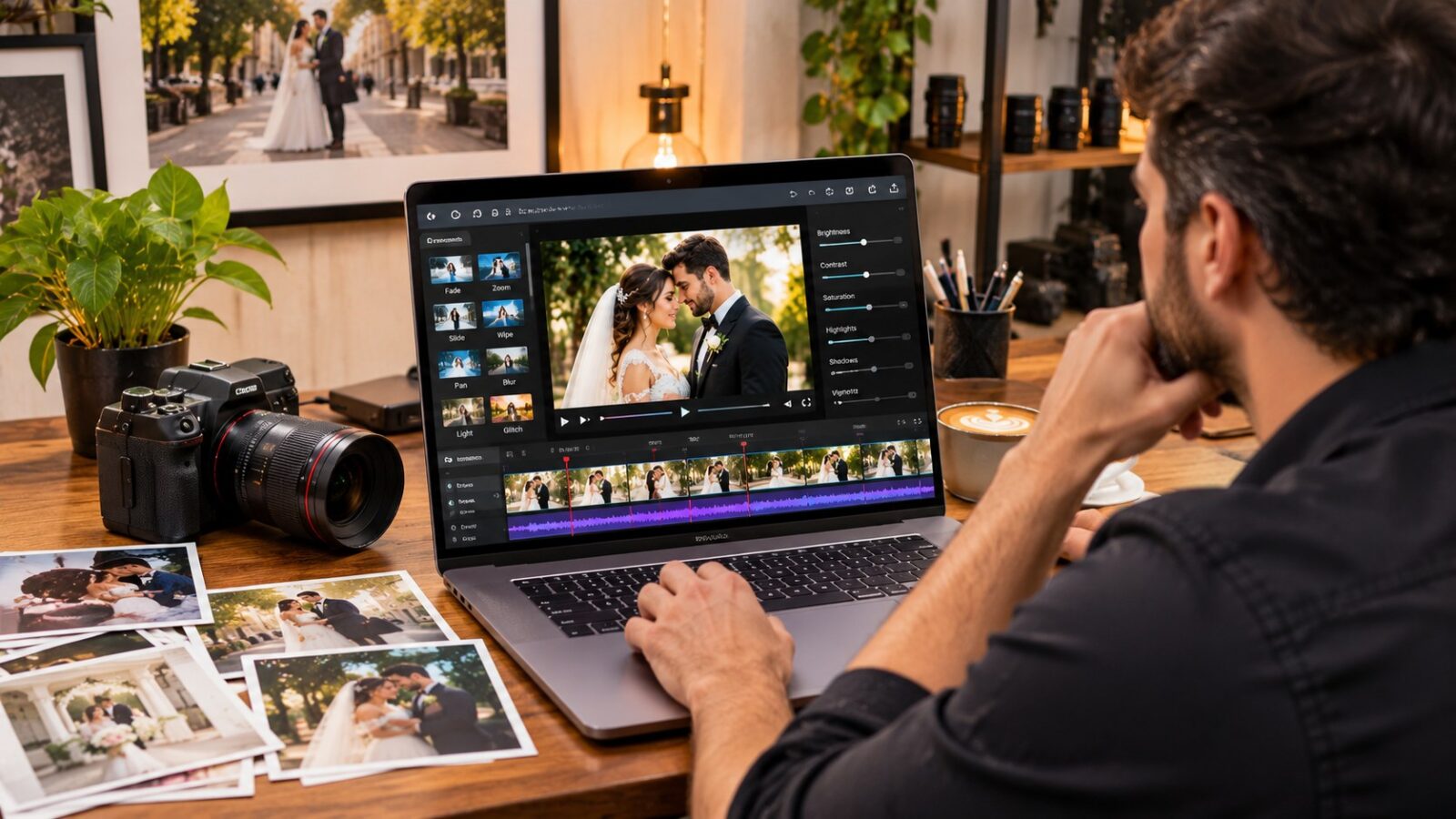
Canva is the template tool in this list, and it is the one a photographer uses when the job is a finished piece, not a single clip. Drop a folder of session photos into a slideshow template, add music and text, and the client film is ready to send. Build a price list, a booking announcement, a mini session flyer or a thank-you card from the same photos, and the studio’s social feed stays full between shoots. Canva’s Magic Resize turns one design into every format, so the same client film becomes a Reel, a Story and a website banner without rebuilding it three times. For a photographer who sells sessions, that is the workflow: one set of photos, one template, every format, every platform.
Price: the Pro plan costs $18 a month on monthly billing, or $144 a year, about $12 a month, for one person, with a 30-day free trial. Pro includes premium templates and content, Magic Resize, background removal, brand kits and social scheduling. The Business plan costs $25 a month per person on monthly billing, or $250 a year per person, and adds team collaboration and admin tools. The Free plan costs $0 and covers basic templates and design tools.
Caveat: Canva’s official pricing page blocked today’s direct read with an “unsupported client” message, so the figures above come from multiple independent reads of Canva’s official US pricing page in October and November 2026, and all of them agree. Canva says prices exclude applicable tax and vary by region, so the figure in your own account can differ, and the $12 a month annual figure is the yearly price divided by 12, not a monthly bill. Confirm the current figure at checkout. Canva Pro covers one person only, so a second person needs the Business plan. Canva’s AI video features sit inside its wider design toolset, so it is not a dedicated video generator like Runway or Kling.
Best for: a photographer who sells sessions and needs client films, slideshows, price lists, booking announcements and social templates from the same photos, in every format, without opening a video editor. Limit: it is a design tool with video features, not a dedicated video generator, so a cinematic camera move on a single portrait belongs in Runway or Kling, and the Pro plan covers one person only.
6. Pika: best for quick concepts on many video models
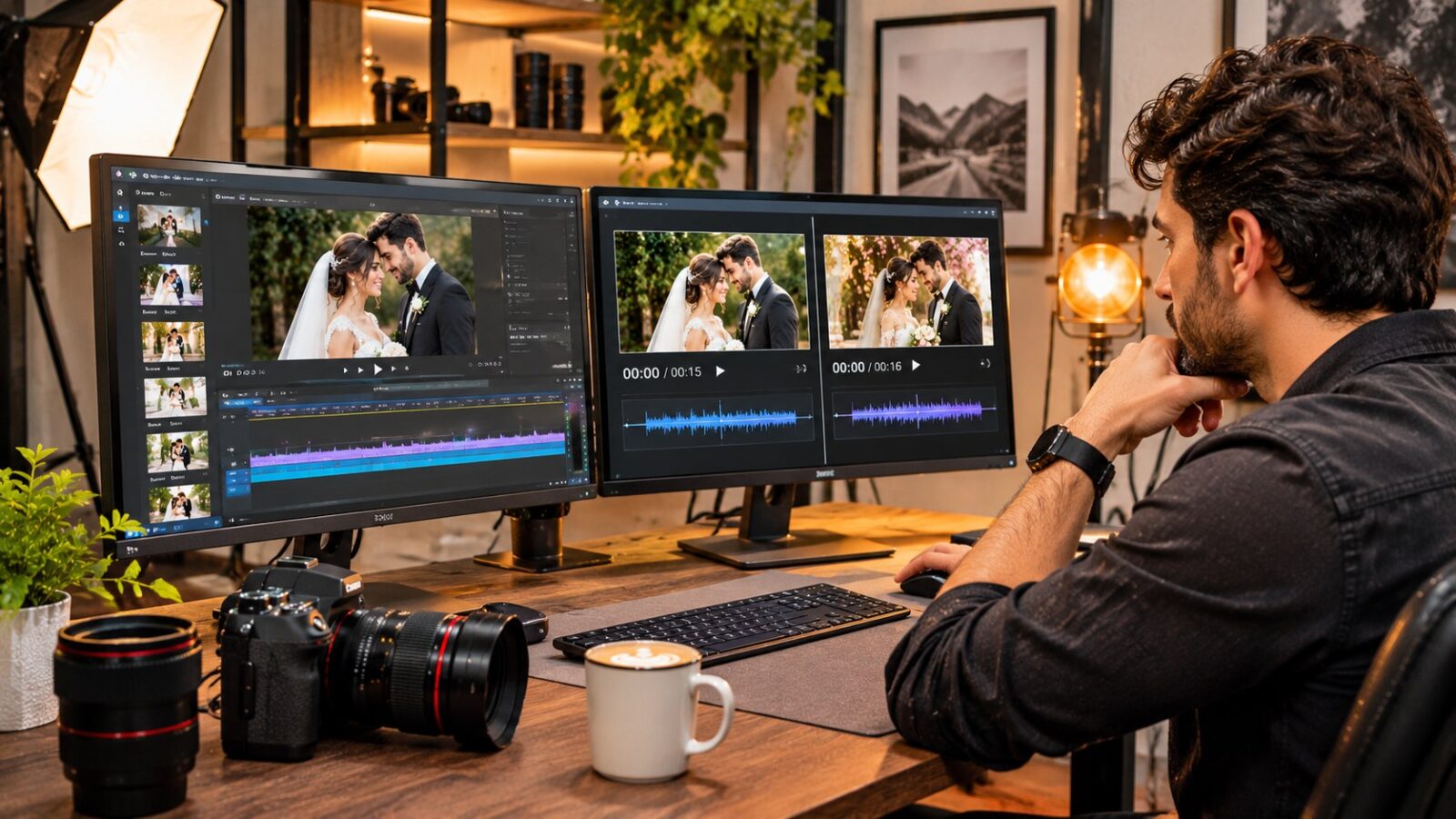
Pika is the multi-model workshop in this list. One account runs Pika’s own models alongside Seedance 2.5, Kling 4.0, Veo 3.1, Wan 3.0, MiniMax and Gemini Omni, so a photographer can try the same portrait on five models and keep the one that moves best. For a studio, that matters because no single model wins every job: one handles fabric well, another handles faces, another handles a landscape. Pika’s credit calculator matches a plan to the month’s output, and every paid plan includes all models, a commercial licence and no watermark. The free plan has no watermark either, which is rare in this list, but it runs on credit packs only and has no commercial licence, so it is a test, not a client workflow.
Price: the Starter plan costs $10 a month on monthly billing, or $8 a month billed annually at $96 a year, with 600 credits a month, no watermark and a commercial licence. The Creator plan costs $35 a month on monthly billing, or $28 a month billed annually at $336 a year, with 2,600 credits a month. The Fancy plan starts at $95 a month on monthly billing, or $76 a month billed annually from $912 a year, with 8,550 credits a month and more. The Free plan costs $0, with no watermark, credit packs only, and no commercial licence. A 5-second 720p Seedance 2.5 clip costs about 122 credits, around $2.03 on Starter. Credits refresh each billing period and do not roll over, while top-up credits carry over and expire 365 days after purchase.
Caveat: the pricing page was last updated on 28 October 2026, and the figures above come from the fresh fetch on 21 November 2026. The old Basic, Standard, Pro and Unlimited plan names are legacy, so check the Subscription page in your account for the terms of an existing legacy subscription. The credit cost per clip varies by model and resolution, so a month of long clips on Starter runs out fast, and the free plan’s lack of a commercial licence means no client work on Free.
Best for: a photographer who wants to try one portrait on many video models in a single account and keep the best result, without paying for five separate subscriptions. Limit: the credit maths are the tightest in this list, so a month of daily animated stills needs Creator at $28 a month on annual billing, and the free plan cannot be used for paying clients.
7. Topaz: best for rescuing shaky or low-light real footage
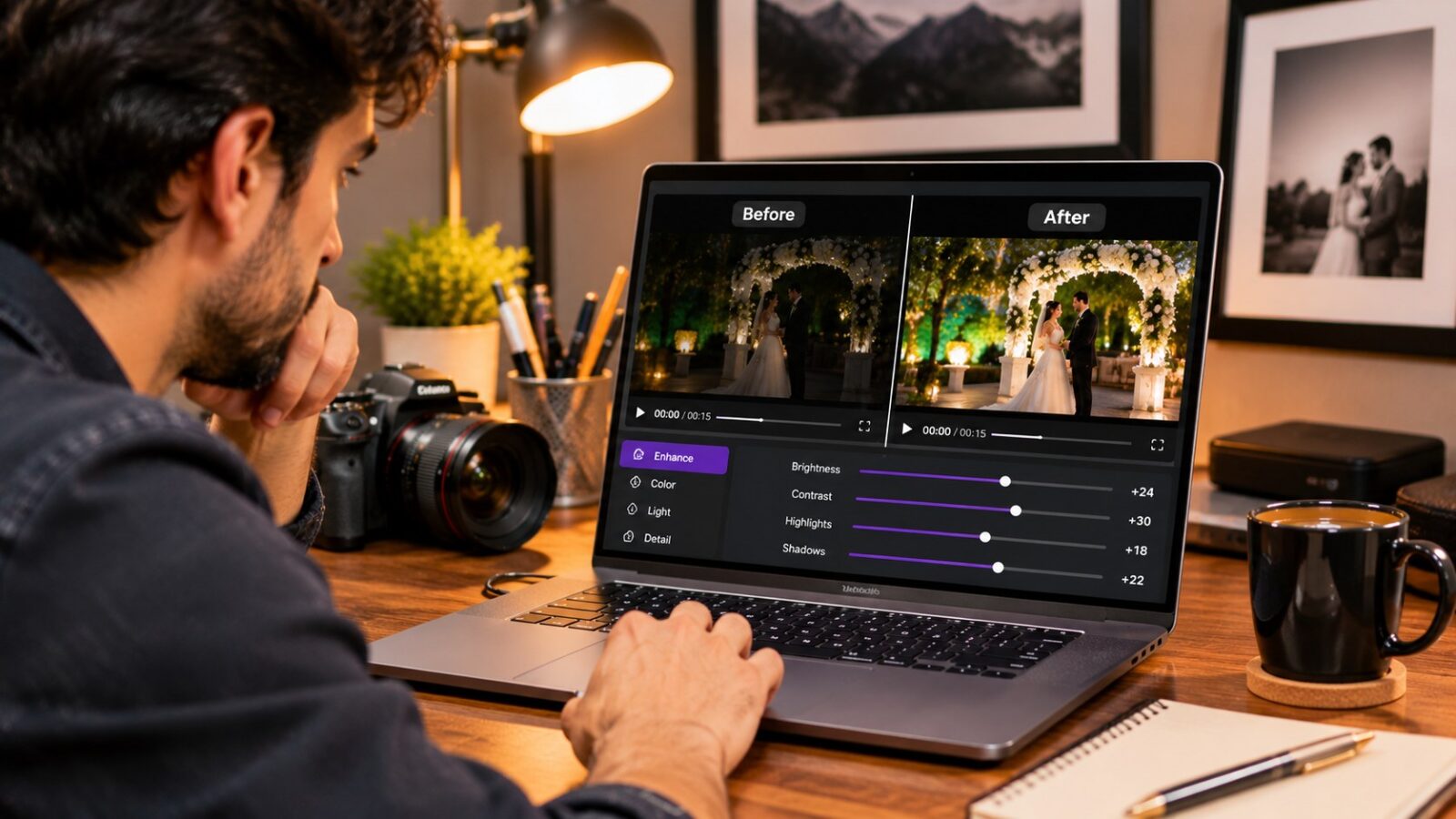
Topaz Video AI is the only tool in this list that does not generate video at all, and that is exactly why it belongs here. It fixes the real footage a photographer already shot: a shaky clip from a second shooter, a low-light ceremony video full of noise, a ceremony filmed at 720p that needs to play on a 4K screen, a slow-motion moment that needs more frames. Its Starlight models upscale precisely, its denoise models clean low-light footage, and its frame interpolation and slow-motion tools smooth a clip that was shot too fast. For a photographer, that is the safety net: the footage you already have becomes usable instead of being deleted. It runs on the web or as a desktop app, and the desktop app renders locally with no monthly cap on local renders.
Price: Topaz for Web, Video costs $29 a month, with 200 monthly cloud video credits, Precise Upscale including Starlight Precise 2.6, Creative Upscale, Frame Interpolation, Slow Motion, and SDR to HDR, with limited commercial use for organisations under $1 million in annual revenue. The Topaz Video desktop app costs $59 a month, with unlimited local rendering, 25 monthly cloud video credits, and the full Video model set. Topaz Studio costs $79 a month, or $299 for the first year on annual billing, reduced from $499 a year, with all apps, unlimited local rendering and 300 monthly cloud video credits.
Caveat: monthly cloud credits expire at the end of each month and do not roll over, so the 200 credits on the web plan are a monthly pool, not a bank. The desktop app’s $59 a month figure is the monthly-billing figure shown on the official page; confirm the annual figure at checkout, because the page shows both billing views. There is no free plan for Topaz Video, so the first month is a paid test, and the commercial use limit for organisations under $1 million in revenue is a hard cap on the web and desktop plans, not on Studio.
Best for: a photographer with real footage that needs rescuing, a shaky second-shooter clip, a noisy low-light ceremony, an old session that needs upscaling, because it enhances what was actually filmed instead of generating something new. Limit: it generates nothing, so it cannot animate a still photo or build a client film from scratch, and there is no free plan to test it with.
A worked example: one photographer, 12 videos
Take a photographer with one studio that posts 12 videos a month: 4 animated stills from recent sessions, 3 behind-the-scenes Reels, 2 client films, 1 booking announcement, 1 before-and-after edit showcase, and 1 seasonal promo. Here is how the month runs on the starter stack and on the full stack.
On the starter stack, Kling AI Standard at $8.80 a month makes the 4 animated stills from the studio’s own session photos, hair drifting in a portrait and fabric swaying in a wedding dress, and CapCut Free finishes the 3 behind-the-scenes Reels with captions on site and exports them with no watermark. Total: $8.80 a month, about $0.73 per video. The client films are simple slideshows, the booking announcement is a static post, and the before-and-after showcase is a phone screen recording, which is slower but costs nothing.
On the full stack, Kling Standard makes the 4 animated stills, Canva Pro builds the 2 client films and the booking announcement from the session photos, Pika Starter tries each portrait on several models and keeps the best motion, Runway Standard turns the hero portraits into cinematic reveals, CapCut Pro finishes the 3 behind-the-scenes Reels with captions and beat-synced cuts, Luma Plus tests the seasonal promo ideas fast and builds the final version, and Topaz for Web, Video rescues the shaky second-shooter clip for the before-and-after showcase. The cost builds up like this: $8.80 for Kling, $26.80 after adding Canva, $36.80 after adding Pika, $51.80 after adding Runway, $71.79 after adding CapCut, $101.79 after adding Luma, and $130.79 after adding Topaz. Total: $130.79 a month, about $10.90 per video across the 12-video month.
On annual billing, the same seven cheapest plans cost $107.60 a month: Kling $6.60, Canva $12, Pika $8, Runway $12, CapCut about $15, Luma $25 and Topaz $29, because no annual figure was verified for Topaz and it is kept at its monthly price. That is about $8.97 per video across the same 12-video month. Canva’s annual figure is $144 a year, about $12 a month, and CapCut’s is $179.99 a year, about $15 a month.
Which of the best AI video tools for photographers is right for your studio
A studio with one photographer should start with the starter stack: Kling AI Standard plus CapCut Free, $8.80 a month. Make the animated stills from your own session photos, film the behind-the-scenes Reels yourself, and let CapCut finish them on site. Add Canva Pro at $18 a month when the studio needs client films, slideshows and booking announcements from the same photos, because one set of photos that becomes a film, a flyer and a Reel is the work that pays for itself fastest. Add Runway Standard next when a wedding portrait or a hero shot deserves a cinematic camera move, because a portrait reveal is the clip that gets shared. Add Pika Starter next when you want to try one portrait on many models before committing. Add Luma Plus next when the studio tests ideas fast and wants several models in one account. Add Topaz last, when the real footage from second shooters and low-light ceremonies deserves rescuing instead of deleting.
Frequently asked questions
Can a photographer use AI video tools without filming anything?
Yes, for animated stills, client films and promos, but not for real events. Runway, Kling, Luma and Pika can build a moving clip from your own photograph, and Canva can build a client film from a folder of stills, which covers portrait reveals, session films, booking announcements and seasonal promos. A wedding film, a testimonial or a ceremony has to show what actually happened, so film that yourself, with the client’s written permission, and use CapCut to finish it. A client who books on an AI-generated moment will complain on delivery day.
Do AI-animated photos break advertising rules?
They can, if they mislead. A video that shows a moment, a venue, a dress or a result your studio did not deliver is a misleading claim in many countries, and a client who books on it will feel cheated. A slow camera move across your own portrait is honest. A video that shows a wedding you never shot, or a moment that never happened, is a refund request waiting to happen. Use AI for the camera move, the edit and the enhancement, and your own photographs, with the client’s written permission, for the results, the weddings and the testimonials. Our separate guide to the best AI video tools for wedding videographers covers a similar honesty rule for wedding videos in a neighbouring trade.
Can I use a client’s photo in an AI video tool?
Only with that client’s written consent. A portrait is the client’s image, and putting it into an AI tool or a public Reel without consent is a privacy problem as well as a trust problem. Get the consent in writing before the session, keep it on file, and never upload a named client’s private session into a tool that has no photographer data agreement. Use only general portfolio photos, or photos with written consent, for every public clip.
Is client data safe in AI video tools?
Not automatically. None of the seven tools in this guide publishes a photographer data agreement on the pages checked for this guide, so treat every tool as unsuitable for client data. Never upload a client’s name, wedding photo, session record or identifiable detail into any of them without written consent. Make only general portfolio videos and clips from photos with consent, and keep every named client’s private session out of the tools entirely. Add a line to every video that it is general information and not a substitute for a qualified photographer.
What does a photographer video stack cost per month?
The starter stack in this guide is $8.80 a month, about $0.73 per video across 12 videos. The full stack of all seven cheapest paid plans is $130.79 a month on monthly billing, or $107.60 a month on annual billing. Start with the starter stack and add one tool at a time as the videos earn their keep.
Conclusion
A photographer does not need a film crew. It needs 12 honest videos a month: animated stills that show the craft, behind-the-scenes Reels that show the person behind the camera, a client film that shows the session, and a booking announcement that fills the next month. The best AI video tools for photographers in this guide cover those jobs for $8.80 a month to start, or $130.79 a month for the full stack, with real prices checked on 21 November 2026. Start with Kling and CapCut, add Canva when your session photos deserve a film, and add Runway when a portrait deserves to move. Film your own sessions, let AI move the camera, and never let a generated clip pretend to be a moment you did not capture.
Related guides
- Best AI video tools for travel vloggers
- Best AI tools for faceless YouTube channels
- How to make faceless YouTube videos with AI
- How to make AI videos from text
- AI video editing tools for YouTube
- Best AI video tools for event planners
- Best AI video tools for small businesses
- AI voiceover for videos
- Best free AI video tools for beginners
- How to create AI shorts and reels in minutes