Most AI videos fail before anyone presses play. Not because the AI tool is weak, but because the creator skipped a basic step: no script, the wrong tool for the job, the wrong video size, or a watermark sitting right in the middle of the frame.
This guide covers the 7 AI video mistakes that cost beginners the most time, money and views. Each one comes with a real example, a verified number or platform rule, and a fix you can apply before your next upload.
The 7 AI video mistakes at a glance
| Mistake | What it costs you |
|---|---|
| 1. No script, only a prompt | Random, forgettable video |
| 2. Wrong tool, unchecked free limit | Credits gone after 2 clips |
| 3. Wrong size for the platform | Black bars, cropped faces |
| 4. Watermarked or locked export | Unusable final file |
| 5. No AI disclosure on YouTube | Forced label, removal, channel risk |
| 6. Music, voices or faces used without checking rights | Copyright and monetisation trouble |
| 7. Publishing the first generation unchecked | Glitches your viewers spot in seconds |
1. Starting with a prompt instead of a plan
The mistake: opening a video generator and typing “make a cool video about coffee” with no script, no hook and no ending in mind. The tool does exactly what you asked, and the result is a pretty clip that says nothing.
Why it hurts: viewers decide in the first 2 seconds whether to stay. A video with no clear first line and no point loses them before the AI visuals even matter. Shorts and Reels punish weak retention hard, and a video nobody finishes gets shown to fewer people.
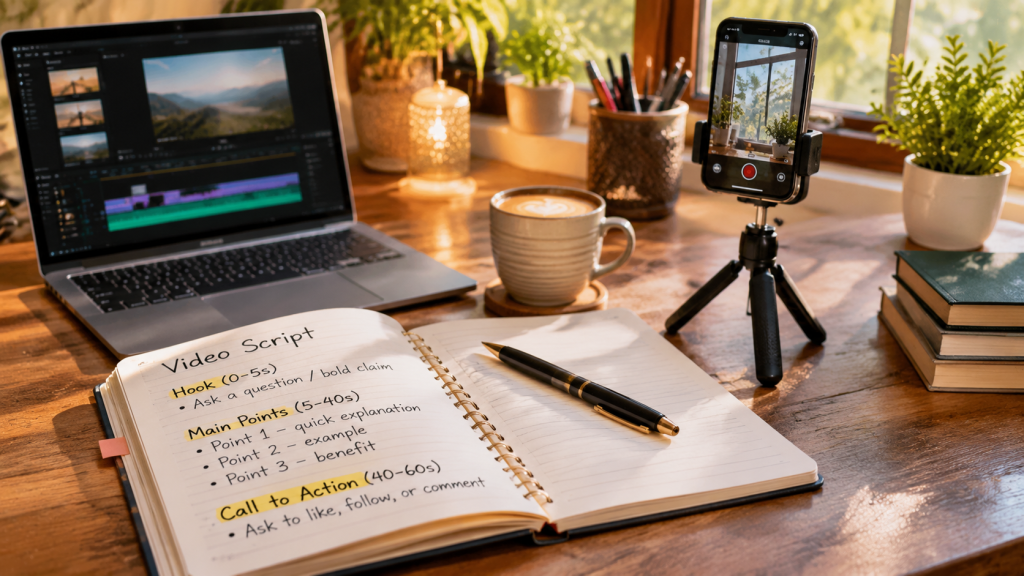
How to avoid it: write 3 lines before you generate anything. Line 1 is the hook, the exact first sentence a viewer hears. Line 2 is the one thing the video must teach or show. Line 3 is the ending, what the viewer should do or remember. If you cannot write those 3 lines, you are not ready to generate.
Worked example: a 30 second product clip. Hook: “This bottle keeps water cold for 24 hours, and I tested it in 40 degree heat.” Middle: one shot of the bottle in a gym bag, one shot of pouring ice water. Ending: “Link in the description, and the price is under 20 dollars.” That is a plan an AI tool can actually follow.
2. Picking a tool without checking its free limit
The mistake: choosing a generator because a YouTuber recommended it, then discovering halfway through your project that the free plan is already empty.

Why it hurts: free limits are smaller than most beginners expect, and they work differently on every tool. Runway gives free accounts 125 credits, one time only. Those credits never refill, and at 12 credits per second, Gen-4.5 video costs 60 credits for a single 5 second clip. That means the whole free plan buys about two 5 second clips. Runway Standard starts at 15 dollars per month, or 12 dollars per month billed annually, and adds 625 credits a month with no watermarks. Prices checked on runway.com/pricing on 12 November 2026.
How to avoid it: before you start a project, open the pricing page of the tool you plan to use and answer 3 questions. How many free credits or minutes do I get, and do they refill? Does the free export carry a watermark? What does the first paid plan cost if I run out mid-project? If the answers do not fit your video, pick a different tool first, not after you have spent your credits.
For a fuller comparison of free plans, read our guide to the best free AI video tools for beginners: https://zideoai.online/best-free-ai-video-tools-for-beginners/
3. Using the wrong size for the platform
The mistake: generating a wide 16:9 landscape clip and uploading it to YouTube Shorts, TikTok or Instagram Reels. The platform crops it, adds black bars, or shrinks it until the subject is a tiny strip in the middle of the screen.
Why it hurts: vertical video is the whole format on Shorts, TikTok and Reels. A landscape clip on a phone screen wastes more than half the display, and viewers scroll past in a second. On the other side, a vertical clip uploaded as a normal YouTube video looks broken on a laptop.
How to avoid it: decide the platform before you generate, then set the size in the tool. For Shorts, TikTok and Reels, use vertical 9:16 at 1080 by 1920 pixels. For a normal YouTube video, use horizontal 16:9 at 1920 by 1080 pixels. If one video must work on both, generate it in the platform size that matters most, and re-edit a separate cut for the other. Never stretch or crop after the fact and hope nobody notices.
Our guide to making Shorts and Reels with AI covers the full workflow: https://zideoai.online/how-to-create-ai-shorts-and-reels-in-minutes/
4. Publishing a watermarked or locked export
The mistake: spending an hour editing in CapCut, then finding a watermark across the final video, or worse, an export that is blocked completely until you pay.
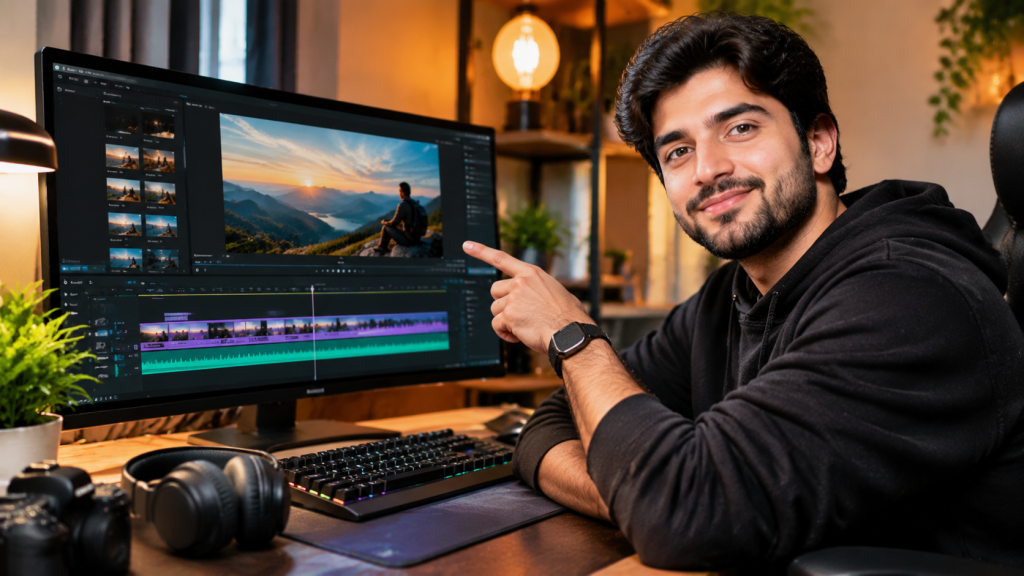
Why it hurts: a watermark tells every viewer the video was made on a free plan, and it cannot be cropped out without ruining the framing. CapCut is free to use, with a Pro plan at 19.99 dollars per month, but a watermark appears when your project uses Pro marked assets such as a premium template, effect, music track or text style. In some cases CapCut blocks the export entirely instead of just watermarking it. Prices checked on capcut.com/pricing on 12 November 2026. Runway works the same way: free plan exports carry a Runway watermark, and the first watermark free plan is Standard.
How to avoid it: build your edit only from free assets if you are on a free plan, and check the export preview before you spend time on fine details. In CapCut, delete the short CapCut logo clip at the end of template timelines. Export a 5 second test clip first. If the test export has a watermark, find the Pro marked item in your timeline and replace it before you edit further.
5. Skipping the AI disclosure on YouTube
The mistake: uploading a realistic AI video to YouTube and answering “No” to the AI use question, or skipping it entirely, because the video “looks fine” and the label feels embarrassing.
Why it hurts: YouTube requires creators to disclose AI content that seems realistic. That includes AI video that makes a real person appear to say or do something they did not do, alters footage of a real event or place, generates a realistic scene that did not actually occur, or creates music that is the main focus of the video. YouTube states the rule plainly in its Help Center: creators who consistently choose not to disclose this information may face manual application of a label or penalties, including removal of content or suspension from the YouTube Partner Programme.
How to avoid it: during upload in YouTube Studio, open the Attributes section and set AI use to Yes when your video meets the rule. YouTube adds a label for viewers. The same Help page says disclosing will not limit a video audience or impact eligibility to earn money, so the label costs you nothing and the missing label can cost you the video. TikTok and Meta have similar rules for realistic AI content, so check the label setting on every platform you post to, not just YouTube.
Official source: YouTube Help, Disclosing use of GenAI content: https://support.google.com/youtube/answer/14328491?hl=en
6. Using AI music, voices or faces without checking the rights
The mistake: generating a song with an AI music tool, cloning a celebrity voice, or putting a realistic AI face in a video, and assuming that because AI made it, you own it and can monetise it freely.
Why it hurts: two separate rules apply, and both can bite. First, copyright. The US Copyright Office said in its January 2025 report that copyright protects human authorship, and prompts alone do not give enough control to make the prompter the author of AI generated material. Your script, your edit, and your selection and arrangement of material can be protected, but a clip generated from a prompt alone is not. Second, the tool terms. Many AI tools give you ownership of the output, but only on a paid plan, or only for certain uses. A free plan may allow personal use only, and a music track generated by AI can still clash with a platform content ID system.
How to avoid it: read the terms page of every tool you use for music, voice and faces, and keep it simple. Use music from the platform audio library or a licensed source when the video is for a client or a monetised channel. Do not clone a real person voice or face without their permission. Save your prompts, scripts and project files, because they are the proof of your own creative work if a claim ever arrives.
7. Publishing the first generation without checking it
The mistake: generating one clip, liking the thumbnail frame, and uploading it without watching it from start to finish.

Why it hurts: AI video still makes errors that a 10 second review would catch. Hands with extra fingers, a face that changes halfway through a clip, text that melts into nonsense letters, flicker between frames, audio that drifts out of sync with the lips. Viewers spot these in seconds, and comments about glitches are the fastest way to kill a new channel credibility. YouTube also tightened its rules in July 2025, when “repetitious content” became “inauthentic content” in the monetisation policy. Mass produced, near identical AI clips with no original value are exactly what that policy targets.
How to avoid it: watch the full clip once, on your phone, with sound on, before you upload. Check 4 things: faces and hands, text on screen, captions and spelling, and audio sync. Regenerate the worst 5 seconds instead of accepting them. If a clip needs more than 2 fixes, regenerate it with a simpler prompt and fewer moving parts. A short clean video always beats a long glitchy one.
For quality settings that actually matter, resolution, style and consistency, see our guide: https://zideoai.online/ai-video-quality-tips/
Before you publish: a 2 minute checklist
- Script written: hook, one main point, ending
- Tool free limit checked, and enough credits left for the full video
- Video size set for the platform: 9:16 vertical for Shorts, TikTok and Reels, 16:9 for YouTube
- Test export checked for watermarks
- AI disclosure set to Yes in YouTube Studio when the video is realistic AI content
- Music, voice and faces cleared for commercial use
- Full clip watched once with sound, captions checked
FAQ
Can I use free AI video tools for YouTube monetisation?
Yes, but two conditions apply. First, the tool terms must allow commercial use on your plan. Second, YouTube judges the finished video on originality. A video with your own script, edit and point of view can qualify, while mass produced template clips with no added value fall under the inauthentic content policy and risk demonetisation.
Do I have to disclose AI videos on YouTube?
You must disclose AI content that seems realistic, including a realistic scene that did not occur, altered footage of a real place, or AI music as the main focus. You set this in YouTube Studio during upload, under Attributes and AI use. YouTube says disclosing will not limit your audience or your eligibility to earn money.
How many free videos can I make with Runway?
The Runway free plan gives 125 credits one time, and they never refill. Gen-4.5 video costs 12 credits per second, so 125 credits cover about two 5 second clips. Standard costs 15 dollars per month, or 12 dollars per month billed annually, and adds 625 credits per month. Prices checked on runway.com/pricing on 12 November 2026.
What is the best aspect ratio for AI short videos?
Use vertical 9:16 at 1080 by 1920 pixels for YouTube Shorts, TikTok and Instagram Reels. Use horizontal 16:9 at 1920 by 1080 pixels for normal YouTube videos.
Who owns an AI generated video?
It depends on the tool terms and on your country law. Most tools give the user ownership of the output, but under US Copyright Office guidance a purely AI generated clip from a prompt alone is not protected by copyright. Your script, edit and arrangement can be protected, so keep your project files and scripts as proof of your work.
The bottom line
Every one of these 7 mistakes is cheap to prevent and expensive to fix after publishing. Write the script first, check the free limit and the export before you invest an hour, set the right size for the platform, disclose realistic AI content, clear your music and voices, and watch the finished clip once. Do those 7 things and your AI videos will look like they came from a creator who knows the craft, not from a prompt box.
Related reading on zideoai.online:
- Best AI Video Generator Tools in 2026, Compared: https://zideoai.online/best-ai-video-generator-tools-in-2026-compared/
- Top 10 AI Video Tools for Social Media Creators: https://zideoai.online/top-ai-video-tools-for-social-media-creators/
- AI Video Editing Tools: Which One Is Best for YouTube?: https://zideoai.online/ai-video-editing-tools-for-youtube/
- Free vs Paid AI Video Tools: https://zideoai.online/free-vs-paid-ai-tools/
- AI Video Quality: Resolution, Style and Consistency Tips: https://zideoai.online/ai-video-quality-tips/
Sources (prices and rules checked 12 November 2026):
- Runway pricing: https://runway.com/pricing
- CapCut pricing: https://www.capcut.com/pricing
- YouTube Help, Disclosing use of GenAI content: https://support.google.com/youtube/answer/14328491?hl=en
- US Copyright Office, Copyright and Artificial Intelligence, Part 2: Copyrightability, January 2025