
Verdict first: If you already have long videos, do not start by filming new shorts. Start with one long video, let AI find the highlights, reframe to vertical, add captions, and review every clip by hand before you publish. For most creators, Opus Clip is the simplest start for viral-style highlights, Vizard is the best value for a full editor included, and CapCut is the best free finishing editor. Klap and Submagic fit specific jobs, Klap for simple per-clip volume, Submagic for caption quality. This is the fastest way to create AI Shorts and Reels from footage you already have.
In this guide you will learn the five-step workflow that turns one long video into a week of Shorts and Reels, and see how the five leading AI Shorts tools compare on price, free tiers and strengths, so you can run a free test today and only pay when a tool proves it saves you real time.
The workflow that actually works, in 5 steps
- Pick one long video with clear spoken moments, a tutorial, podcast or talk works best; a silent montage does not.
- Let AI pick highlights, upload or paste the link, and let the tool suggest 5–10 short moments instead of watching the whole video again.
- Reframe to 9:16, the tool should keep the speaker’s face centred as they move; check the first and last second of every clip, because a bad reframe ruins an otherwise good clip.
- Add captions and check them, AI captions are fast but not perfect; fix names, numbers and any word the AI misheard before publishing.
- Review each clip by hand, then publish, watch every clip with sound on, on a phone, cut any dead second at the start, and only then post to Shorts, Reels or TikTok. Never auto-post 20 clips without watching them.
Opus Clip – best for viral-style highlights
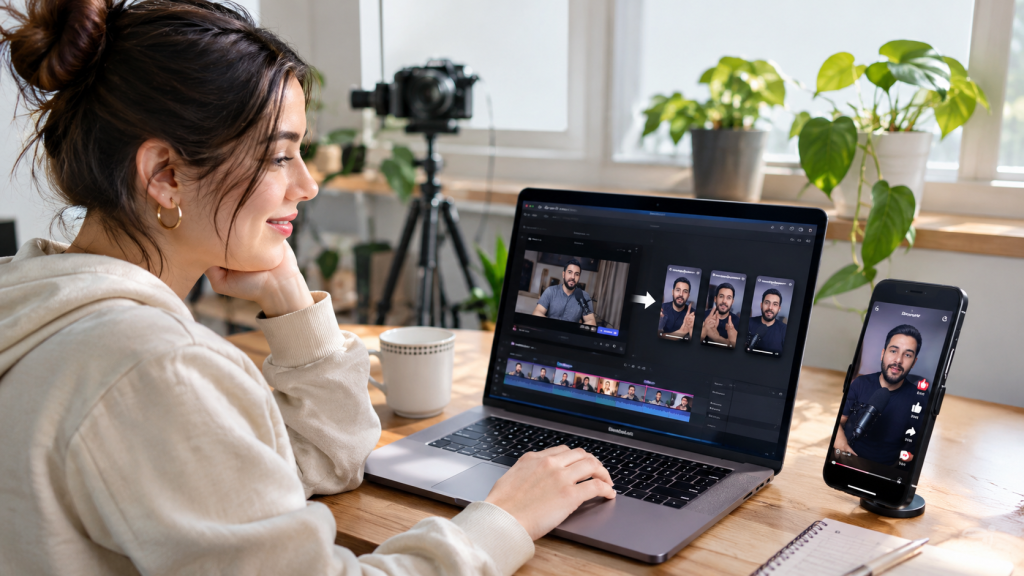
Paste a link or upload footage; its ClipAnything model finds highlight moments and ReframeAnything reframes them to 9:16, keeping moving subjects centred. It adds AI animated captions with emoji and keyword highlights in 20+ languages, scores clips with a Virality Score, and can auto-post or schedule to YouTube Shorts, TikTok and Instagram Reels.
Free: 60 credits a month, watermarked clips, max 1080p, no editing, and clips are no longer exportable after 3 days. Paid: Starter $15 a month (monthly only, 150 credits); Pro $29 a month or $14.50 a month billed yearly.
Strength: Virality Score plus works on any footage, with one-click posting. Limit: credit-based billing, and the free tier is watermarked with no editing.
Vizard – best value with a full editor
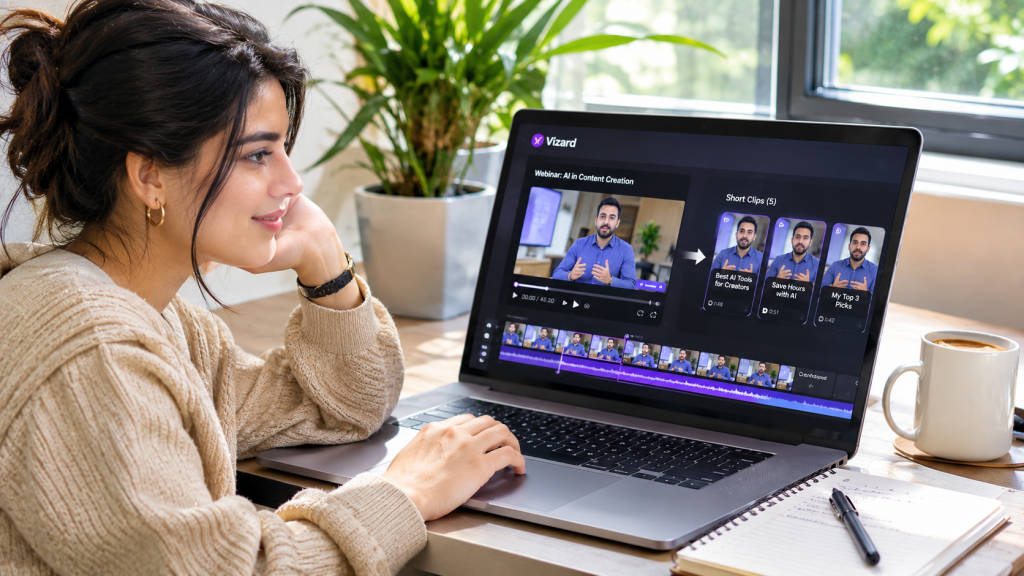
AI identifies engaging moments, cuts clips in one click and reframes key subjects for TikTok, Reels and Shorts. It adds AI captions plus emojis, AI B-roll, social caption and hashtag suggestions, a full text-based editor (edit by deleting transcript), ratio change to 9:16, and caption translation to 100+ languages.
Free: 60 credits a month (1 credit = 1 minute of video), full editor access, export in 720p, watermarked, 3-day storage, 1 social account. Paid: Creator $29 a month or $14.50 a month billed yearly; Business $39 a month or $19.50 a month yearly.
Strength: a full editor included free, plus AI B-roll and 100+ language caption translation. Limit: free exports are 720p with a watermark, and credits are charged per minute processed.
Klap – best for simple per-clip volume
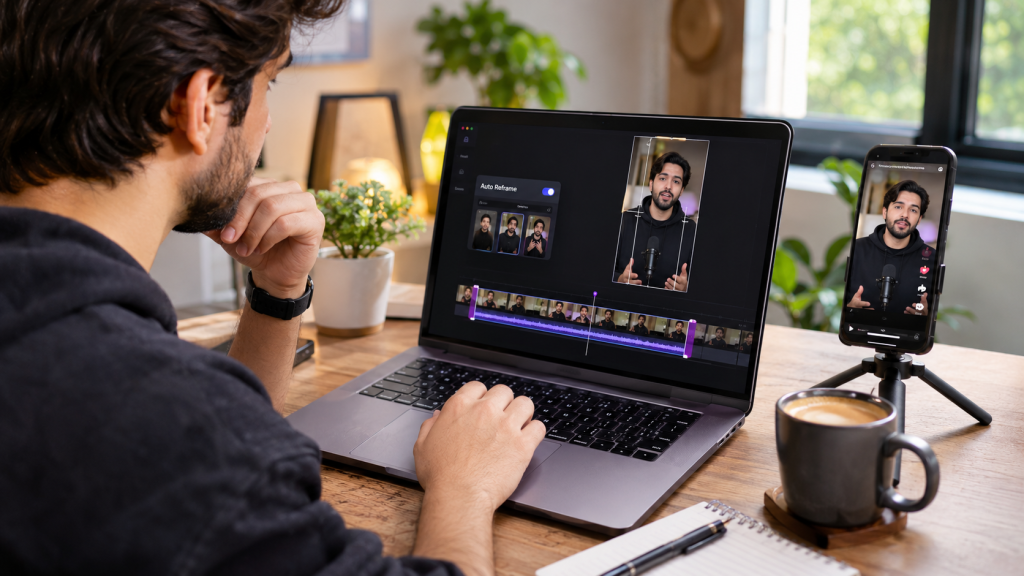
One-click long-video to vertical clips; AI editing extracts the best topics; AI Reframe 2 reframes subjects per platform; designed captions; brand customisation with fonts, colours and logos; direct publish and scheduling to TikTok, YouTube, Instagram and LinkedIn.
Free: no ongoing free plan. Try Klap free on 1 video, no credit card required. Paid: Basic $29 a month (100 clips) or $14 a month billed yearly; Pro $79 a month (300 clips) or $39 a month yearly.
Strength: simple pay-per-clip pricing with unlimited social accounts and analytics on every plan. Limit: no free tier beyond the single trial video, and input is limited to a YouTube link or uploaded file.
Submagic – best for caption quality
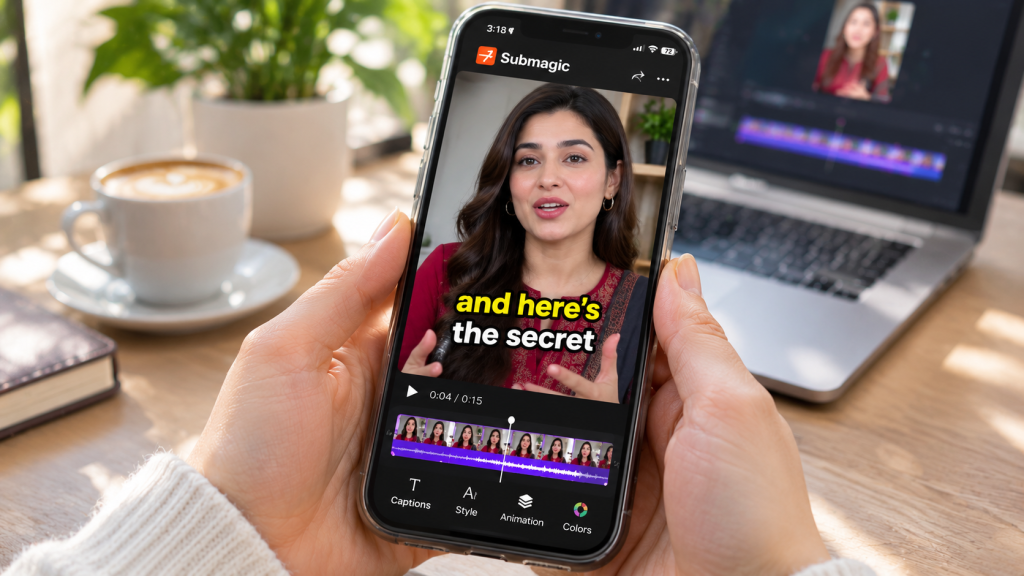
AI auto captions in 123 languages (claims 99% accuracy); Magic Clips repurposes a long video into multiple shorts; AI B-roll, auto-zooms, silence and bad-take removal, clean audio; AI avatars to create shorts without filming; schedule and publish across channels, exports up to 4K/60fps on Business.
Free: no free plan listed on the pricing page, only “try for free, no credit card required”, and the specific trial terms could not be verified on the official site, so check them before you rely on a trial. Paid, per member: Starter $19 a month (45 credits = 15 videos, 2-minute max, 1080p/30, no watermark); Pro $39 a month (120 credits = 40 videos, 5-minute duration); Business $69 a month (300 credits = 100 videos, 30-minute duration, 4K/60fps). Yearly: $12/$23/$41 a month.
Strength: the strongest caption engine plus AI avatars for filming-free shorts. Limit: per-member pricing with tight per-video duration caps.
CapCut – best free finishing editor
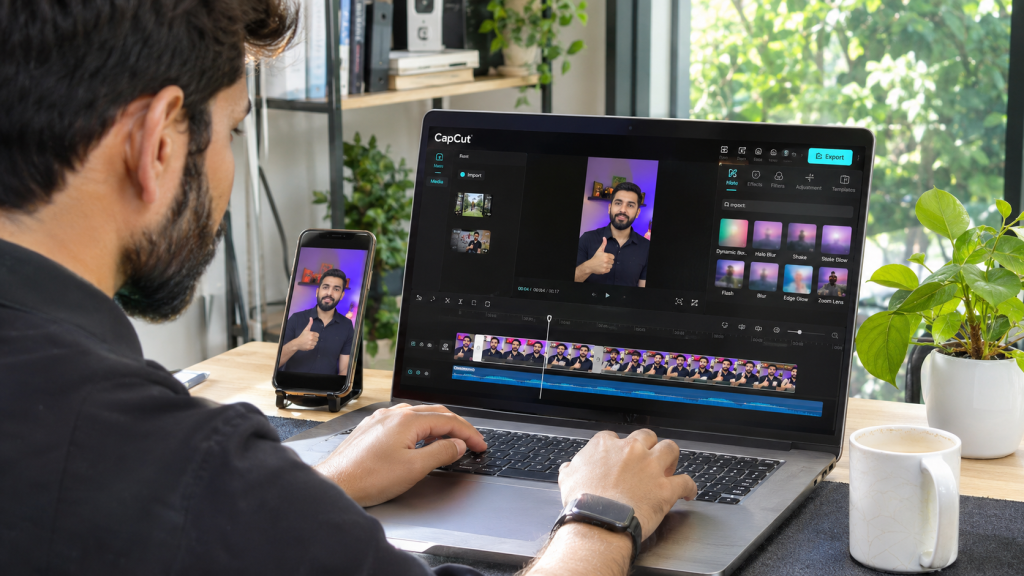
A full AI photo and video editor for desktop, mobile and web, auto captions, auto reframe and resize to 9:16, captions in multiple languages, and ready-made Reels and TikTok templates. It is not a dedicated long-to-shorts clipper: you identify and clip the moments yourself.
Free: free templates and basic editing tools, no credit card required. Paid: Pro $19.99 a month (1,200 monthly AI credits, AI features, premium templates, 1TB storage); Ultra $79 a month. Note: CapCut’s page says displayed pricing is for reference only and final pricing requires sign-in, so confirm on the day you buy.
Strength: the most generous free full editor across desktop, mobile and web, with a huge template library. Limit: no AI highlight-selection workflow, and premium AI features are gated behind paid AI credits.
AI Shorts and Reels tools compared
Here is how the five AI Shorts and Reels tools stack up on free tiers and pricing.
| Tool | Best for | Free tier | Pricing |
|---|---|---|---|
| Opus Clip | Viral highlights + Virality Score | Free 60 credits/mo, watermark, 1080p | From $15/mo |
| Vizard | Full editor + B-roll | Free 60 credits/mo, 720p, watermark | From $29/mo or $14.50/mo yearly |
| Klap | Simple per-clip volume | 1 free trial video only | From $29/mo or $14/mo yearly |
| Submagic | Caption quality + avatars | Trial terms not detailed on official site | From $19/member/mo |
| CapCut | Free finishing editor | Free basic tools/templates | From $19.99/mo |
Common mistakes
- Publishing a clip without watching it on a phone with sound on.
- Trusting AI captions without fixing names and numbers.
- Posting 20 auto-clips at once instead of 3 good ones.
- Using a 16:9 clip cropped badly instead of a proper 9:16 reframe.
- Ignoring the free tier’s watermark and expiry before a client project.
FAQ
Do I need a paid tool to start?
No, start with Opus Clip or Vizard free credits, or CapCut free, and pay only when a tool clearly saves you time.
How many shorts should I post from one long video?
3–5 strong clips beat 20 weak ones; pick moments with a clear hook in the first 2 seconds.
Are AI captions good enough to publish as-is?
No, always fix names, numbers and misheard words by hand.
Which tool is best for YouTube Shorts specifically?
Opus Clip for highlights, Vizard for editing control, CapCut for free finishing, see the comparison above.
Verdict
Take one long video today, run it through one tool, and publish 3 clips you have watched yourself. If highlights matter most, start with Opus Clip. If you want an editor included, start with Vizard. If you want free finishing, start with CapCut. Only pay when the free test proves one of these AI Shorts tools saves you real time. If you also need the long video itself, see our guides to the best AI video generator tools in 2026 and AI video editing tools for YouTube.
Links
- Best AI video generator tools in 2026, compared
- AI video editing tools for YouTube
- Opus Clip – official site
- Vizard – official site
- Klap – official site
- Submagic – official site
- CapCut – official site