Verdict first: If you are a beginner and you want free AI video tools that actually work, start with CapCut for editing and short videos, and DaVinci Resolve for a full desktop editor. CapCut is the easiest to learn, and DaVinci Resolve is the most powerful free editor with no watermark listed on the official pages checked. Opus Clip and Vizard are the best free choices when you already have a long video and you want short clips from it automatically. Clipchamp is the best choice when you want to edit in a browser without installing anything, especially on Windows.
No free tool gives you everything. Every free plan in this article has at least one real limit: a watermark, a resolution cap, a credit limit, an expiry, or no commercial licence. Pick the tool whose limit hurts you least, not the tool with the longest feature list.
What free really means
Free usually means one of three things. A free plan with monthly limits, a free trial for a fixed number of days, or a free editor with paid features locked. This article only calls a tool free when it has a free plan or a free version you can keep using, not just a trial. Three questions decide whether a free tool is useful for you. Does it add a watermark? Does it allow commercial use? Does it expire or reset every month? If you plan to post on YouTube, TikTok or Instagram, or to earn from videos, the commercial licence matters more than any single feature.
Comparison table
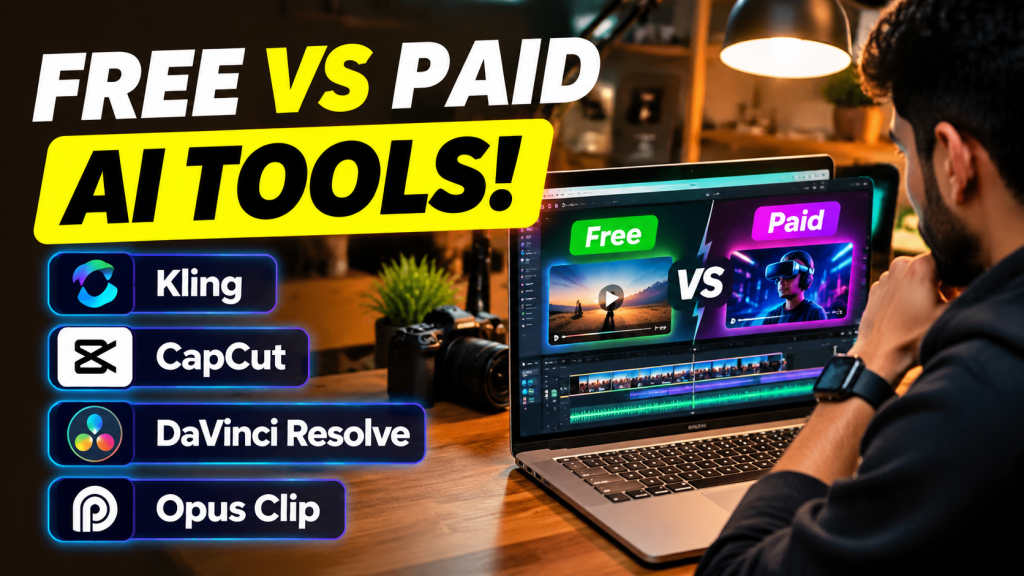
| Tool | Free starting point | Watermark on free | Best for |
|---|---|---|---|
| CapCut | Free basic tools and templates | Check the official page for the exact free export policy, because it is not stated clearly on the pricing page checked | Beginners, shorts, mobile editing |
| DaVinci Resolve | Free full editor | No watermark listed on any official page checked | Desktop editing, colour grading |
| Opus Clip | Free plan with monthly credits, clips expire after 3 days | Yes, watermark on free clips in the guides checked | Turning long videos into shorts |
| Vizard | Free plan, 60 credits per month | Yes, watermark, 720p, 3 day storage in the guides checked | Turning long videos into clips |
| Clipchamp | Free plan in the browser | Check the official pricing page before you rely on it for client work | Browser editing, Windows users |
Prices and free limits change often. Check the official pricing page on the day you start, because a free plan that works today can change next month.
CapCut
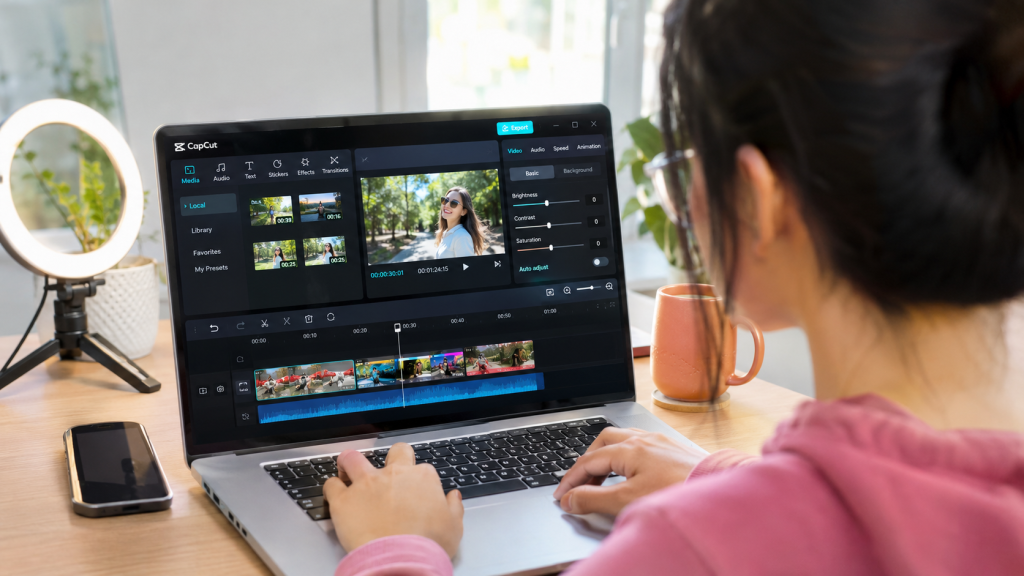
Strength: CapCut is the easiest tool in this list to learn. The free version includes basic editing tools and free templates, and the AI caption generator is free on CapCut Web in more than 20 languages in the research checked. You can edit on a phone or in a browser, which makes it ideal for a beginner who does not want to install heavy software.
Limit: the paid plan is where the full AI features live. CapCut Pro in the research checked costs $19.99 per month, with 1,200 monthly AI credits and 1TB of storage. The free watermark policy and the free export resolution cap were not stated on the pricing page checked, so do not assume a free export is watermark free or full HD until you test one export yourself.
Best fit: beginners, short form creators, and anyone editing on a phone.
DaVinci Resolve
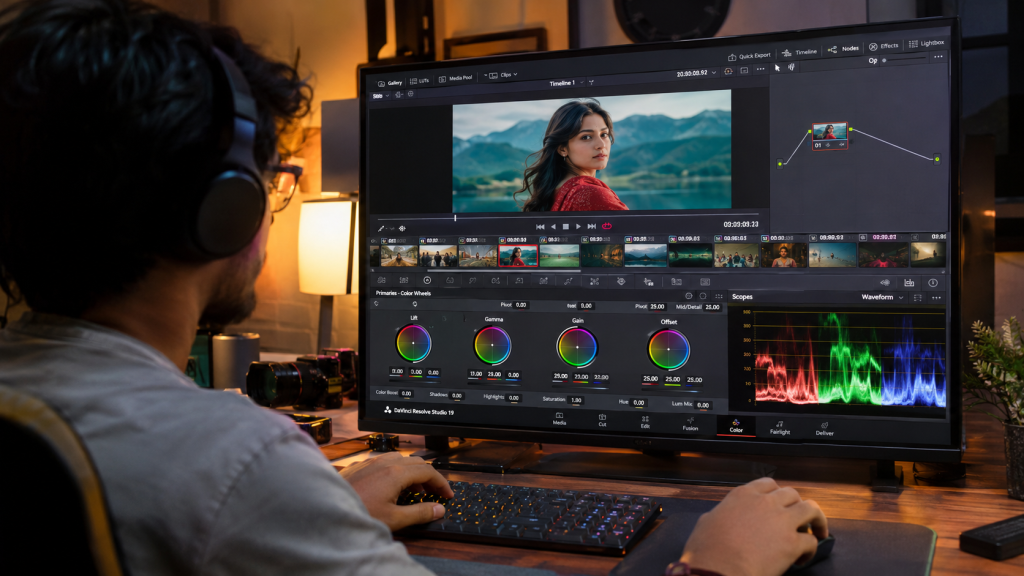
Strength: DaVinci Resolve Free is a full professional editor, not a demo. It includes editing, colour grading, visual effects and audio tools, with no watermark listed on any official page checked. For a beginner who wants to learn real editing, it is the strongest free desktop option in this article.
Limit: most Neural Engine AI tools are Studio only, which means the free version does not include the full AI set. The Studio version is a one-time purchase, listed at $295 in earlier research and at $236 with a 20 percent discount on the Studio page checked on 4 November 2026, so re-verify the price on the day you buy. The free version exact maximum export resolution could not be verified, because the technical specifications page checked was blank, and free version commercial terms were not reviewed in that research.
Best fit: beginners who want to learn desktop editing seriously and who have a computer that can run a full editor.
Opus Clip
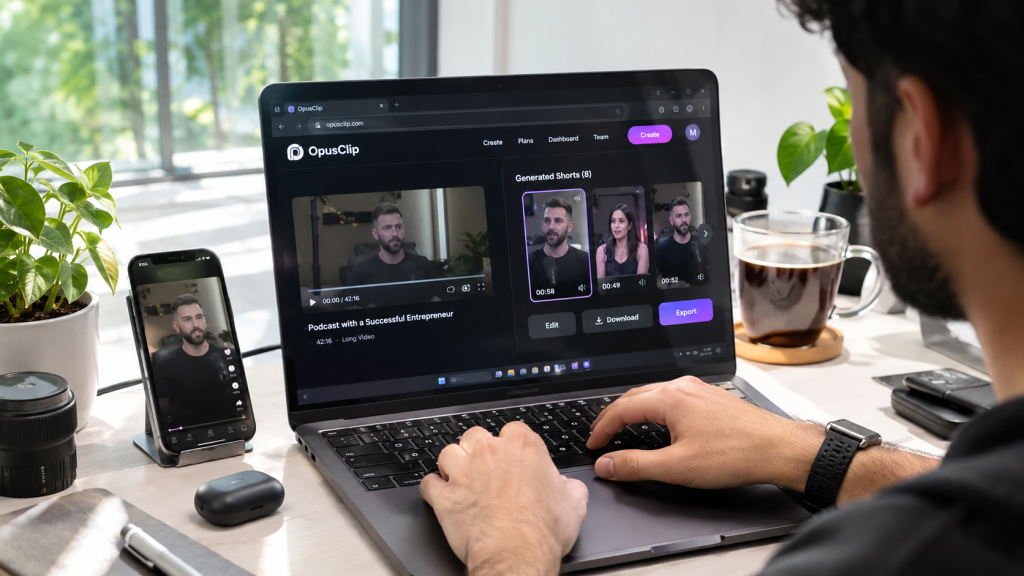
Strength: Opus Clip turns a long video into short vertical clips automatically, with captions, reframing to 9:16, and a virality score in the research checked. For a beginner with a podcast, a tutorial or a long YouTube video, it saves hours of manual cutting.
Limit: the free plan is small and the clips do not last. In the research checked, free clips carried a watermark and expired after 3 days, and the free allowance was reported differently in two checks on the same day, once as 60 credits per month and once as 30 upload minutes per month. The paid Starter plan in those checks costs $15 per month on monthly billing only. Re-verify the free allowance on the official pricing page before you plan a month of clips around it. The terms checked also say the services are for personal, non-commercial use, with no paid plan advertised as granting commercial rights, which is unresolved and flagged here honestly.
Best fit: beginners who already record long videos and want shorts from them quickly.
Vizard
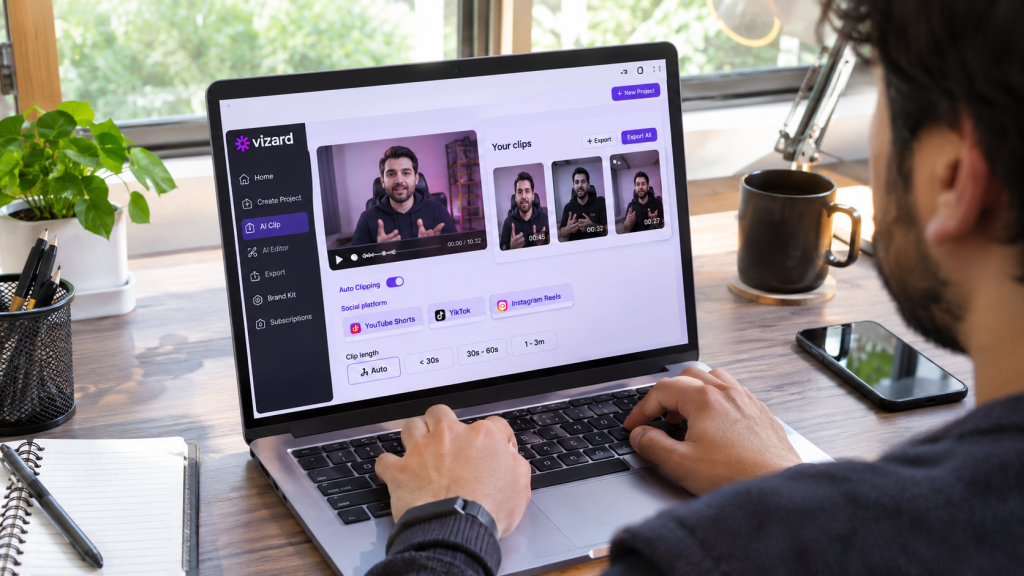
Strength: Vizard also turns long videos into clips, with a simple workflow and a free plan to test it. It is a good second option if Opus Clip does not fit your video style, because the clip selection and captions differ between tools.
Limit: the free plan in the research checked gives 60 credits per month, where 1 credit equals 1 minute of source video, with 720p output, a watermark, and 3 day storage. The Creator plan in those checks costs $29 per month, or $14.50 per month billed yearly. That means the free plan is for testing a few clips, not for a full weekly shorts schedule.
Best fit: beginners who want to test automatic clipping before paying for a monthly plan.
Clipchamp
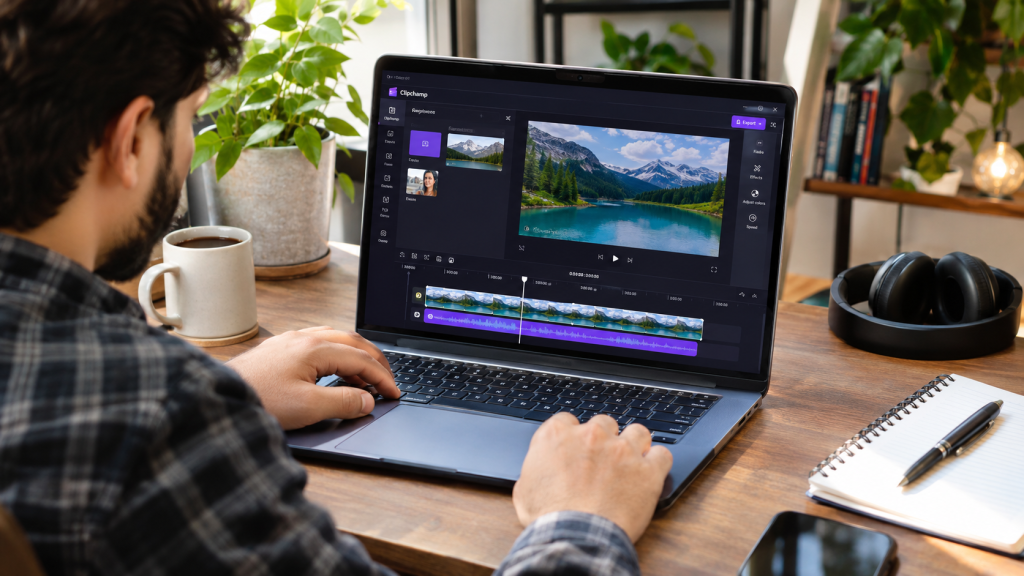
Strength: Clipchamp runs in a browser, so you do not need to install software, and it is built into Windows, which makes it easy for a Windows beginner to start. It covers the basics: trimming, text, transitions, stock media and simple AI features, depending on the plan.
Limit: no verified free price, watermark or export limit is stated in this article, because none was verified from an official Clipchamp page for this draft. Clipchamp plans and free limits have changed with Microsoft ownership, so check the official Clipchamp pricing page before you rely on it for a project with a deadline.
Best fit: Windows beginners who want a browser editor with no install.
Beginner workflow that works for free
- Record or pick one long video, or one clear idea for a short video.
- If it is a short, edit it in CapCut on your phone. If it is a desktop project, edit it in DaVinci Resolve Free.
- If you already have a long video, run it through Opus Clip or Vizard once, pick the best 2 or 3 clips, and ignore the rest.
- Add captions and check the export before you post. Captions help viewers who watch without sound, and they catch export problems early.
- Before you use a free clip for a client, an ad or a monetised channel, check the commercial licence for that exact plan. A watermark free export does not automatically mean a commercial licence.
Common beginner mistakes
Mistake 1: picking the tool with the most features instead of the tool you will actually finish a video in. Fix it by starting with CapCut or Clipchamp, not a full studio editor, for your first 5 videos.
Mistake 2: ignoring the watermark until after you export. Fix it by exporting one test clip first, before you spend an hour editing.
Mistake 3: assuming free means commercial. Fix it by checking the terms for your plan, especially for Opus Clip and Kling style free plans where commercial use is restricted.
Mistake 4: editing a long video in one sitting. Fix it by cutting it into short clips first, then joining only the best parts.
Mistake 5: posting without captions. Fix it by adding captions in CapCut, Descript or the clipping tool before you publish.
FAQ
What is the best completely free AI video tool for beginners?
There is no single completely free tool with no limits. CapCut is the easiest free start for shorts, and DaVinci Resolve Free is the most powerful free desktop editor with no watermark listed. Pick based on whether you edit on a phone or on a computer.
Can I use free AI video tools for YouTube monetisation?
It depends on the plan. Some free plans allow personal use only, and some paid plans add commercial rights. Check the terms for the exact plan you use before you monetise a video made with a free tool.
Do free AI video tools add a watermark?
Some do, some do not. Opus Clip and Vizard free plans add a watermark in the research checked. DaVinci Resolve Free has no watermark listed. CapCut free export policy was not stated clearly on the pricing page checked, so test one export first.
How many free videos can I make per month?
It depends on credits. Vizard free gives 60 credits per month in the research checked, where 1 credit is 1 minute of source video. Opus Clip free allowance was reported differently in two checks, so re-verify it on the official page. CapCut and DaVinci Resolve Free are not credit limited in the same way, but they limit features instead.
Should a beginner pay for an AI video tool?
Not at first. Use the free plans in this article for your first videos, learn which limit bothers you most, and only pay for the plan that removes that exact limit.