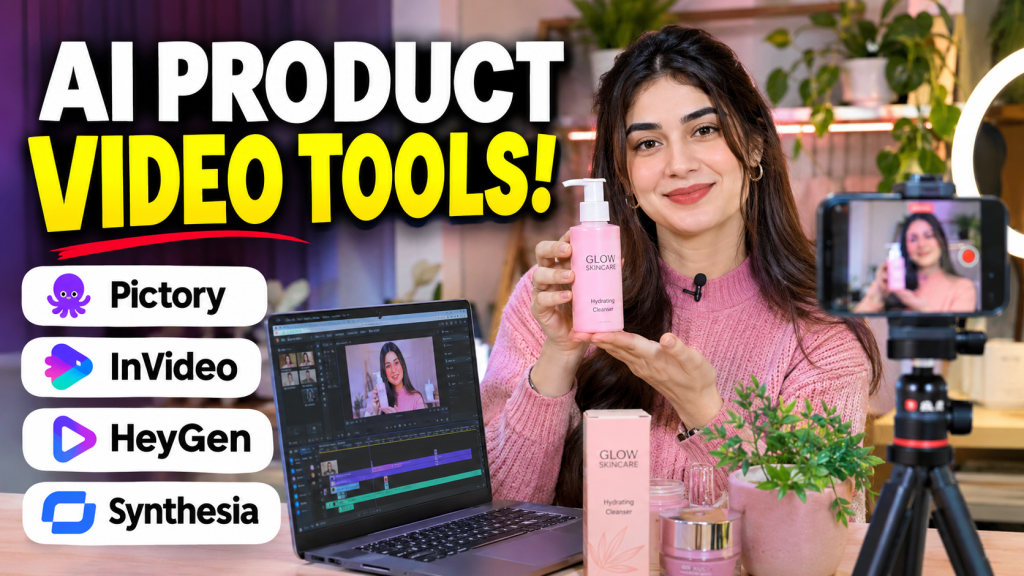
If you sell one product and need one video, start with a script-first tool. Write the product promise in one sentence, turn it into a 30 to 60 second script, and let the tool build the video around real product photos. Use an avatar presenter only when a talking explanation adds trust, for example when the product needs a demo or a how it works explanation. These AI product video tools are compared below for one job: a clear product video that a buyer can understand in under a minute, with captions, a voiceover and a call to action, ready for a product page and for social feeds.
The 5 step workflow that works for any tool
Step 1: Write the product promise in one sentence. Not a list of features, one benefit. Example: this serum fades dark spots in four weeks with daily use.
Step 2: Turn that promise into a 30 to 60 second script. Open with the problem, show the product in the first 5 seconds, give one proof point, and close with the price and where to buy.
Step 3: Pick real product photos or a short clip. AI product video tools look far better with your real product in them. Use a clean background, good light, and at least one close up shot.
Step 4: Add a voiceover and captions. Most buyers watch without sound on social feeds, so captions are not optional. Keep the voiceover calm and clear, and check every caption line for spelling.
Step 5: Export both versions. Export a 16:9 version for YouTube and your product page, and a 9:16 vertical version for Reels, TikTok and Shorts, each with a clear call to action at the end.
Pictory
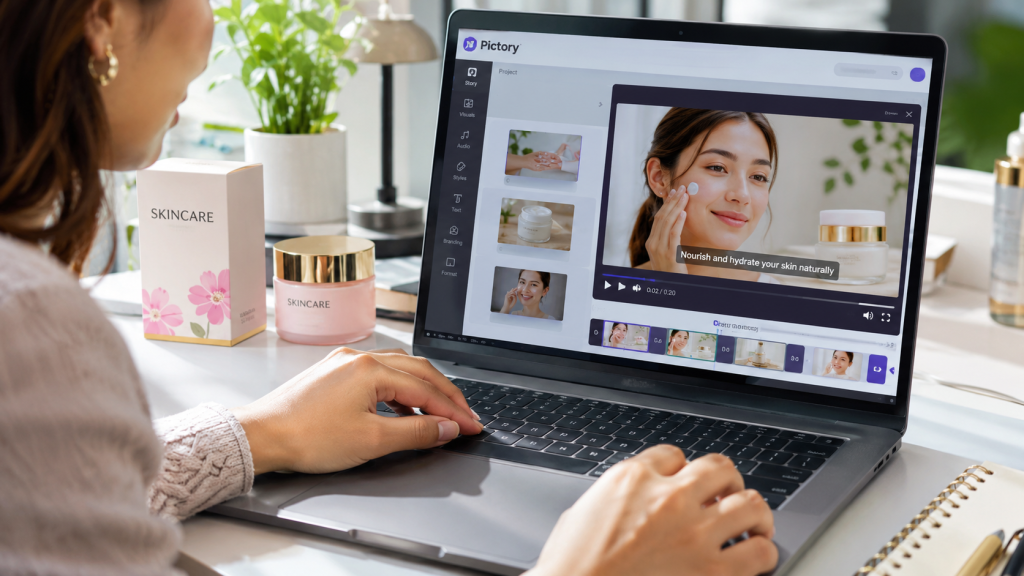
Pictory turns a script, a blog post, a product page or a recording into a captioned video. You paste your product text, Pictory suggests scenes and stock footage, and you swap in your own product photos where they matter most. Strength: the fastest first video when you already have product text. You do not start from a blank screen.
Limit: the free trial is short, and trial downloads carry a watermark, so a trial video is not ready for a real listing.
Best fit: sellers who already have a product page or a script and want a fast first video from these AI product video tools. Price, checked on the official Pictory pricing page on 5 November 2026: Starter $25 a month billed annually ($29 billed monthly), Professional $35 a month billed annually ($59 monthly), Teams $119 a month billed annually ($199 monthly). The free trial runs 14 days, exports at 1080p, and includes both 16:9 and 9:16 formats. Prices change, so recheck on the day you buy.

InVideo AI
InVideo AI turns a prompt or a script into a full video with voiceover, music and captions. You describe the product and the buyer, and it drafts the video, which you then edit scene by scene.
Strength: one prompt to a finished draft. It is the best option in this comparison when you want the tool to do the first draft for you.
Limit: pricing is hard to pin down, because different plan lineups are shown to different visitors in 2026. For that reason this article does not print an InVideo price table. InVideo is a credit based service with paid plans and a free option with limited credits and watermarked exports. Check the official pricing page on the day you buy.
Best fit: sellers who want one prompt to a finished draft from these AI product video tools, and who are happy to edit the draft afterwards.

HeyGen
HeyGen adds an avatar presenter to your product video. You can use a stock avatar or a custom avatar, add your product clip from a hero photo, and get a talking pitch without filming yourself.
Strength: a talking product pitch or demo without filming. The avatar stays consistent across videos, which helps when you make several product videos.
Limit: the free plan is small, only 3 watermarked videos a month up to 1 minute each, and credit cost per minute depends on the avatar engine, so check your credit use on a test video first.
Best fit: a talking product pitch or demo without filming, especially for a product that needs an explanation. Of the AI product video tools compared here, HeyGen is the one to pick for that job. Price, consistent across October 2026 checks: Free $0, 3 watermarked videos a month up to 1 minute. Creator $29 a month, or $24 a month billed annually, with 600 credits. Pro from $49 a month with 1,000 credits. Prices change, so recheck on the day you buy.
Synthesia
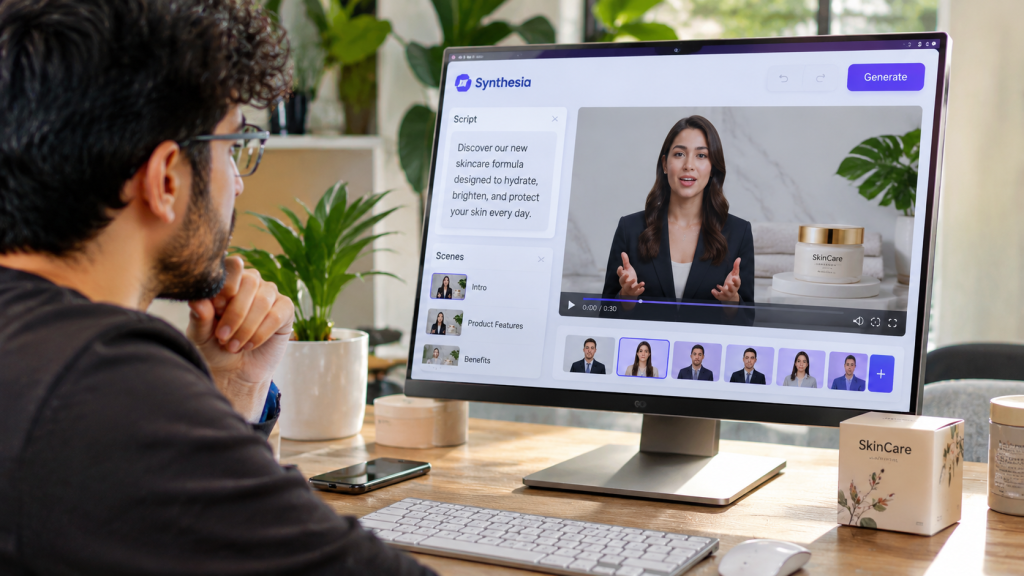
Synthesia makes structured avatar explainers with a consistent presenter. You edit the script, not the footage, so updating a video when a price or feature changes means changing text and re-exporting, not reshooting.
Strength: the easiest of the AI product video tools in this comparison to update. When a product price changes, you change one line of script and export again.
Limit: pricing changed in October 2026, and Synthesia’s own pages still show some old figures, so treat any single price with care. The latest independent check on 4 November 2026 shows Starter at $19 a month ($14 billed annually), after Synthesia replaced the Creator plan with Pro in October 2026. Pro is listed at $89 a month ($64 to $59 billed annually). Do not rely on a single older source; recheck the official pricing page before you buy.
Best fit: a product explainer or onboarding style video that will be updated by editing the script, not by reshooting.
Comparison table
| Tool | Input | Free option | Paid entry | Output | Best fit |
|---|---|---|---|---|---|
| Pictory | script, product page, blog post or recording | 14 day free trial, 300 AI credits, watermarked downloads | Starter $25 a month billed annually | 1080p, 16:9 and 9:16 | fast first video from existing text |
| InVideo AI | prompt or script | free option with limited credits and watermarked exports | credit based paid plans, no single price quoted here because lineups differ by visitor | video with voiceover, music and captions | one prompt to a finished draft |
| HeyGen | hero photo, script, avatar presenter | 3 watermarked videos a month up to 1 minute | Creator $29 a month, $24 billed annually, 600 credits | avatar presenter plus product clip | talking pitch without filming |
| Synthesia | script with a structured avatar presenter | check the official page for the current free option | latest check 4 November 2026, Starter $19 a month, $14 billed annually, price changed October 2026 | structured avatar explainer | explainer that will be updated by script edits |
Common mistakes
Mistake 1: a video with no product close up. Fix it by filming or photographing the product from 30 centimetres away, in good light, and putting that shot in the first 5 seconds.
Mistake 2: a script that lists features instead of one benefit. Fix it by opening with the one result the buyer wants, and giving only one proof point after it.
Mistake 3: captions missing on silent autoplay. Fix it by adding captions in the tool or in your editor, and by watching the video once with the sound off before you publish.
Mistake 4: only one aspect ratio for every platform. Fix it by exporting 16:9 for YouTube and your product page, and 9:16 for Reels, TikTok and Shorts.
Mistake 5: no call to action at the end. Fix it by ending every product video with one clear line: the price, where to buy, and one reason to buy now.
FAQ
How long should a product video be?
30 to 60 seconds for a product page or a social feed. Shorter than 30 seconds rarely explains the product, and longer than 60 seconds loses buyers who have not decided yet.
Do I need to film anything?
No, not for a first video. Real product photos are enough for Pictory and InVideo AI, and a hero photo is enough for a HeyGen avatar pitch. Filming helps later, when you have a proven script and want a real demo.
Can I use the free plan for a real listing?
Usually no. Free plans in these AI product video tools add a watermark or cap the length, and a watermarked video looks unfinished on a real product page. Use the free plan to test the workflow, then pay for the video you actually publish.
How do I update a video when the price or feature changes?
With Synthesia, edit the script and re-export. With the other tools, edit the script or the scene, swap the price text, and re-export both the 16:9 and the 9:16 versions. Keep the script file, so the update takes minutes, not a new shoot.
Which tool should a beginner start with?
Of the AI product video tools in this article, start with Pictory if you already have product text, start with InVideo AI if you want one prompt to a finished draft, and start with HeyGen only if a talking presenter adds trust for your product.